Arduino UNO Q - TFT LCD Touch-Display SPI

Möchten Sie Ihrem Arduino-UNO-Q-Projekt mit nur wenigen Drähten einen farbigen Bildschirm hinzufügen? Diese einsteigerfreundliche Anleitung zeigt Ihnen Schritt für Schritt, wie Sie ein SPI-TFT-LCD-Display mit dem Arduino UNO Q verwenden — mit oder ohne Touch.

In diesem Tutorial lernen Sie:

Diese Anleitung behandelt SPI-TFT-LCD-Displays mit und ohne Touch. Sie funktioniert mit 1,3-, 1,54-, 2,2-, 2,4-, 2,8-, 3,2- und 3,5-Zoll-Panels, die von den Controller-Chips ILI9341, ILI9488 oder ST7789 angesteuert werden.
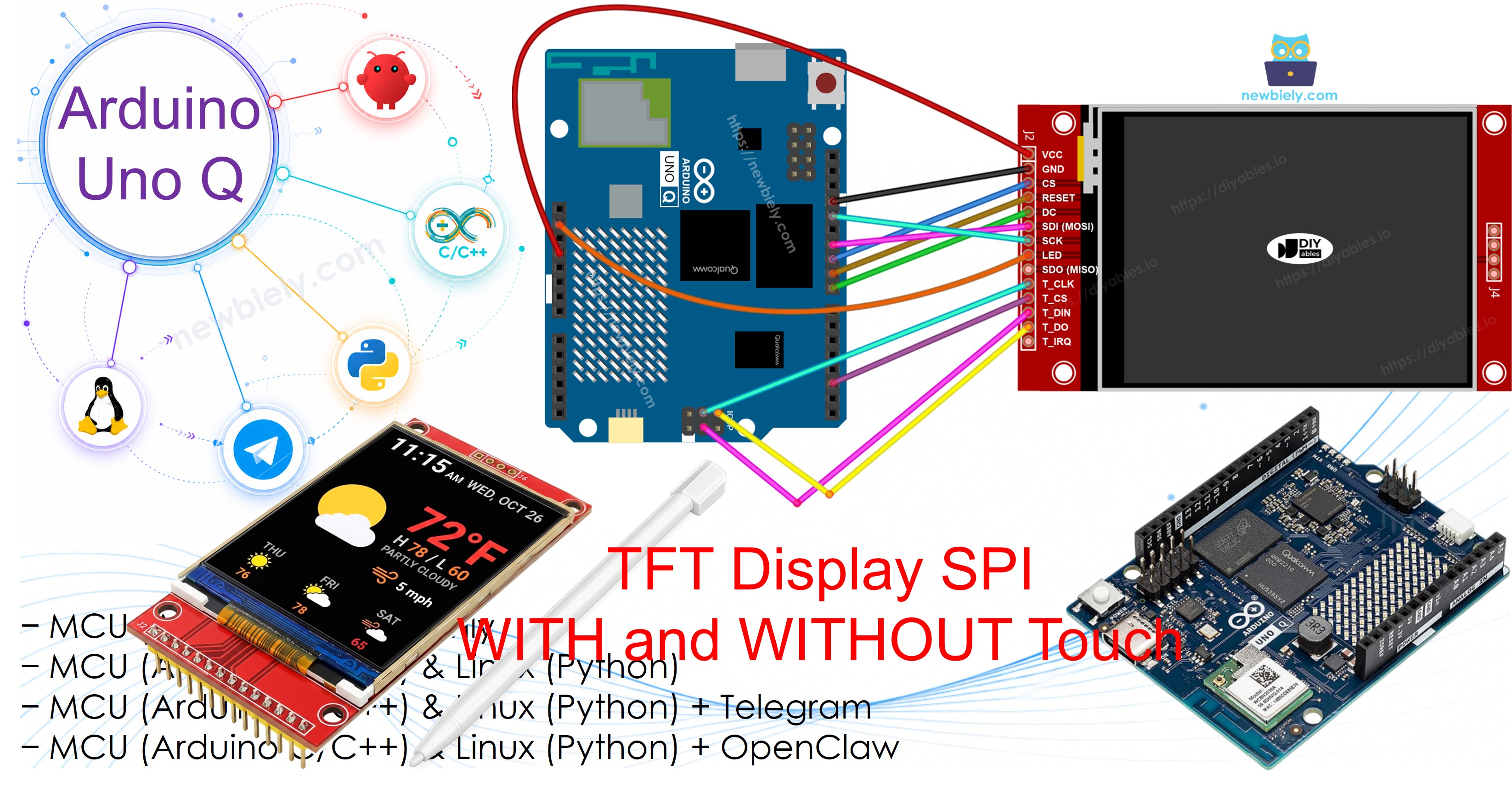
Arduino UNO Q TFT SPI Display

Tipp — einfachere und schnellere Alternative: Wenn Sie einen Bildschirm möchten, der überhaupt keine Verdrahtung benötigt, ziehen Sie stattdessen das TFT Touch Shield in Betracht. Es wird direkt auf die Stiftleisten des Arduino UNO Q gesteckt — keine Jumperkabel nötig. Es verwendet eine 8-Bit-Parallelschnittstelle, die Pixeldaten deutlich schneller überträgt als SPI.

Erforderliche Hardware

1×Arduino UNO Q
1×USB Cable for Arduino Uno Q
1×SPI TFT display module
1×Verbindungskabel
1×(Optional) Micro SD Card
1×(Empfohlen) Schraubklemmenblock-Shield für Arduino Uno
1×(Empfohlen) Sensors/Servo Expansion Shield for Arduino Uno
1×(Empfohlen) Breadboard-Shield für Arduino Uno
1×(Empfohlen) Gehäuse für Arduino Uno
1×(Empfohlen) Prototyping-Grundplatte & Breadboard-Kit für Arduino Uno

Oder Sie können die folgenden Kits kaufen:

1×DIYables Sensor-Kit (18 Sensoren/Displays)
Offenlegung: Einige der in diesem Abschnitt bereitgestellten Links sind Amazon-Affiliate-Links. Wir können eine Provision für Käufe erhalten, die über diese Links getätigt werden, ohne zusätzliche Kosten für Sie. Wir schätzen Ihre Unterstützung.

Hinweis: Im Gegensatz zu einem 5V-Arduino-Board arbeitet die MCU des Arduino UNO Q bereits mit 3,3V-Logik, daher ist für diese Verdrahtung kein 5V-auf-3,3V-Pegelwandler erforderlich.

Über das SPI-TFT-LCD-Display

Ein SPI-TFT-Display ist ein Farb-LCD-Panel, das von einem Controller-Chip über den SPI-Bus angesteuert wird.

Wichtige Spezifikationen und Funktionen:

  • Schnittstelle: SPI (4-Draht) — nur eine Handvoll Signalleitungen nötig
  • Farbe: Volle RGB-Farbe, 16-Bit oder 18-Bit je nach Treiberchip
  • Unterstützte Größen: 1,3-, 1,54-, 2,2-, 2,4-, 2,8-, 3,2- und 3,5-Zoll-Panels
  • Touch (optional): Resistiver Touch-Controller XPT2046 / HR2046 / ADS7843 am selben SPI-Bus
  • MicroSD-Steckplatz: Auf den meisten Modulen vorhanden, ebenfalls am gemeinsamen SPI-Bus
  • Bibliothek: DIYables_TFT_SPI — eine Bibliothek für das Display und den Touch-Controller
  • Logikpegel: 3,3V — perfekt passend zu den MCU-Pins des Arduino UNO Q

Die Bibliothek DIYables_TFT_SPI unterstützt drei gängige Treiberchips:

  • ILI9341 — 16-Bit-RGB565-Farbe, bis zu 40 MHz SPI
  • ILI9488 — 18-Bit-RGB666-Farbe, bis zu 24 MHz SPI
  • ST7789 — 16-Bit-RGB565-Farbe, bis zu 40 MHz SPI

Empfehlung: Wenn Sie noch kein Display gekauft haben, empfehlen wir den Treiber ST7789. Er ist weit verbreitet, läuft mit voller SPI-Geschwindigkeit von 40 MHz und ist die unkomplizierteste Wahl für neue Projekte.

Die Bibliothek erweitert Adafruit GFX, sodass alle Standardfunktionen zum Zeichnen und für Text verfügbar sind.

Pinbelegung

Die meisten SPI-TFT-LCD-Displays haben die folgenden Pins:

Display-Pins:

Pin Funktion
VCC Stromversorgung
GND Masse
CS Chip Select — wird auf LOW gezogen, um das Display am SPI-Bus auszuwählen
DC / RS Daten-/Befehlsauswahl — HIGH für Pixeldaten, LOW für Befehle
RST Hardware-Reset — optional; bei Nichtverwendung mit 3,3V verbinden
MOSI / SDI / SDA SPI-Dateneingang (MCU zum Display)
SCK / CLK SPI-Takt
MISO / SDO SPI-Datenausgang (Display zur MCU) — optional bei reiner Anzeigenutzung
LED / BL / BLK Stromversorgung der Hintergrundbeleuchtung — mit 3,3V oder einem PWM-Pin zum Dimmen verbinden

SD-Karten-Pins (falls Ihre Anwendung auf die SD-Karte zugreifen muss):

Pin Funktion
SD_CS / TF_CS Chip Select der SD-Karte
MOSI / SDI MOSI — Daten von der MCU zur SD-Karte
SCK / CLK SCK — SPI-Takt
MISO / SDO MISO — Daten von der SD-Karte zur MCU

Bei TFT-Displays mit Touch-Unterstützung gibt es zusätzliche Touch-Pins (falls Ihre Anwendung die Touch-Funktion nutzt und das Display sie unterstützt):

Pin Funktion
T_CS Chip Select des Touch-Controllers
T_CLK SCK — SPI-Takt
T_DIN MOSI — Daten von der MCU zum Touch-Controller
T_DO MISO — Daten vom Touch-Controller zur MCU
T_IRQ Touch-Interrupt — optional; signalisiert, wenn der Bildschirm berührt wird

Hinweis: Einige Displaymodule ohne Touch führen ebenfalls die Pins T_CS, T_CLK, T_DIN, T_DO und T_IRQ heraus. Diese sind auf diesen Platinen ohne Funktion — der Touch-Controller-IC ist nicht bestückt. Sie sind vorhanden, weil die Leiterplatte dasselbe Layout wie die Touch-Version verwendet, um die Anzahl der Fertigungsvarianten zu reduzieren.
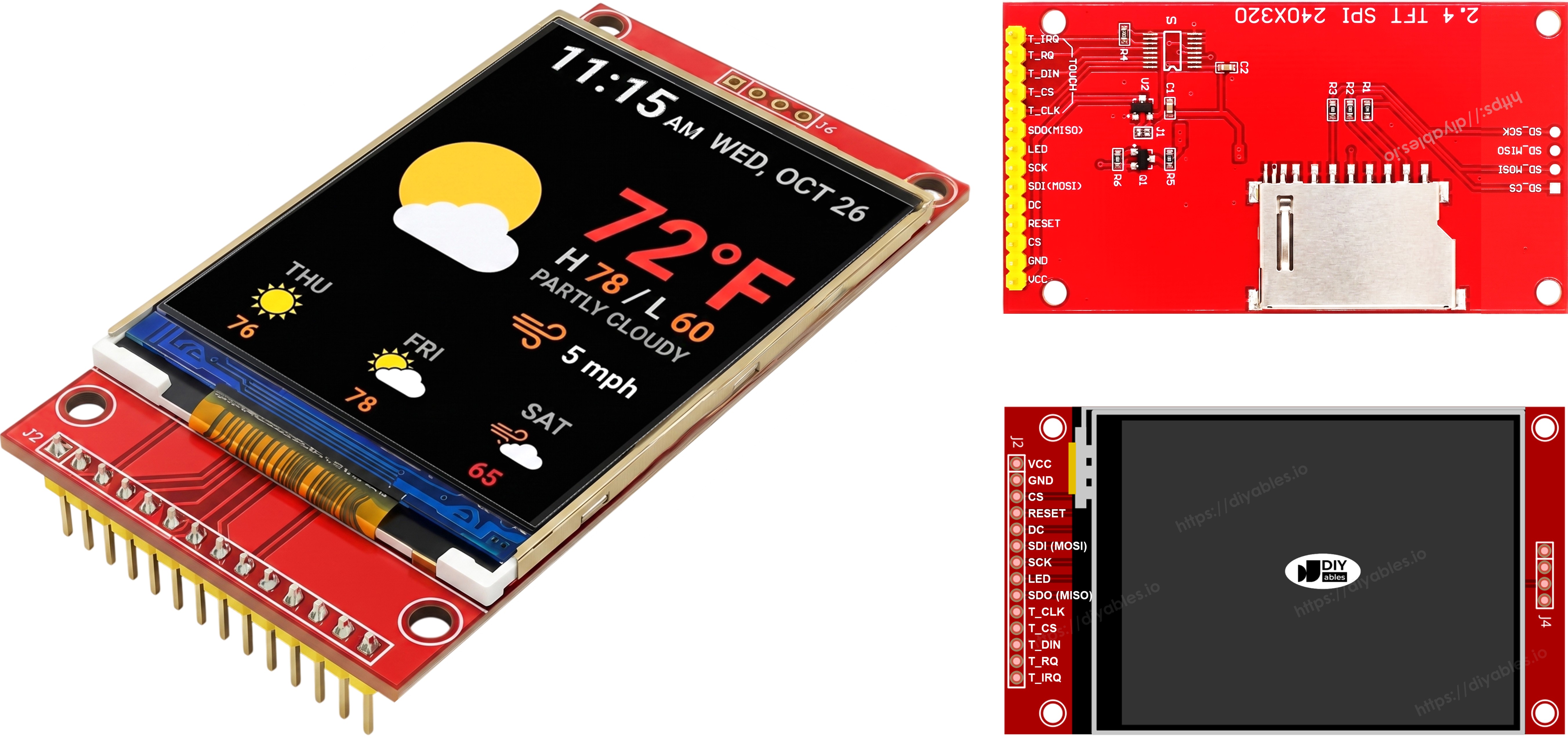
TFT SPI Display Pinbelegung

Schaltplan

Hinweis — SDO (MISO) ist optional: Die SDO-(MISO-)Leitung überträgt nur Daten vom Display zurück zur Platine. Keiner der Beispielcodes in diesem Tutorial liest vom Display, daher kann dieser Pin unverbunden bleiben. Bei Modulen, bei denen sich der Touch-Controller denselben SPI-Bus teilt, kann eine angeschlossene SDO-Leitung die Kommunikation stören, weshalb empfohlen wird, sie unverbunden zu lassen.

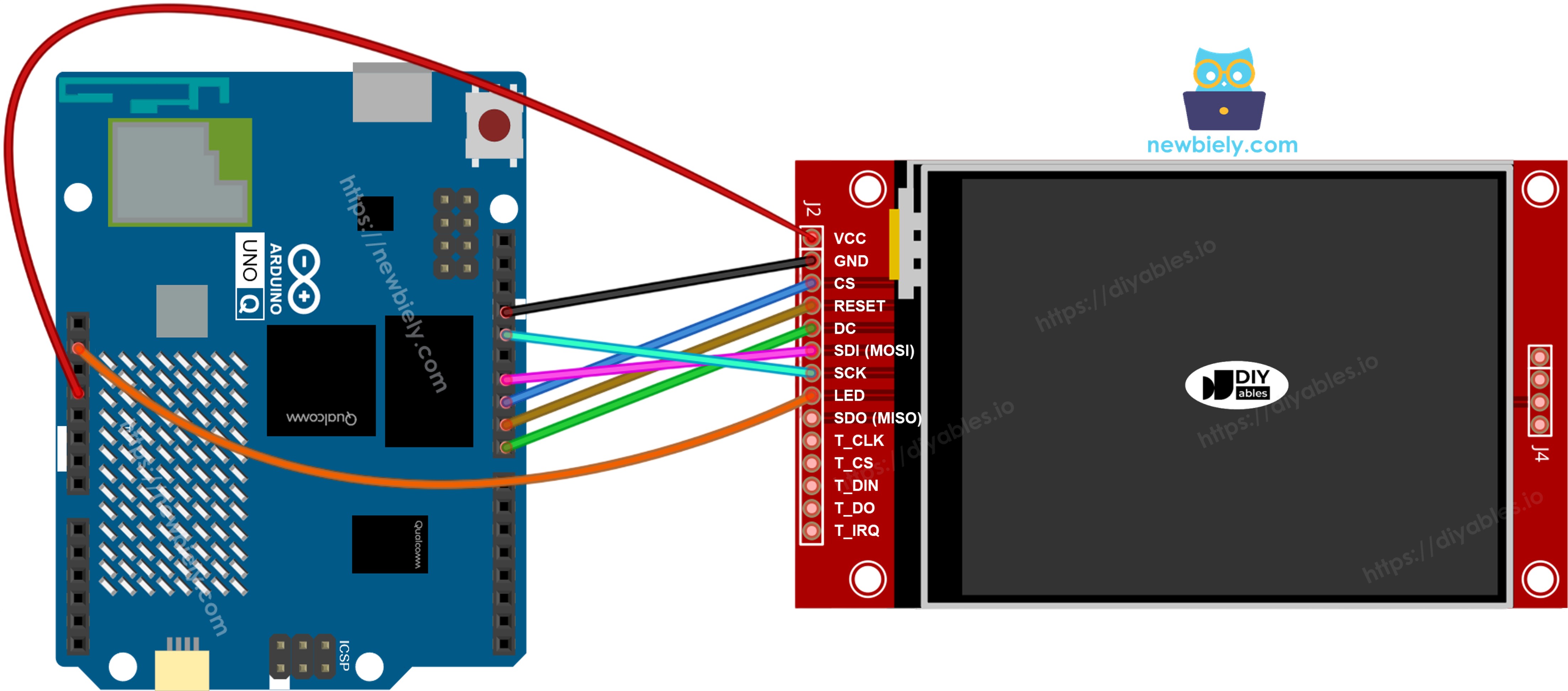
Das Display wird an die Hardware-SPI-Pins der MCU-Stiftleisten des Arduino UNO Q angeschlossen.

  • Hinweis: Die MCU-Pins des Arduino UNO Q geben 3,3V-Logik aus, was zum SPI-TFT-Display passt — verbinden Sie die Signalleitungen direkt, kein Pegelwandler nötig.
  • Hinweis: Verbinden Sie den VCC-Pin des TFT mit dem 3,3V-Pin des Arduino UNO Q, nicht mit 5V.
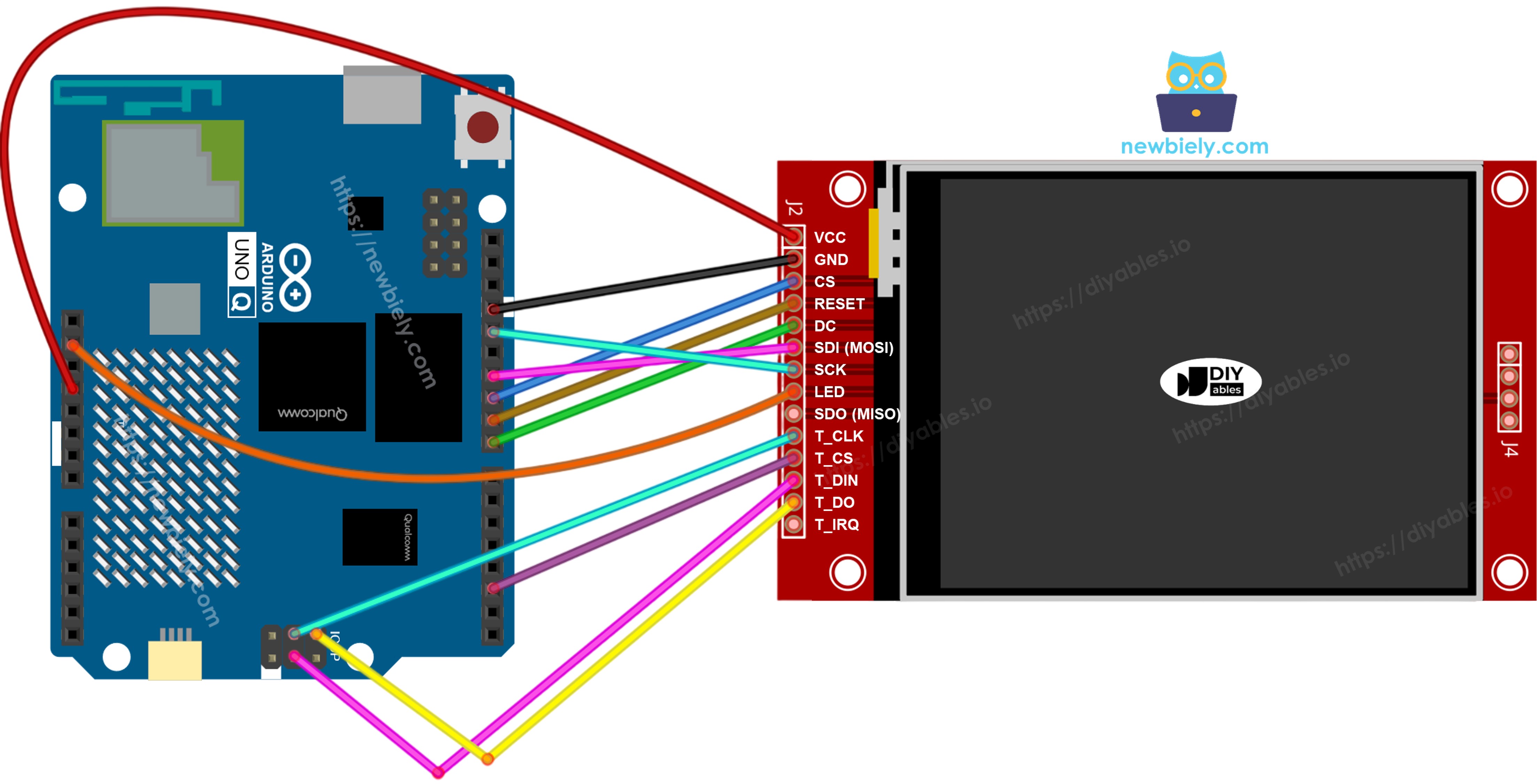
  • Hinweis: Das Display, die SD-Karte und der Touch-Controller teilen sich MOSI (D11), SCK (D13) und MISO (D12). Jedes Gerät hat seinen eigenen CS-Pin, sodass immer nur eines aktiv ist.

Ohne Touch

Verbinden Sie MOSI mit D11, SCK mit D13 und MISO mit D12 am Arduino UNO Q. CS, DC und RST können beliebige freie GPIOs sein — in den Beispielen werden D10, D8 und D9 verwendet.

Display:

TFT-Pin Arduino UNO Q MCU-Pin Beschreibung
VCC 3.3V Stromversorgung
GND GND Masse
CS D10 Chip Select
DC / RS D8 Daten-/Befehlsauswahl
RST D9 Reset (optional)
MOSI / SDI D11 Hardware-SPI MOSI
SCK D13 Hardware-SPI-Takt
MISO / SDO D12 Hardware-SPI MISO (optional)
LED / BL 3.3V Stromversorgung der Hintergrundbeleuchtung

SD-Karte (falls Ihre Anwendung auf die SD-Karte zugreifen muss):

SD-Pin Arduino UNO Q MCU-Pin Beschreibung
SD_CS / TF_CS D4 Chip Select der SD-Karte
MOSI / SDI D11 Gemeinsam mit Display-MOSI (D11)
SCK / CLK D13 Gemeinsam mit Display-SCK (D13)
MISO / SDO D12 Gemeinsam mit Display-MISO (D12)
Arduino UNO Q TFT SPI Display Schaltplan ohne Touch

Dieses Bild wurde mit Fritzing erstellt. Klicken Sie, um das Bild zu vergrößern.

Mit Touch

Verbinden Sie den XPT2046-Touch-Controller mit dem SPI-Bus des Arduino UNO Q und teilen Sie D11, D13 und D12 mit dem Display.

Display:

TFT-Pin Arduino UNO Q MCU-Pin Beschreibung
VCC 3.3V Stromversorgung
GND GND Masse
CS D10 Chip Select
DC / RS D8 Daten-/Befehlsauswahl
RST D9 Reset (optional)
MOSI / SDI D11 Hardware-SPI MOSI
SCK D13 Hardware-SPI-Takt
MISO / SDO D12 Hardware-SPI MISO (optional)
LED / BL 3.3V Stromversorgung der Hintergrundbeleuchtung

Touch-Controller (falls Ihre Anwendung die Touch-Funktion nutzt und das Display sie unterstützt):

Touch-Pin Arduino UNO Q MCU-Pin Beschreibung
T_CS D2 Touch Chip Select
T_IRQ D2 Touch-Interrupt (optional)
T_DIN D11 Gemeinsam mit Display-MOSI (D11)
T_CLK D13 Gemeinsam mit Display-SCK (D13)
T_DO D12 Gemeinsam mit Display-MISO (D12)
Arduino UNO Q TFT SPI Display Schaltplan mit Touch

Dieses Bild wurde mit Fritzing erstellt. Klicken Sie, um das Bild zu vergrößern.

Die MCU des Arduino UNO Q stellt an den Uno-Stiftleisten eine Hardware-SPI-Schnittstelle bereit, daher teilen sich alle drei Peripheriegeräte — Display, SD-Karte und Touch-Controller — dieselben drei Datenleitungen. Die Bibliothek DIYables_TFT_SPI verwaltet sowohl das Display als auch den XPT2046-Touch-Controller über eine einzige API, sodass für die Touch-Seite keine separate SPI-Bibliothek benötigt wird.

Arduino UNO Q Code — Minimale Sketch-Struktur

Der Arduino UNO Q hat zwei Prozessoren, die zusammenarbeiten:

  • Die STM32-MCU steuert das SPI-TFT-Display an und liest den Touch-Controller aus — sie rendert sämtlichen Text und alle Grafiken in Echtzeit
  • Die Qualcomm-MPU führt Debian Linux aus und kümmert sich um WLAN, Python und die Cloud-Anbindung
  • In diesem Abschnitt wird nur die MCU programmiert — die Linux-Seite bleibt untätig. Ein späterer Abschnitt zeigt, wie beide Prozessoren über Bridge zusammenarbeiten.

Alle Sketches, die die Bibliothek DIYables_TFT_SPI verwenden, teilen dieses Grundgerüst:

#include <DIYables_TFT_SPI.h> #define TFT_CS_PIN 10 #define TFT_DC_PIN 8 #define TFT_RST_PIN 9 // Uncomment the line that matches your driver chip: // DIYables_ILI9341_SPI TFT_display(240, 320, TFT_CS_PIN, TFT_DC_PIN, TFT_RST_PIN); // DIYables_ILI9488_SPI TFT_display(320, 480, TFT_CS_PIN, TFT_DC_PIN, TFT_RST_PIN); DIYables_ST7789_SPI TFT_display(240, 320, TFT_CS_PIN, TFT_DC_PIN, TFT_RST_PIN); void setup() { TFT_display.begin(); TFT_display.setRotation(1); } void loop() { // drawing code here }

Übergeben Sie dem Konstruktor die physischen Pixelabmessungen Ihres Panels. Module mit demselben Treiberchip gibt es in verschiedenen Größen.

Arduino UNO Q Code — Formen zeichnen

Der folgende Sketch demonstriert die Zeichenprimitive von Adafruit GFX auf Ihrem SPI-TFT-Display: Kreise, Dreiecke, Rechtecke, abgerundete Rechtecke und Linien.

Was der Code macht:

  • Erstellt das Display-Objekt für Ihren Treiberchip
  • Initialisiert das Panel und stellt die Querformat-Drehung ein
  • Skaliert jede Formposition auf die tatsächliche Bildschirmgröße
  • Zeichnet das gesamte Raster farbiger Formen alle 10 Sekunden neu
/* * Dieser Arduino UNO Q Code wurde von newbiely.de entwickelt * Dieser Arduino UNO Q Code wird der Öffentlichkeit ohne jegliche Einschränkung zur Verfügung gestellt. * Für vollständige Anleitungen und Schaltpläne besuchen Sie bitte: * https://newbiely.de/tutorials/arduino-uno-q/arduino-uno-q-tft-lcd-touch-display-spi */ /* Created by DIYables This example code is in the public domain Product page: https://diyables.io */ // ============================================= // Single include brings in the base class plus all driver classes. // ============================================= #include <DIYables_TFT_SPI.h> // ============================================= // Wiring (Arduino UNO Q - MCU side) // --------------------------------------------- // TFT module Arduino UNO Q // ------------ --------------------------------- // VCC -> 3.3V // GND -> GND // CS -> D10 (TFT_CS_PIN) // RESET -> D9 (TFT_RST_PIN) // DC / RS -> D8 (TFT_DC_PIN) // SDI / MOSI -> D11 (hardware SPI MOSI) // SCK -> D13 (hardware SPI SCK) // LED -> 3.3V (or any GPIO via initBacklight) // SDO / MISO -> D12 (only needed when reading from display) // // The Arduino UNO Q MCU pins are 3.3V - no level converter is needed. // ============================================= // ============================================= // SPI pin definitions (adjust for your board) // ============================================= #define TFT_CS_PIN 10 #define TFT_DC_PIN 8 #define TFT_RST_PIN 9 // Panel resolution in native (portrait) orientation - change to match your module #define TFT_WIDTH 240 #define TFT_HEIGHT 320 // MOSI and SCK use default hardware SPI pins // ============================================= // Create display object (uncomment matching driver) // ============================================= // DIYables_ILI9341_SPI TFT_display(TFT_WIDTH, TFT_HEIGHT, TFT_CS_PIN, TFT_DC_PIN, TFT_RST_PIN); // DIYables_ILI9488_SPI TFT_display(TFT_WIDTH, TFT_HEIGHT, TFT_CS_PIN, TFT_DC_PIN, TFT_RST_PIN); DIYables_ST7789_SPI TFT_display(TFT_WIDTH, TFT_HEIGHT, TFT_CS_PIN, TFT_DC_PIN, TFT_RST_PIN); #define BLACK DIYables_TFT_SPI::colorRGB(0, 0, 0) #define BLUE DIYables_TFT_SPI::colorRGB(0, 0, 255) #define RED DIYables_TFT_SPI::colorRGB(255, 0, 0) #define GREEN DIYables_TFT_SPI::colorRGB(0, 255, 0) #define ORANGE DIYables_TFT_SPI::colorRGB(255, 165, 0) #define PINK DIYables_TFT_SPI::colorRGB(255, 192, 203) #define VIOLET DIYables_TFT_SPI::colorRGB(148, 0, 211) #define TURQUOISE DIYables_TFT_SPI::colorRGB(64, 224, 208) #define WHITE DIYables_TFT_SPI::colorRGB(255, 255, 255) // Helper to draw a filled diamond void fillDiamond(int cx, int cy, int h, int v, uint16_t color) { int x0 = cx, y0 = cy - v; int x1 = cx + h, y1 = cy; int x2 = cx, y2 = cy + v; int x3 = cx - h, y3 = cy; TFT_display.fillTriangle(x0, y0, x1, y1, x2, y2, color); TFT_display.fillTriangle(x0, y0, x2, y2, x3, y3, color); } void setup() { TFT_display.begin(); TFT_display.setRotation(1); // Landscape } void loop() { TFT_display.fillScreen(WHITE); uint16_t w = TFT_display.width(); uint16_t h = TFT_display.height(); // Scale positions relative to screen size with better spacing int col1 = w / 8; int col2 = w * 3 / 8; int col3 = w * 5 / 8; int col4 = w * 7 / 8; int row1 = h / 4; int row2 = h / 2; int row3 = h * 3 / 4; // Outlined circle TFT_display.drawCircle(col1, row1, 30, RED); // Filled circle TFT_display.fillCircle(col2, row1, 30, RED); // Outlined triangle TFT_display.drawTriangle(col3 - 30, row1 + 25, col3 + 30, row1 + 25, col3, row1 - 25, BLUE); // Filled triangle TFT_display.fillTriangle(col4 - 30, row1 + 25, col4 + 30, row1 + 25, col4, row1 - 25, GREEN); // Outlined rectangle TFT_display.drawRect(col1 - 35, row2 - 20, 70, 40, ORANGE); // Filled rectangle TFT_display.fillRect(col2 - 35, row2 - 20, 70, 40, TURQUOISE); // Outlined round rectangle TFT_display.drawRoundRect(col3 - 35, row2 - 20, 70, 40, 10, VIOLET); // Filled round rectangle TFT_display.fillRoundRect(col4 - 35, row2 - 20, 70, 40, 10, PINK); // Outlined diamond (centered between col1 and col2) int diamond1_x = (col1 + col2) / 2; TFT_display.drawLine(diamond1_x, row3 - 30, diamond1_x + 25, row3, GREEN); TFT_display.drawLine(diamond1_x + 25, row3, diamond1_x, row3 + 30, GREEN); TFT_display.drawLine(diamond1_x, row3 + 30, diamond1_x - 25, row3, GREEN); TFT_display.drawLine(diamond1_x - 25, row3, diamond1_x, row3 - 30, GREEN); // Filled diamond (centered between col3 and col4) int diamond2_x = (col3 + col4) / 2; fillDiamond(diamond2_x, row3, 25, 30, BLUE); delay(10000); }

Schnellanleitung

Zum ersten Mal mit dem Arduino UNO Q? Folgen Sie dem Tutorial Erste Schritte mit dem Arduino UNO Q, um Ihre Entwicklungsumgebung vorzubereiten, bevor Sie fortfahren.

  • Verbinden: Verdrahten Sie das SPI-TFT-Display wie im Schaltplan gezeigt mit dem Arduino UNO Q und schließen Sie dann das USB-C-Kabel an.
  • Arduino App Lab öffnen: Starten Sie Arduino App Lab und warten Sie, bis Ihr Arduino UNO Q erkannt wird — beim ersten Start kann dies einige Minuten dauern.
  • Eine neue App erstellen: Klicken Sie auf die Schaltfläche Create New App.
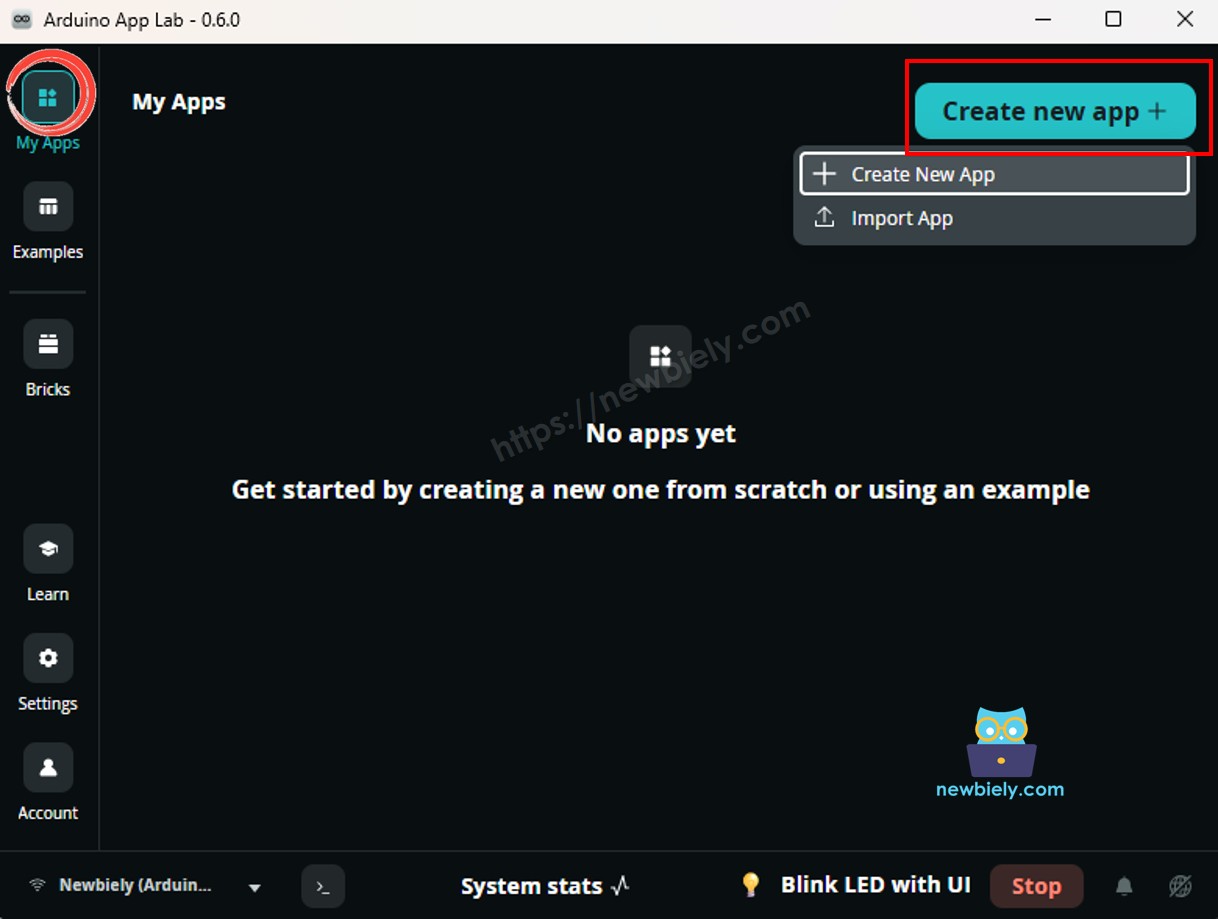
Neue App in Arduino App Lab auf dem Arduino UNO Q erstellen
  • Geben Sie der App einen Namen, zum Beispiel: DIYables_TftSpi
  • Klicken Sie zur Bestätigung auf Create.
  • Sie sehen eine Reihe von Ordnern und Dateien, die in Ihrer neuen App erzeugt wurden.
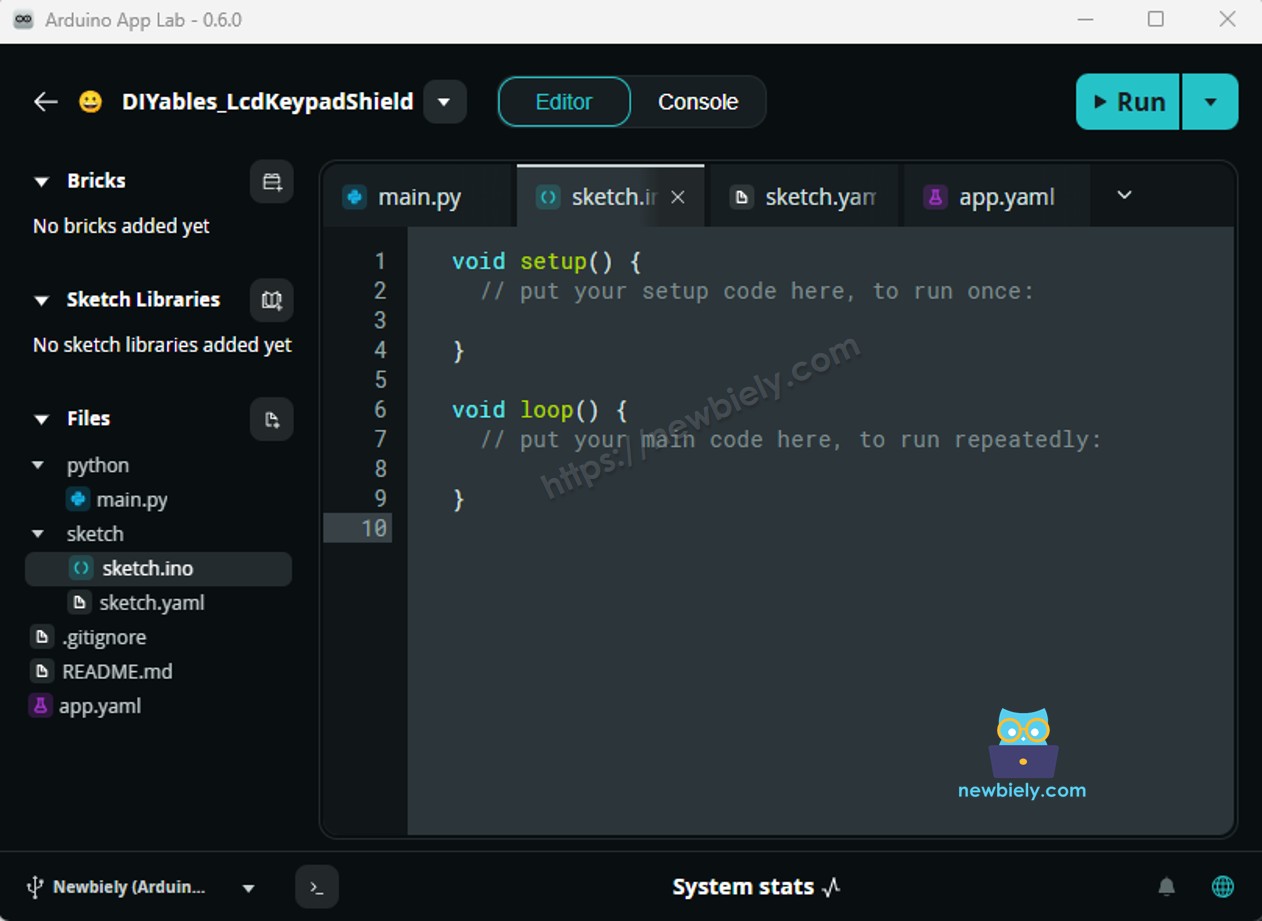
Arduino App Lab App-Ordner und -Dateien auf dem Arduino UNO Q
  • Suchen Sie die Datei sketch/sketch.ino — hier fügen Sie den MCU-Sketch ein.
  • Den Sketch einfügen: Kopieren Sie den obigen MCU-Code und fügen Sie ihn in diese Sketch-Datei ein. Lassen Sie die anderen Dateien unverändert.
  • Ihren Treiber wählen: Entfernen Sie das Kommentarzeichen vor der Konstruktorzeile, die zu Ihrem Panel passt — ILI9341, ILI9488 oder ST7789 — und kommentieren Sie die anderen beiden aus.
    • Install the library: Click the Add sketch library button (the open book icon with a + sign) in the left sidebar.
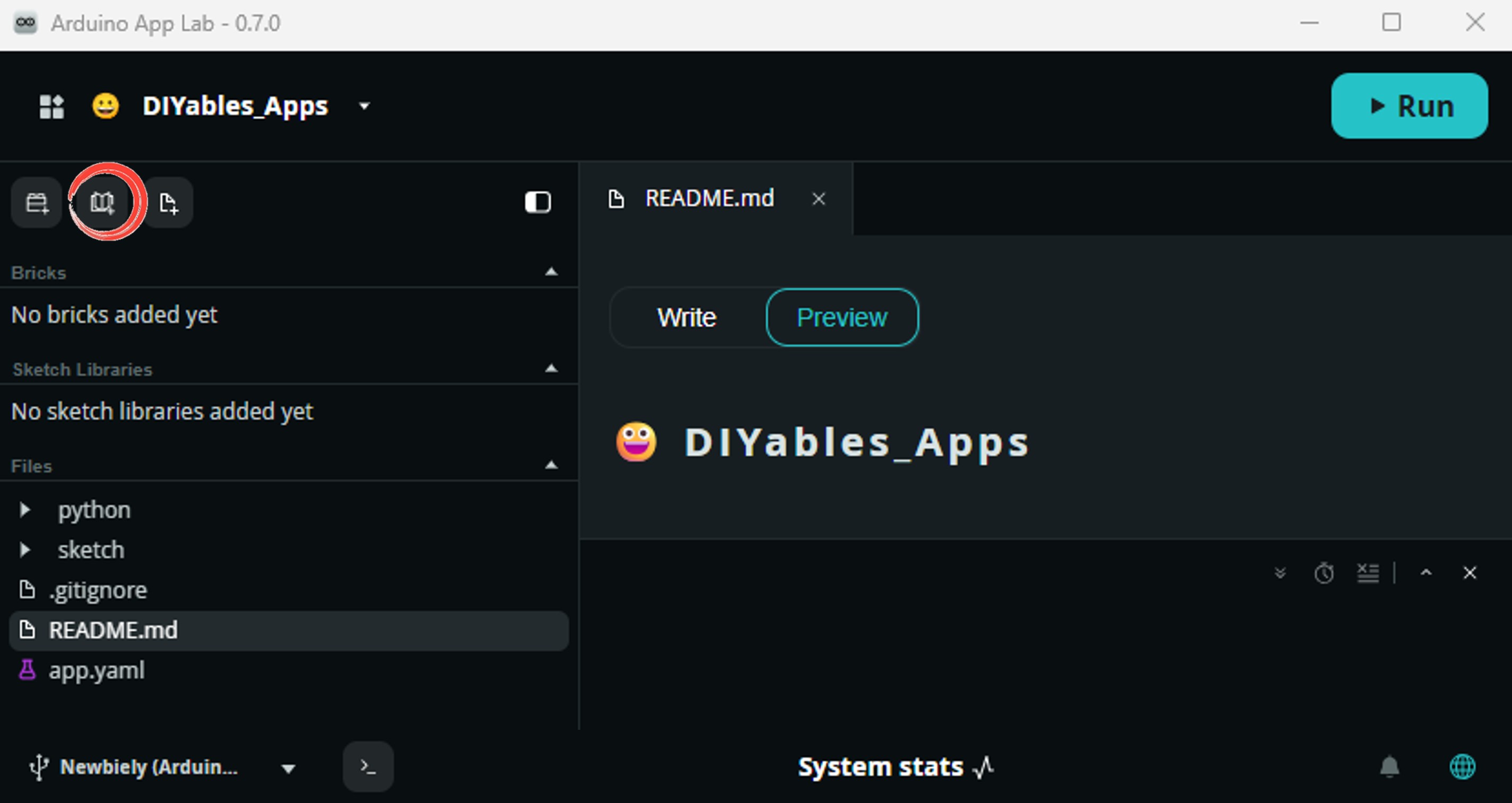
    Add sketch library in Arduino App Lab on Arduino UNO Q
    • Search for Arduino_RouterBridge created by Arduino and click the Install button.
    My Apps / DIYables Apps
    Run
    Bricks
    No bricks added...
    Sketch Libraries
    No sketch libra...
    Files
    python
    sketch
    .gitignore
    README.md
    app.yaml
    sketch.ino
    Add sketch library
    Arduino_RouterBridge Arduino

    This library provides a simple RPC bridge for Arduino UNO Q boards, allowing communication between the board and other devices using MsgPack serialization.

    0.4.1
    Install
    More Info
    • Search for DIYables TFT SPI created by DIYables.io and click the Install button.
    My Apps / DIYables Apps
    Run
    Bricks
    No bricks added...
    Sketch Libraries
    No sketch libra...
    Files
    python
    sketch
    .gitignore
    README.md
    app.yaml
    sketch.ino
    Add sketch library
    DIYables TFT SPI DIYables.io

    Works with both touch and non-touch versions of the same SPI TFT modules. Supports ILI9341 (240x320, 16-bit RGB565), ILI9488 (320x480, 18-bit RGB666), and ST7789 (240x320, 16-bit RGB565) displays over SPI. Includes built-in driver for XPT2046 / HR2046 / ADS7843 SPI touch controllers and 4-wire resistive touch panels - no separate touch library required. Use the display-only API for non-touch panels, or add initTouchSPI() to enable touch on modules that include a touch controller. Extends Adafruit GFX for full graphics support. Works with any Arduino-compatible board that has SPI.

    1.0.3
    Install
    More Info
    • Hochladen: Klicken Sie in Arduino App Lab auf die Run-Schaltfläche, um den Code zu kompilieren und auf den STM32 hochzuladen.
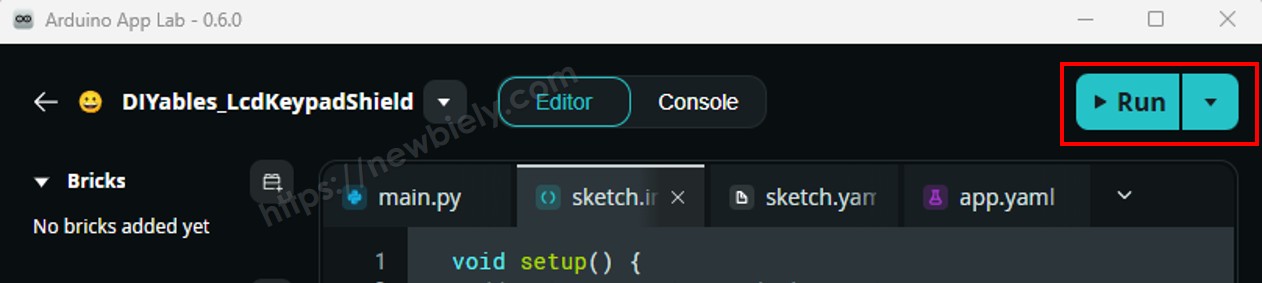
    Run-Schaltfläche in Arduino App Lab auf dem Arduino UNO Q klicken

    Das Display zeigt ein Raster farbiger Formen, das sich alle paar Sekunden aktualisiert!

    • Profi-Tipp: Stellen Sie Breite und Höhe im Konstruktor auf die tatsächliche Pixelgröße Ihres Panels ein. Eine Abweichung hier ist die häufigste Ursache für ein verschobenes oder abgeschnittenes Bild.

    Methoden-Kurzreferenz

    Methode Was sie macht Verwendung
    begin() Initialisiert den Display-Controller. Einmal in setup() aufrufen. TFT_display.begin();
    setRotation(r) Dreht das Koordinatensystem. 0=Hochformat, 1=Querformat. TFT_display.setRotation(1);
    fillScreen(color) Löscht den Bildschirm mit einer Vollfarbe. TFT_display.fillScreen(WHITE);
    colorRGB(r,g,b) Erzeugt eine 16-Bit-RGB565-Farbe aus 8-Bit-Komponenten. colorRGB(0, 128, 255)
    fillCircle(x,y,r,color) Zeichnet einen gefüllten Kreis. TFT_display.fillCircle(80, 80, 40, RED);
    fillRect(x,y,w,h,color) Zeichnet ein gefülltes Rechteck. TFT_display.fillRect(10, 10, 60, 40, BLUE);
    drawRoundRect(x,y,w,h,r,color) Zeichnet den Umriss eines abgerundeten Rechtecks. TFT_display.drawRoundRect(5,5,100,50,10,GREEN);

    Arduino UNO Q Code — Text und Zahlen anzeigen

    Dieser Sketch zeigt, wie Sie Zeichenketten und Zahlen in verschiedenen Größen, Farben und Positionen auf dem SPI-TFT-Display ausgeben.

    Was der Code macht:

    • Füllt den Bildschirm weiß
    • Stellt eine Magenta-Textfarbe und eine große Textgröße ein
    • Gibt einen Temperaturwert mit einer Nachkommastelle und einem Gradzeichen aus
    • Gibt in der nächsten Zeile einen Luftfeuchtigkeitswert aus
    /* * Dieser Arduino UNO Q Code wurde von newbiely.de entwickelt * Dieser Arduino UNO Q Code wird der Öffentlichkeit ohne jegliche Einschränkung zur Verfügung gestellt. * Für vollständige Anleitungen und Schaltpläne besuchen Sie bitte: * https://newbiely.de/tutorials/arduino-uno-q/arduino-uno-q-tft-lcd-touch-display-spi */ /* Created by DIYables This example code is in the public domain Product page: https://diyables.io */ // ============================================= // Single include brings in the base class plus all driver classes. // ============================================= #include <DIYables_TFT_SPI.h> // ============================================= // Wiring (Arduino UNO Q - MCU side) // --------------------------------------------- // TFT module Arduino UNO Q // ------------ --------------------------------- // VCC -> 3.3V // GND -> GND // CS -> D10 (TFT_CS_PIN) // RESET -> D9 (TFT_RST_PIN) // DC / RS -> D8 (TFT_DC_PIN) // SDI / MOSI -> D11 (hardware SPI MOSI) // SCK -> D13 (hardware SPI SCK) // LED -> 3.3V (or any GPIO via initBacklight) // SDO / MISO -> D12 (only needed when reading from display) // // The Arduino UNO Q MCU pins are 3.3V - no level converter is needed. // ============================================= // ============================================= // SPI pin definitions (adjust for your board) // ============================================= #define TFT_CS_PIN 10 #define TFT_DC_PIN 8 #define TFT_RST_PIN 9 // Panel resolution in native (portrait) orientation - change to match your module #define TFT_WIDTH 240 #define TFT_HEIGHT 320 // ============================================= // Create display object (uncomment matching driver) // ============================================= // DIYables_ILI9341_SPI TFT_display(TFT_WIDTH, TFT_HEIGHT, TFT_CS_PIN, TFT_DC_PIN, TFT_RST_PIN); // DIYables_ILI9488_SPI TFT_display(TFT_WIDTH, TFT_HEIGHT, TFT_CS_PIN, TFT_DC_PIN, TFT_RST_PIN); DIYables_ST7789_SPI TFT_display(TFT_WIDTH, TFT_HEIGHT, TFT_CS_PIN, TFT_DC_PIN, TFT_RST_PIN); #define MAGENTA DIYables_TFT_SPI::colorRGB(255, 0, 255) #define WHITE DIYables_TFT_SPI::colorRGB(255, 255, 255) void setup() { TFT_display.begin(); TFT_display.setRotation(1); // Landscape TFT_display.fillScreen(WHITE); // Set text color and size TFT_display.setTextColor(MAGENTA); TFT_display.setTextSize(3); // Sample values float temperature = 23.5; float humidity = 78.6; // Display temperature TFT_display.setCursor(20, 20); TFT_display.print("Temperature: "); TFT_display.print(temperature, 1); TFT_display.print(char(247)); TFT_display.println("C"); // Display humidity TFT_display.setCursor(20, 60); TFT_display.print("Humidity: "); TFT_display.print(humidity, 1); TFT_display.print("%"); } void loop() { }

    Schnellanleitung

    • Kopieren Sie den obigen Code und fügen Sie ihn in sketch/sketch.ino ein.
    • Klicken Sie in Arduino App Lab auf die Run-Schaltfläche.
    Run-Schaltfläche in Arduino App Lab auf dem Arduino UNO Q klicken

    Das Display zeigt die Temperatur- und Luftfeuchtigkeitswerte in großer Magenta-Schrift an.

    Methoden-Kurzreferenz

    Methode Was sie macht Verwendung
    setTextColor(color) Legt die Vordergrundfarbe des Textes fest. TFT_display.setTextColor(BLACK);
    setTextSize(size) Skaliert den Text. Größe 1 entspricht 6x8 Pixeln. TFT_display.setTextSize(2);
    setCursor(x, y) Positioniert den Textcursor. TFT_display.setCursor(10, 30);
    print(value) Gibt eine Zeichenkette oder Zahl an der Cursorposition aus. TFT_display.print("Temp: ");
    println(value) Gibt aus und springt in die nächste Zeile. TFT_display.println(25.4);

    Arduino UNO Q Code — Bild zeichnen

    Dieser Sketch zeigt ein vollfarbiges RGB565-Bitmap-Bild an, das im Programmspeicher abgelegt ist. Die Bilddaten sind in bitmap.h als const uint16_t-Array mit PROGMEM-Kennzeichnung deklariert. Dadurch bleiben die Pixeldaten im Flash statt im SRAM, sodass das Display auch bei knappem RAM korrekt funktioniert. Kopieren Sie bitmap.h vor dem Kompilieren in den Sketch-Ordner.

    Was der Code macht:

    • Bindet das Bitmap-Array aus bitmap.h ein
    • Liest die tatsächliche Bildschirmgröße aus, um das Bild zu zentrieren
    • Zeichnet das RGB565-Bitmap an der zentrierten Position
    • Invertiert die Displayfarben alle 2 Sekunden als einfachen Effekt
    /* * Dieser Arduino UNO Q Code wurde von newbiely.de entwickelt * Dieser Arduino UNO Q Code wird der Öffentlichkeit ohne jegliche Einschränkung zur Verfügung gestellt. * Für vollständige Anleitungen und Schaltpläne besuchen Sie bitte: * https://newbiely.de/tutorials/arduino-uno-q/arduino-uno-q-tft-lcd-touch-display-spi */ /* Created by DIYables This example code is in the public domain Product page: https://diyables.io */ // ============================================= // Single include brings in the base class plus all driver classes. // ============================================= #include <DIYables_TFT_SPI.h> #include "bitmap.h" // ============================================= // Wiring (Arduino UNO Q - MCU side) // --------------------------------------------- // TFT module Arduino UNO Q // ------------ --------------------------------- // VCC -> 3.3V // GND -> GND // CS -> D10 (TFT_CS_PIN) // RESET -> D9 (TFT_RST_PIN) // DC / RS -> D8 (TFT_DC_PIN) // SDI / MOSI -> D11 (hardware SPI MOSI) // SCK -> D13 (hardware SPI SCK) // LED -> 3.3V (or any GPIO via initBacklight) // SDO / MISO -> D12 (only needed when reading from display) // // The Arduino UNO Q MCU pins are 3.3V - no level converter is needed. // ============================================= // ============================================= // SPI pin definitions (adjust for your board) // ============================================= #define TFT_CS_PIN 10 #define TFT_DC_PIN 8 #define TFT_RST_PIN 9 // Panel resolution in native (portrait) orientation - change to match your module #define TFT_WIDTH 240 #define TFT_HEIGHT 320 // ============================================= // Create display object (uncomment matching driver) // ============================================= // DIYables_ILI9341_SPI TFT_display(TFT_WIDTH, TFT_HEIGHT, TFT_CS_PIN, TFT_DC_PIN, TFT_RST_PIN); // DIYables_ILI9488_SPI TFT_display(TFT_WIDTH, TFT_HEIGHT, TFT_CS_PIN, TFT_DC_PIN, TFT_RST_PIN); DIYables_ST7789_SPI TFT_display(TFT_WIDTH, TFT_HEIGHT, TFT_CS_PIN, TFT_DC_PIN, TFT_RST_PIN); #define WHITE DIYables_TFT_SPI::colorRGB(255, 255, 255) int img_width = 120; int img_height = 53; void setup() { TFT_display.begin(); uint16_t SCREEN_WIDTH = TFT_display.width(); uint16_t SCREEN_HEIGHT = TFT_display.height(); int x = (SCREEN_WIDTH - img_width) / 2; int y = (SCREEN_HEIGHT - img_height) / 2; TFT_display.fillScreen(WHITE); TFT_display.drawRGBBitmap(x, y, myBitmap, img_width, img_height); } void loop() { delay(2000); TFT_display.invertDisplay(true); delay(2000); TFT_display.invertDisplay(false); }

    Schnellanleitung

    • Kopieren Sie den obigen Code und fügen Sie ihn in sketch/sketch.ino ein.
    • Erstellen Sie eine neue Datei namens bitmap.h im selben Ordner wie der Sketch:
      • Klicken Sie in Arduino App Lab mit der rechten Maustaste auf den Ordner sketch/ und wählen Sie New File.
      • Nennen Sie sie bitmap.h.
      • Kopieren Sie das folgende Bitmap-Array und fügen Sie es in bitmap.h ein. Dieses Array enthält das DIYables-Logo.
      const uint16_t myBitmap[] PROGMEM = {0xffff, 0xffff, 0xffff, 0xffff, 0xffff, 0xffff, 0xffff, 0xffff, 0xffff, 0xffff, 0xffff, 0xffff, 0xffff, 0xffff, 0xffff, 0xffff, 0xffff, 0xffff, 0xffff, 0xffff, 0xef5d, 0x0000, 0x0000, 0x0000, 0x0000, 0x0000, 0x0000, 0x0000, 0x0000, 0x0000, 0x0000, 0x0000, 0x0000, 0x0000, 0x0000, 0x0000, 0x0000, 0x0000, 0x0000, 0x0000, 0x0000, 0x0000, 0x0000, 0x0000, 0x0000, 0x0000, 0x0000, 0x0000, 0x0000, 0x0000, 0x0000, 0x0000, 0x0000, 0x0000, 0x0000, 0xffff, 0xffff, 0xffff, 0xffff, 0xbdf7, 0x0000, 0x0000, 0x0000, 0x0000, 0x0000, 0x0000, 0x0000, 0x0000, 0x0000, 0x0000, 0x0000, 0x0000, 0x0000, 0x18c3, 0xbdf7, 0xbdf7, 0xe73c, 0xffff, 0xffff, 0xffff, 0xffff, 0xffff, 0xffff, 0xffff, 0xffff, 0xffff, 0xffff, 0xffdf, 0x0000, 0x0000, 0x0000, 0x0000, 0x0000, 0xffdf, 0xffff, 0xffff, 0x2124, 0x0000, 0x0000, 0x0000, 0x0000, 0x0000, 0xdedb, 0xffff, 0xffff, 0xffff, 0xffff, 0xffff, 0xffff, 0xffff, 0xffff, 0xffff, 0xffff, 0xffff, 0x0841, 0x0000, 0x0000, 0x0000, 0x0000, 0x3186, 0xffff, 0xffff, 0xffff, 0xffff, 0xffff, 0xffff, 0xffff, 0xffff, 0xffff, 0xffff, 0xffff, 0xffff, 0xffff, 0xffff, 0xffff, 0xffff, 0xffff, 0xffff, 0xffff, 0xffff, 0xef5d, 0x0000, 0x0000, 0x0000, 0x0000, 0x0000, 0x0000, 0x0000, 0x0000, 0x0000, 0x0000, 0x0000, 0x0000, 0x0000, 0x0000, 0x0000, 0x0000, 0x0000, 0x0000, 0x0000, 0x0000, 0x0000, 0x0000, 0x0000, 0x0000, 0x0000, 0x0000, 0x0000, 0x0000, 0x0000, 0x0000, 0x0000, 0x0000, 0x0000, 0x0000, 0xffff, 0xffff, 0xffff, 0xffff, 0xbdf7, 0x0000, 0x0000, 0x0000, 0x0000, 0x0000, 0x0000, 0x0000, 0x0000, 0x0000, 0x0000, 0x0000, 0x0000, 0x0000, 0x0000, 0x0000, 0x0000, 0x2124, 0x528a, 0xffff, 0xffff, 0xffff, 0xffff, 0xffff, 0xffff, 0xffff, 0xffff, 0xffff, 0xffdf, 0x0000, 0x0000, 0x0000, 0x0000, 0x0000, 0xffdf, 0xffff, 0xffff, 0x8c71, 0x0000, 0x0000, 0x0000, 0x0000, 0x0000, 0x632c, 0xffff, 0xffff, 0xffff, 0xffff, 0xffff, 0xffff, 0xffff, 0xffff, 0xffff, 0xffff, 0x630c, 0x0000, 0x0000, 0x0000, 0x0000, 0x3186, 0xf79e, 0xffff, 0xffff, 0xffff, 0xffff, 0xffff, 0xffff, 0xffff, 0xffff, 0xffff, 0xffff, 0xffff, 0xffff, 0xffff, 0xffff, 0xffff, 0xffff, 0xffff, 0xffff, 0xffff, 0xffff, 0xef5d, 0x0000, 0x0000, 0x0000, 0x0000, 0x0000, 0x0000, 0x0000, 0x0000, 0x0000, 0x0000, 0x0000, 0x0000, 0x0000, 0x0000, 0x0000, 0x0000, 0x0000, 0x0000, 0x0000, 0x0000, 0x0000, 0x0000, 0x0000, 0x0000, 0x0000, 0x0000, 0x0000, 0x0000, 0x0000, 0x0000, 0x0000, 0x0000, 0x0000, 0x0000, 0xffff, 0xffff, 0xffff, 0xffff, 0xbdf7, 0x0000, 0x0000, 0x0000, 0x0000, 0x0000, 0x0000, 0x0000, 0x0000, 0x0000, 0x0000, 0x0000, 0x0000, 0x0000, 0x0000, 0x0000, 0x0000, 0x0000, 0x0000, 0x0000, 0xbdf7, 0xffff, 0xffff, 0xffff, 0xffff, 0xffff, 0xffff, 0xffff, 0xffdf, 0x0000, 0x0000, 0x0000, 0x0000, 0x0000, 0xffdf, 0xffff, 0xffff, 0xffff, 0x528a, 0x0000, 0x0000, 0x0000, 0x0000, 0x0000, 0xe71c, 0xffff, 0xffff, 0xffff, 0xffff, 0xffff, 0xffff, 0xffff, 0xffff, 0xef5d, 0x2124, 0x0000, 0x0000, 0x0000, 0x0000, 0x73ae, 0xffff, 0xffff, 0xffff, 0xffff, 0xffff, 0xffff, 0xffff, 0xffff, 0xffff, 0xffff, 0xffff, 0xffff, 0xffff, 0xffff, 0xffff, 0xffff, 0xffff, 0xffff, 0xffff, 0xffff, 0xffff, 0xef5d, 0x0000, 0x0000, 0x0000, 0x0000, 0x0000, 0x0000, 0x0000, 0x0000, 0x0000, 0x0000, 0x0000, 0x0000, 0x0000, 0x0000, 0x0000, 0x0000, 0x0000, 0x0000, 0x0000, 0x0000, 0x0000, 0x0000, 0x0000, 0x0000, 0x0000, 0x0000, 0x0000, 0x0000, 0x0000, 0x0000, 0x0000, 0x0000, 0x0000, 0x0000, 0xffff, 0xffff, 0xffff, 0xffff, 0xbdf7, 0x0000, 0x0000, 0x0000, 0x0000, 0x0000, 0x0000, 0x0000, 0x0000, 0x0000, 0x0000, 0x0000, 0x0000, 0x0000, 0x0000, 0x0000, 0x0000, 0x0000, 0x0000, 0x0000, 0x0020, 0xad55, 0xffff, 0xffff, 0xffff, 0xffff, 0xffff, 0xffff, 0xffdf, 0x0000, 0x0000, 0x0000, 0x0000, 0x0000, 0xffdf, 0xffff, 0xffff, 0xffff, 0xffff, 0x0000, 0x0000, 0x0000, 0x0000, 0x0000, 0x3186, 0xffff, 0xffff, 0xffff, 0xffff, 0xffff, 0xffff, 0xffff, 0xffff, 0x4a69, 0x0000, 0x0000, 0x0000, 0x0000, 0x0000, 0xffff, 0xffff, 0xffff, 0xffff, 0xffff, 0xffff, 0xffff, 0xffff, 0xffff, 0xffff, 0xffff, 0xffff, 0xffff, 0xffff, 0xffff, 0xffff, 0xffff, 0xffff, 0xffff, 0xffff, 0xffff, 0xffff, 0xef5d, 0x0000, 0x0000, 0x0000, 0x0000, 0x0000, 0x0000, 0x0000, 0x0000, 0x0000, 0x0000, 0x0000, 0x0000, 0x0000, 0x0000, 0x0000, 0x0000, 0x0000, 0x0000, 0x0000, 0x0000, 0x0000, 0x0000, 0x0000, 0x0000, 0x0000, 0x0000, 0x0000, 0x0000, 0x0000, 0x0000, 0x0000, 0x0000, 0x0000, 0x0000, 0xffff, 0xffff, 0xffff, 0xffff, 0xbdf7, 0x0000, 0x0000, 0x0000, 0x0000, 0x0000, 0x4a49, 0x4a49, 0x4a49, 0x4a49, 0x4a49, 0x4a49, 0x4a49, 0x4a49, 0x0000, 0x0000, 0x0000, 0x0000, 0x0000, 0x0000, 0x0000, 0x0000, 0xbdd7, 0xffff, 0xffff, 0xffff, 0xffff, 0xffff, 0xffdf, 0x0000, 0x0000, 0x0000, 0x0000, 0x0000, 0xffdf, 0xffff, 0xffff, 0xffff, 0xffff, 0x9492, 0x0000, 0x0000, 0x0000, 0x0000, 0x0000, 0x630c, 0xffff, 0xffff, 0xffff, 0xffff, 0xffff, 0xffff, 0xc618, 0x0000, 0x0000, 0x0000, 0x0000, 0x10a2, 0xd6ba, 0xffff, 0xffff, 0xffff, 0xffff, 0xffff, 0xffff, 0xffff, 0xffff, 0xffff, 0xffff, 0xffff, 0xffff, 0xffff, 0xffff, 0xffff, 0xffff, 0xffff, 0xffff, 0xffff, 0xffff, 0xffff, 0xffff, 0xef5d, 0x0000, 0x0000, 0x0000, 0x0000, 0x0000, 0x0000, 0x0000, 0x0000, 0x0000, 0x0000, 0x0000, 0x0000, 0x0000, 0x0000, 0x0000, 0x0000, 0x0000, 0x0000, 0x0000, 0x0000, 0x0000, 0x0000, 0x0000, 0x0000, 0x0000, 0x0000, 0x0000, 0x0000, 0x0000, 0x0000, 0x0000, 0x0000, 0x0000, 0x0000, 0xffff, 0xffff, 0xffff, 0xffff, 0xbdf7, 0x0000, 0x0000, 0x0000, 0x0000, 0x0000, 0xffff, 0xffff, 0xffff, 0xffff, 0xffff, 0xffff, 0xffff, 0xffff, 0xce79, 0xb596, 0x0000, 0x0000, 0x0000, 0x0000, 0x0000, 0x0000, 0x1082, 0xffff, 0xffff, 0xffff, 0xffff, 0xffff, 0xffdf, 0x0000, 0x0000, 0x0000, 0x0000, 0x0000, 0xffdf, 0xffff, 0xffff, 0xffff, 0xffff, 0xef5d, 0x1082, 0x0000, 0x0000, 0x0000, 0x0000, 0x1082, 0xe73c, 0xffff, 0xffff, 0xffff, 0xffff, 0xffff, 0x2965, 0x0000, 0x0000, 0x0000, 0x0000, 0x4228, 0xffff, 0xffff, 0xffff, 0xffff, 0xffff, 0xffff, 0xffff, 0xffff, 0xffff, 0xffff, 0xffff, 0xffff, 0xffff, 0xffff, 0xffff, 0xffff, 0xffff, 0xffff, 0xffff, 0xffff, 0xffff, 0xffff, 0xffff, 0xef5d, 0x0000, 0x0000, 0x0000, 0x0000, 0x0000, 0x0000, 0x0000, 0x0000, 0x0000, 0x0000, 0x0000, 0x0000, 0x0000, 0x0000, 0x0000, 0x0000, 0x0000, 0x0000, 0x0000, 0x0000, 0x0000, 0x0000, 0x0000, 0x0000, 0x0000, 0x0000, 0x0000, 0x0000, 0x0000, 0x0000, 0x0000, 0x0000, 0x0000, 0x0000, 0xffff, 0xffff, 0xffff, 0xffff, 0xbdf7, 0x0000, 0x0000, 0x0000, 0x0000, 0x0000, 0xffff, 0xffff, 0xffff, 0xffff, 0xffff, 0xffff, 0xffff, 0xffff, 0xffff, 0xffff, 0xef5d, 0x18e3, 0x0000, 0x0000, 0x0000, 0x0000, 0x0000, 0x8c71, 0xffff, 0xffff, 0xffff, 0xffff, 0xffdf, 0x0000, 0x0000, 0x0000, 0x0000, 0x0000, 0xffdf, 0xffff, 0xffff, 0xffff, 0xffff, 0xffff, 0xffff, 0x0000, 0x0000, 0x0000, 0x0000, 0x0000, 0x9cd3, 0xffff, 0xffff, 0xffff, 0xffff, 0x9cf3, 0x0000, 0x0000, 0x0000, 0x0000, 0x0000, 0xffff, 0xffff, 0xffff, 0xffff, 0xffff, 0xffff, 0xffff, 0xffff, 0xffff, 0xffff, 0xffff, 0xffff, 0xffff, 0xffff, 0xffff, 0xffff, 0xffff, 0xffff, 0xffff, 0xffff, 0xffff, 0xffff, 0xffff, 0xffff, 0xef5d, 0x0000, 0x0000, 0x0000, 0x0000, 0x0000, 0x0000, 0x0000, 0x0000, 0x0000, 0x0000, 0x0000, 0x0000, 0x0000, 0x0000, 0x0000, 0x0000, 0x0000, 0x0000, 0x0000, 0x0000, 0x0000, 0x0000, 0x0000, 0x0000, 0x0000, 0x0000, 0x0000, 0x0000, 0x0000, 0x0000, 0x0000, 0x0000, 0x0000, 0x0000, 0xffff, 0xffff, 0xffff, 0xffff, 0xbdf7, 0x0000, 0x0000, 0x0000, 0x0000, 0x0000, 0xffff, 0xffff, 0xffff, 0xffff, 0xffff, 0xffff, 0xffff, 0xffff, 0xffff, 0xffff, 0xffff, 0xe71c, 0x0000, 0x0000, 0x0000, 0x0000, 0x0000, 0x18c3, 0xffff, 0xffff, 0xffff, 0xffff, 0xffdf, 0x0000, 0x0000, 0x0000, 0x0000, 0x0000, 0xffdf, 0xffff, 0xffff, 0xffff, 0xffff, 0xffff, 0xffff, 0x7bcf, 0x0000, 0x0000, 0x0000, 0x0000, 0x0000, 0x7bef, 0xffff, 0xffff, 0xffff, 0x10a2, 0x0000, 0x0000, 0x0000, 0x0000, 0xa534, 0xffff, 0xffff, 0xffff, 0xffff, 0xffff, 0xffff, 0xffff, 0xffff, 0xffff, 0xffff, 0xffff, 0xffff, 0xffff, 0xffff, 0xffff, 0xffff, 0xffff, 0xffff, 0xffff, 0xffff, 0xffff, 0xffff, 0xffff, 0xffff, 0xef5d, 0x0000, 0x0000, 0x0000, 0x0000, 0x0000, 0x0000, 0x0000, 0x0000, 0x0000, 0x0000, 0x0000, 0x0000, 0x0000, 0x0000, 0x0000, 0x0000, 0x0000, 0x0000, 0x0000, 0x0000, 0x0000, 0x0000, 0x0000, 0x0000, 0x0000, 0x0000, 0x0000, 0x0000, 0x0000, 0x0000, 0x0000, 0x0000, 0x0000, 0x0000, 0xffff, 0xffff, 0xffff, 0xffff, 0xbdf7, 0x0000, 0x0000, 0x0000, 0x0000, 0x0000, 0xffff, 0xffff, 0xffff, 0xffff, 0xffff, 0xffff, 0xffff, 0xffff, 0xffff, 0xffff, 0xffff, 0xffff, 0x4a69, 0x0000, 0x0000, 0x0000, 0x0000, 0x0000, 0xffff, 0xffff, 0xffff, 0xffff, 0xffdf, 0x0000, 0x0000, 0x0000, 0x0000, 0x0000, 0xffdf, 0xffff, 0xffff, 0xffff, 0xffff, 0xffff, 0xffff, 0xbdd7, 0x0841, 0x0000, 0x0000, 0x0000, 0x0000, 0x39e7, 0xf79e, 0xffff, 0x2945, 0x0000, 0x0000, 0x0000, 0x0000, 0x4a69, 0xffff, 0xffff, 0xffff, 0xffff, 0xffff, 0xffff, 0xffff, 0xffff, 0xffff, 0xffff, 0xffff, 0xffff, 0xffff, 0xffff, 0xffff, 0xffff, 0xffff, 0xffff, 0xffff, 0xffff, 0xffff, 0xffff, 0xffff, 0xffff, 0xffff, 0xef5d, 0x0000, 0x0000, 0x0000, 0x0000, 0x0000, 0x0000, 0x0000, 0x0000, 0x0000, 0x0000, 0x0000, 0x0000, 0x0000, 0x0000, 0x0000, 0x0000, 0x0000, 0x0000, 0x0000, 0x0000, 0x0000, 0x0000, 0x0000, 0x0000, 0x0000, 0x0000, 0x0000, 0x0000, 0x0000, 0x0000, 0x0000, 0x0000, 0x0000, 0x0000, 0xffff, 0xffff, 0xffff, 0xffff, 0xbdf7, 0x0000, 0x0000, 0x0000, 0x0000, 0x0000, 0xffff, 0xffff, 0xffff, 0xffff, 0xffff, 0xffff, 0xffff, 0xffff, 0xffff, 0xffff, 0xffff, 0xffff, 0xe73c, 0x0000, 0x0000, 0x0000, 0x0000, 0x0000, 0x31a6, 0xffff, 0xffff, 0xffff, 0xffdf, 0x0000, 0x0000, 0x0000, 0x0000, 0x0000, 0xffdf, 0xffff, 0xffff, 0xffff, 0xffff, 0xffff, 0xffff, 0xffff, 0xdedb, 0x0000, 0x0000, 0x0000, 0x0000, 0x0000, 0xdedb, 0xb5b6, 0x0020, 0x0000, 0x0000, 0x0000, 0x0000, 0xe71c, 0xffff, 0xffff, 0xffff, 0xffff, 0xffff, 0xffff, 0xffff, 0xffff, 0xffff, 0xffff, 0xffff, 0xffff, 0xffff, 0xffff, 0xffff, 0xffff, 0xffff, 0xffff, 0xffff, 0xffff, 0xffff, 0xffff, 0xffff, 0xffff, 0xffff, 0xef5d, 0x0000, 0x0000, 0x0000, 0x0000, 0x0000, 0x0000, 0x0000, 0x0000, 0x0000, 0x0000, 0x0000, 0x0000, 0x0000, 0x0000, 0x0000, 0x0000, 0x0000, 0x0000, 0x0000, 0x0000, 0x0000, 0x0000, 0x0000, 0x0000, 0x0000, 0x0000, 0x0000, 0x0000, 0x0000, 0x0000, 0x0000, 0x0000, 0x0000, 0x0000, 0xffff, 0xffff, 0xffff, 0xffff, 0xbdf7, 0x0000, 0x0000, 0x0000, 0x0000, 0x0000, 0xffff, 0xffff, 0xffff, 0xffff, 0xffff, 0xffff, 0xffff, 0xffff, 0xffff, 0xffff, 0xffff, 0xffff, 0xe73c, 0x0841, 0x0000, 0x0000, 0x0000, 0x0000, 0x0861, 0xffff, 0xffff, 0xffff, 0xffdf, 0x0000, 0x0000, 0x0000, 0x0000, 0x0000, 0xffdf, 0xffff, 0xffff, 0xffff, 0xffff, 0xffff, 0xffff, 0xffff, 0xffff, 0x31a6, 0x0000, 0x0000, 0x0000, 0x0000, 0x0000, 0x6b6d, 0x0000, 0x0000, 0x0000, 0x0000, 0x4a49, 0xffff, 0xffff, 0xffff, 0xffff, 0xffff, 0xffff, 0x2124, 0x2124, 0x2124, 0x2124, 0xffff, 0xffff, 0xffff, 0xffff, 0xffff, 0xffff, 0xffff, 0xffff, 0xffff, 0xffff, 0xffff, 0xffff, 0xffff, 0xffff, 0xffff, 0xffff, 0xef5d, 0x0000, 0x0000, 0x0000, 0x0000, 0x0000, 0x0000, 0x0000, 0x0000, 0x0000, 0x0000, 0x0000, 0x0000, 0x0000, 0x0000, 0x0000, 0x0000, 0x0000, 0x0000, 0x0000, 0x0000, 0x0000, 0x0000, 0x0000, 0x0000, 0x0000, 0x0000, 0x0000, 0x0000, 0x0000, 0x0000, 0x0000, 0x0000, 0x0000, 0x0000, 0xffff, 0xffff, 0xffff, 0xffff, 0xbdf7, 0x0000, 0x0000, 0x0000, 0x0000, 0x0000, 0xffff, 0xffff, 0xffff, 0xffff, 0xffff, 0xffff, 0xffff, 0xffff, 0xffff, 0xffff, 0xffff, 0xffff, 0xffff, 0x5aeb, 0x0000, 0x0000, 0x0000, 0x0000, 0x0861, 0xffff, 0xffff, 0xffff, 0xffdf, 0x0000, 0x0000, 0x0000, 0x0000, 0x0000, 0xffdf, 0xffff, 0xffff, 0xffff, 0xffff, 0xffff, 0xffff, 0xffff, 0xffff, 0x9cd3, 0x0000, 0x0000, 0x0000, 0x0000, 0x0000, 0x0000, 0x0000, 0x0000, 0x0000, 0x4228, 0xffdf, 0xffff, 0xffff, 0xffff, 0xffff, 0xffff, 0xffff, 0x0000, 0x0000, 0x0000, 0x0000, 0x0000, 0x0000, 0x2104, 0xa514, 0xffff, 0xffff, 0xffff, 0xffff, 0xffff, 0xffff, 0xffff, 0xffff, 0xffff, 0xffff, 0xffff, 0xffff, 0xef5d, 0x0000, 0x0000, 0x0000, 0x0000, 0x0000, 0x0000, 0x0000, 0x0000, 0x0000, 0x0000, 0x0000, 0x0000, 0x0000, 0x0000, 0x0000, 0x0000, 0x0000, 0x0000, 0x0000, 0x0000, 0x0000, 0x0000, 0x0000, 0x0000, 0x0000, 0x0000, 0x0000, 0x0000, 0x0000, 0x0000, 0x0000, 0x0000, 0x0000, 0x0000, 0xffff, 0xffff, 0xffff, 0xffff, 0xbdf7, 0x0000, 0x0000, 0x0000, 0x0000, 0x0000, 0xffff, 0xffff, 0xffff, 0xffff, 0xffff, 0xffff, 0xffff, 0xffff, 0xffff, 0xffff, 0xffff, 0xffff, 0xffdf, 0x528a, 0x0000, 0x0000, 0x0000, 0x0000, 0x0861, 0xffff, 0xffff, 0xffff, 0xffdf, 0x0000, 0x0000, 0x0000, 0x0000, 0x0000, 0xffdf, 0xffff, 0xffff, 0xffff, 0xffff, 0xffff, 0xffff, 0xffff, 0xffff, 0xffff, 0x6b6d, 0x0000, 0x0000, 0x0000, 0x0000, 0x0000, 0x0000, 0x0000, 0x0000, 0x9492, 0xffff, 0xffff, 0xffff, 0xffff, 0xffff, 0xffff, 0xffff, 0x0000, 0x0000, 0x0000, 0x0000, 0x0000, 0x0000, 0x0000, 0x0000, 0x18e3, 0xb5b6, 0xffff, 0xffff, 0xffff, 0xffff, 0xffff, 0xffff, 0xffff, 0xffff, 0xffff, 0xffff, 0xef5d, 0x0000, 0x0000, 0x0000, 0x0000, 0x0000, 0x0000, 0x0000, 0x0000, 0x0000, 0x0000, 0x0000, 0x0000, 0x0000, 0x0000, 0x0000, 0x0000, 0x0000, 0x0000, 0x0000, 0x0000, 0x0000, 0x0000, 0x0000, 0x0000, 0x0000, 0x0000, 0x0000, 0x0000, 0x0000, 0x0000, 0x0000, 0x0000, 0x0000, 0x0000, 0xffff, 0xffff, 0xffff, 0xffff, 0xbdf7, 0x0000, 0x0000, 0x0000, 0x0000, 0x0000, 0xffff, 0xffff, 0xffff, 0xffff, 0xffff, 0xffff, 0xffff, 0xffff, 0xffff, 0xffff, 0xffff, 0xffff, 0xe73c, 0x0020, 0x0000, 0x0000, 0x0000, 0x0000, 0x0861, 0xffff, 0xffff, 0xffff, 0xffdf, 0x0000, 0x0000, 0x0000, 0x0000, 0x0000, 0xffdf, 0xffff, 0xffff, 0xffff, 0xffff, 0xffff, 0xffff, 0xffff, 0xffff, 0xffff, 0xffff, 0x0000, 0x0000, 0x0000, 0x0000, 0x0000, 0x0000, 0x0000, 0x0000, 0xffff, 0xffff, 0xffff, 0xffff, 0xffff, 0xffff, 0xffff, 0xffff, 0x0000, 0x0000, 0x0000, 0x0000, 0x0000, 0x0000, 0x0000, 0x0000, 0x0000, 0x0000, 0x18c3, 0xdefb, 0xffff, 0xffff, 0xffff, 0xffff, 0xffff, 0xffff, 0xffff, 0xffff, 0xef5d, 0x0000, 0x0000, 0x0000, 0x0000, 0x0000, 0x0000, 0x0000, 0x0000, 0x0000, 0x0000, 0x0000, 0x0000, 0x0000, 0x0000, 0x0000, 0x0000, 0x0000, 0x0000, 0x0000, 0x0000, 0x0000, 0x0000, 0x0000, 0x0000, 0x0000, 0x0000, 0x0000, 0x0000, 0x0000, 0x0000, 0x0000, 0x0000, 0x0000, 0x0000, 0xffff, 0xffff, 0xffff, 0xffff, 0xbdf7, 0x0000, 0x0000, 0x0000, 0x0000, 0x0000, 0xffff, 0xffff, 0xffff, 0xffff, 0xffff, 0xffff, 0xffff, 0xffff, 0xffff, 0xffff, 0xffff, 0xffff, 0xe73c, 0x0000, 0x0000, 0x0000, 0x0000, 0x0000, 0x6b6d, 0xffff, 0xffff, 0xffff, 0xffdf, 0x0000, 0x0000, 0x0000, 0x0000, 0x0000, 0xffdf, 0xffff, 0xffff, 0xffff, 0xffff, 0xffff, 0xffff, 0xffff, 0xffff, 0xffff, 0xffff, 0x9cf3, 0x0000, 0x0000, 0x0000, 0x0000, 0x0000, 0x18e3, 0xe71c, 0xffff, 0xffff, 0xffff, 0xffff, 0xffff, 0xffff, 0xffff, 0xffff, 0x0000, 0x0000, 0x0000, 0x0000, 0x0000, 0x0000, 0x0000, 0x0000, 0x0000, 0x0000, 0x0000, 0x1082, 0x39e7, 0xffff, 0xffff, 0xffff, 0xffff, 0xffff, 0xffff, 0xffff, 0xef5d, 0x0000, 0x0000, 0x0000, 0x0000, 0x0000, 0x0000, 0x0000, 0x0000, 0x0000, 0x0000, 0x0000, 0x0000, 0x0000, 0x0000, 0x0000, 0x0000, 0x0000, 0x0000, 0x0000, 0x0000, 0x0000, 0x0000, 0x0000, 0x0000, 0x0000, 0x0000, 0x0000, 0x0000, 0x0000, 0x0000, 0x0000, 0x0000, 0x0000, 0x0000, 0xffff, 0xffff, 0xffff, 0xffff, 0xbdf7, 0x0000, 0x0000, 0x0000, 0x0000, 0x0000, 0xffff, 0xffff, 0xffff, 0xffff, 0xffff, 0xffff, 0xffff, 0xffff, 0xffff, 0xffff, 0xffff, 0xffff, 0x18c3, 0x0000, 0x0000, 0x0000, 0x0000, 0x0000, 0xffff, 0xffff, 0xffff, 0xffff, 0xffdf, 0x0000, 0x0000, 0x0000, 0x0000, 0x0000, 0xffdf, 0xffff, 0xffff, 0xffff, 0xffff, 0xffff, 0xffff, 0xffff, 0xffff, 0xffff, 0xffff, 0xf7be, 0x18e3, 0x0000, 0x0000, 0x0000, 0x0000, 0x528a, 0xffff, 0xffff, 0xffff, 0xffff, 0xffff, 0xffff, 0xffff, 0xffff, 0xffff, 0x0000, 0x0000, 0x0000, 0x0000, 0x0000, 0x0000, 0x0000, 0x0000, 0x0000, 0x0000, 0x0000, 0x0000, 0x0000, 0x630c, 0xffff, 0xffff, 0xffff, 0xffff, 0xffff, 0xffff, 0xef5d, 0x0000, 0x0000, 0x0000, 0x0000, 0x0000, 0x0000, 0x0000, 0x0000, 0x0000, 0x0000, 0x0000, 0x0000, 0x0000, 0x0000, 0x0000, 0x0000, 0x0000, 0x0000, 0x0000, 0x0000, 0x0000, 0x0000, 0x0000, 0x0000, 0x0000, 0x0000, 0x0000, 0x0000, 0x0000, 0x0000, 0x0000, 0x0000, 0x0000, 0x0000, 0xffff, 0xffff, 0xffff, 0xffff, 0xbdf7, 0x0000, 0x0000, 0x0000, 0x0000, 0x0000, 0xffff, 0xffff, 0xffff, 0xffff, 0xffff, 0xffff, 0xffff, 0xffff, 0xffff, 0xffff, 0xffff, 0xbdf7, 0x0000, 0x0000, 0x0000, 0x0000, 0x0000, 0x18e3, 0xffff, 0xffff, 0xffff, 0xffff, 0xffdf, 0x0000, 0x0000, 0x0000, 0x0000, 0x0000, 0xffdf, 0xffff, 0xffff, 0xffff, 0xffff, 0xffff, 0xffff, 0xffff, 0xffff, 0xffff, 0xffff, 0xffff, 0x2104, 0x0000, 0x0000, 0x0000, 0x0000, 0x52aa, 0xffff, 0xffff, 0xffff, 0xffff, 0xffff, 0xffff, 0xffff, 0xffff, 0xffff, 0x0000, 0x0000, 0x0000, 0x0000, 0x0000, 0x0000, 0x0000, 0x0000, 0x0000, 0x0000, 0x0000, 0x0000, 0x0000, 0x0000, 0x31a6, 0xffff, 0xffff, 0xffff, 0xffff, 0xffff, 0xef5d, 0x0000, 0x0000, 0x0000, 0x0000, 0x0000, 0x0000, 0x0000, 0x0000, 0x0000, 0x0000, 0x0000, 0x0000, 0x0000, 0x0000, 0x0000, 0x0000, 0x0000, 0x0000, 0x0000, 0x0000, 0x0000, 0x0000, 0x0000, 0x0000, 0x0000, 0x0000, 0x0000, 0x0000, 0x0000, 0x0000, 0x0000, 0x0000, 0x0000, 0x0000, 0xffff, 0xffff, 0xffff, 0xffff, 0xbdf7, 0x0000, 0x0000, 0x0000, 0x0000, 0x0000, 0xffff, 0xffff, 0xffff, 0xffff, 0xffff, 0xffff, 0xffff, 0xffff, 0xffff, 0xffff, 0xe71c, 0x0841, 0x0000, 0x0000, 0x0000, 0x0000, 0x0000, 0x8c51, 0xffff, 0xffff, 0xffff, 0xffff, 0xffdf, 0x0000, 0x0000, 0x0000, 0x0000, 0x0000, 0xffdf, 0xffff, 0xffff, 0xffff, 0xffff, 0xffff, 0xffff, 0xffff, 0xffff, 0xffff, 0xffff, 0xffff, 0x2104, 0x0000, 0x0000, 0x0000, 0x0000, 0x52aa, 0xffff, 0xffff, 0xffff, 0xffff, 0xffff, 0xffff, 0xffff, 0xffff, 0xffff, 0x0000, 0x0000, 0x0000, 0x0000, 0x0000, 0x0000, 0x0000, 0x0000, 0x0000, 0x0000, 0x0000, 0x0000, 0x0000, 0x0000, 0x0000, 0x5acb, 0xffff, 0xffff, 0xffff, 0xffff, 0xef5d, 0x0000, 0x0000, 0x0000, 0x0000, 0x0000, 0x0000, 0x0000, 0x0000, 0x0000, 0x0000, 0x0000, 0x0000, 0x0000, 0x0000, 0x0000, 0x0000, 0x0000, 0x0000, 0x0000, 0x0000, 0x0000, 0x0000, 0x0000, 0x0000, 0x0000, 0x0000, 0x0000, 0x0000, 0x0000, 0x0000, 0x0000, 0x0000, 0x0000, 0x0000, 0xffff, 0xffff, 0xffff, 0xffff, 0xbdf7, 0x0000, 0x0000, 0x0000, 0x0000, 0x0000, 0xffff, 0xffff, 0xffff, 0xffff, 0xffff, 0xffff, 0xffff, 0xffff, 0xc618, 0x9492, 0x0000, 0x0000, 0x0000, 0x0000, 0x0000, 0x0000, 0x1082, 0xffff, 0xffff, 0xffff, 0xffff, 0xffff, 0xffdf, 0x0000, 0x0000, 0x0000, 0x0000, 0x0000, 0xffdf, 0xffff, 0xffff, 0xffff, 0xffff, 0xffff, 0xffff, 0xffff, 0xffff, 0xffff, 0xffff, 0xffff, 0x2104, 0x0000, 0x0000, 0x0000, 0x0000, 0x52aa, 0xffff, 0xffff, 0xffff, 0xffff, 0xffff, 0xffff, 0xffff, 0xffff, 0xffff, 0x0000, 0x0000, 0x0000, 0x0000, 0x0000, 0x0000, 0x0000, 0x0000, 0x0000, 0x0000, 0x0000, 0x0000, 0x0000, 0x0000, 0x0000, 0x0000, 0xffff, 0xffff, 0xffff, 0xffff, 0xef5d, 0x0000, 0x0000, 0x0000, 0x0000, 0x0000, 0x0000, 0x0000, 0x0000, 0x0000, 0x0000, 0x0000, 0x0000, 0x0000, 0x0000, 0x0000, 0x0000, 0x0000, 0x0000, 0x0000, 0x0000, 0x0000, 0x0000, 0x0000, 0x0000, 0x0000, 0x0000, 0x0000, 0x0000, 0x0000, 0x0000, 0x0000, 0x0000, 0x0000, 0x0000, 0xffff, 0xffff, 0xffff, 0xffff, 0xbdf7, 0x0000, 0x0000, 0x0000, 0x0000, 0x0000, 0x1082, 0x1082, 0x1082, 0x1082, 0x1082, 0x1082, 0x1082, 0x1082, 0x0020, 0x0000, 0x0000, 0x0000, 0x0000, 0x0000, 0x0000, 0x0000, 0xef7d, 0xffff, 0xffff, 0xffff, 0xffff, 0xffff, 0xffdf, 0x0000, 0x0000, 0x0000, 0x0000, 0x0000, 0xffdf, 0xffff, 0xffff, 0xffff, 0xffff, 0xffff, 0xffff, 0xffff, 0xffff, 0xffff, 0xffff, 0xffff, 0x2104, 0x0000, 0x0000, 0x0000, 0x0000, 0x52aa, 0xffff, 0xffff, 0xffff, 0xffff, 0xffff, 0xffff, 0xffff, 0xffff, 0xffff, 0x0000, 0x0000, 0x0000, 0x0000, 0x0000, 0x0000, 0x0000, 0x0000, 0x0000, 0x0000, 0x0000, 0x0000, 0x0000, 0x0000, 0x0000, 0x0000, 0x1082, 0xd69a, 0xffff, 0xffff, 0xef5d, 0x0000, 0x0000, 0x0000, 0x0000, 0x0000, 0x0000, 0x0000, 0x0000, 0x0000, 0x0000, 0x0000, 0x0000, 0x0000, 0x0000, 0x0000, 0x0000, 0x0000, 0x0000, 0x0000, 0x0000, 0x0000, 0x0000, 0x0000, 0x0000, 0x0000, 0x0000, 0x0000, 0x0000, 0x0000, 0x0000, 0x0000, 0x0000, 0x0000, 0x0000, 0xffff, 0xffff, 0xffff, 0xffff, 0xbdf7, 0x0000, 0x0000, 0x0000, 0x0000, 0x0000, 0x0000, 0x0000, 0x0000, 0x0000, 0x0000, 0x0000, 0x0000, 0x0000, 0x0000, 0x0000, 0x0000, 0x0000, 0x0000, 0x0000, 0x0841, 0xc618, 0xffff, 0xffff, 0xffff, 0xffff, 0xffff, 0xffff, 0xffdf, 0x0000, 0x0000, 0x0000, 0x0000, 0x0000, 0xffdf, 0xffff, 0xffff, 0xffff, 0xffff, 0xffff, 0xffff, 0xffff, 0xffff, 0xffff, 0xffff, 0xffff, 0x2104, 0x0000, 0x0000, 0x0000, 0x0000, 0x52aa, 0xffff, 0xffff, 0xffff, 0xffff, 0xffff, 0xffff, 0xffff, 0xffff, 0xffff, 0x0000, 0x0000, 0x0000, 0x0000, 0x0000, 0x0000, 0x0000, 0x0000, 0x0000, 0x0000, 0x0000, 0x0000, 0x0000, 0x0000, 0x0000, 0x0000, 0x0000, 0x9cd3, 0xffff, 0xffff, 0xef5d, 0x0000, 0x0000, 0x0000, 0x0000, 0x0000, 0x0000, 0x0000, 0x0000, 0x0000, 0x0000, 0x0000, 0x0000, 0x0000, 0x0000, 0x0000, 0x0000, 0x0000, 0x0000, 0x0000, 0x0000, 0x0000, 0x0000, 0x0000, 0x0000, 0x0000, 0x0000, 0x0000, 0x0000, 0x0000, 0x0000, 0x0000, 0x0000, 0x0000, 0x0000, 0xffff, 0xffff, 0xffff, 0xffff, 0xbdf7, 0x0000, 0x0000, 0x0000, 0x0000, 0x0000, 0x0000, 0x0000, 0x0000, 0x0000, 0x0000, 0x0000, 0x0000, 0x0000, 0x0000, 0x0000, 0x0000, 0x0000, 0x0000, 0x0000, 0xf7be, 0xffff, 0xffff, 0xffff, 0xffff, 0xffff, 0xffff, 0xffff, 0xffdf, 0x0000, 0x0000, 0x0000, 0x0000, 0x0000, 0xffdf, 0xffff, 0xffff, 0xffff, 0xffff, 0xffff, 0xffff, 0xffff, 0xffff, 0xffff, 0xffff, 0xffff, 0x2104, 0x0000, 0x0000, 0x0000, 0x0000, 0x52aa, 0xffff, 0xffff, 0xffff, 0xffff, 0xffff, 0xffff, 0xffff, 0xffff, 0xffff, 0x0000, 0x0000, 0x0000, 0x0000, 0x0000, 0x0000, 0x0000, 0x0000, 0x0000, 0x0000, 0x0000, 0x0000, 0x0000, 0x0000, 0x0000, 0x0000, 0x0000, 0x0000, 0xffff, 0xffff, 0xef5d, 0x0000, 0x0000, 0x0000, 0x0000, 0x0000, 0x0000, 0x0000, 0x0000, 0x0000, 0x0000, 0x0000, 0x0000, 0x0000, 0x0000, 0x0000, 0x0000, 0x0000, 0x0000, 0x0000, 0x0000, 0x0000, 0x0000, 0x0000, 0x0000, 0x0000, 0x0000, 0x0000, 0x0000, 0x0000, 0x0000, 0x0000, 0x0000, 0x0000, 0x0000, 0xffff, 0xffff, 0xffff, 0xffff, 0xbdf7, 0x0000, 0x0000, 0x0000, 0x0000, 0x0000, 0x0000, 0x0000, 0x0000, 0x0000, 0x0000, 0x0000, 0x0000, 0x0000, 0x0000, 0x0000, 0x0000, 0x4a49, 0x8430, 0xffff, 0xffff, 0xffff, 0xffff, 0xffff, 0xffff, 0xffff, 0xffff, 0xffff, 0xffdf, 0x0000, 0x0000, 0x0000, 0x0000, 0x0000, 0xffdf, 0xffff, 0xffff, 0xffff, 0xffff, 0xffff, 0xffff, 0xffff, 0xffff, 0xffff, 0xffff, 0xffff, 0x2104, 0x0000, 0x0000, 0x0000, 0x0000, 0x52aa, 0xffff, 0xffff, 0xffff, 0xffff, 0xffff, 0xffff, 0xffff, 0xffff, 0xffff, 0x0000, 0x0000, 0x0000, 0x0000, 0x0000, 0x0000, 0x0000, 0x0000, 0x0000, 0x0000, 0x0000, 0x0000, 0x0000, 0x0000, 0x0000, 0x0000, 0x0000, 0x0000, 0x18e3, 0xffff, 0xef5d, 0x0000, 0x0000, 0x0000, 0x0000, 0x0000, 0x0000, 0x0000, 0x0000, 0x0000, 0x0000, 0x0000, 0x0000, 0x0000, 0x0000, 0x0000, 0x0000, 0x0000, 0x0000, 0x0000, 0x0000, 0x0000, 0x0000, 0x0000, 0x0000, 0x0000, 0x0000, 0x0000, 0x0000, 0x0000, 0x0000, 0x0000, 0x0000, 0x0000, 0x0000, 0xffff, 0xffff, 0xffff, 0xffff, 0xbdf7, 0x0000, 0x0000, 0x0000, 0x0000, 0x0000, 0x0000, 0x0000, 0x0000, 0x0000, 0x0000, 0x0000, 0x0000, 0x0000, 0x0000, 0x9cf3, 0xffdf, 0xffff, 0xffff, 0xffff, 0xffff, 0xffff, 0xffff, 0xffff, 0xffff, 0xffff, 0xffff, 0xffff, 0xffdf, 0x0000, 0x0000, 0x0000, 0x0000, 0x0000, 0xffdf, 0xffff, 0xffff, 0xffff, 0xffff, 0xffff, 0xffff, 0xffff, 0xffff, 0xffff, 0xffff, 0xffff, 0x2104, 0x0000, 0x0000, 0x0000, 0x0000, 0x52aa, 0xffff, 0xffff, 0xffff, 0xffff, 0xffff, 0xffff, 0xffff, 0xffff, 0xffff, 0x0000, 0x0000, 0x0000, 0x0000, 0x0000, 0x0000, 0x0000, 0x0000, 0x0000, 0x0000, 0x0000, 0x0000, 0x0000, 0x0000, 0x0000, 0x0000, 0x0000, 0x0000, 0x0861, 0xce79, 0xef5d, 0x0000, 0x0000, 0x0000, 0x0000, 0x0000, 0x0000, 0x0000, 0x0000, 0x0000, 0x0000, 0x0000, 0x0000, 0x0000, 0x0000, 0x0000, 0x0000, 0x0000, 0x0000, 0x0000, 0x0000, 0x0000, 0x0000, 0x0000, 0x0000, 0x0000, 0x0000, 0x0000, 0x0000, 0x0000, 0x0000, 0x0000, 0x0000, 0x0000, 0x0000, 0xffff, 0xffff, 0xffff, 0xffff, 0xffff, 0xffff, 0xffff, 0xffff, 0xffff, 0xffff, 0xffff, 0xffff, 0xffff, 0xffff, 0xffff, 0xffff, 0xffff, 0xffff, 0xffff, 0xffff, 0xffff, 0xffff, 0xffff, 0xffff, 0xffff, 0xffff, 0xffff, 0xffff, 0xffff, 0xffff, 0xffff, 0xffff, 0xffff, 0xffff, 0xffff, 0xffff, 0xffff, 0xffff, 0xffff, 0xffff, 0xffff, 0xffff, 0xffff, 0xffff, 0xffff, 0xffff, 0xffff, 0xffff, 0xffff, 0xffff, 0xffff, 0xffff, 0xffff, 0xffff, 0xffff, 0xffff, 0xffff, 0xffff, 0xffff, 0xffff, 0xffff, 0xffff, 0xffff, 0xffff, 0xffff, 0x0000, 0x0000, 0x0000, 0x0000, 0x0000, 0x0000, 0x0000, 0x0000, 0x0000, 0x0000, 0x0000, 0x0000, 0x0000, 0x0000, 0x0000, 0x0000, 0x0000, 0x0000, 0x0000, 0x94b2, 0xef5d, 0x0000, 0x0000, 0x0000, 0x0000, 0x0000, 0x0000, 0x0000, 0x0000, 0x0000, 0x0000, 0x0000, 0x0000, 0x0000, 0x0000, 0x0000, 0x0000, 0x0000, 0x0000, 0x0000, 0x0000, 0x0000, 0x0000, 0x0000, 0x0000, 0x0000, 0x0000, 0x0000, 0x0000, 0x0000, 0x0000, 0x0000, 0x0000, 0x0000, 0x0000, 0xffff, 0xffff, 0xffff, 0xffff, 0xffff, 0xffff, 0xffff, 0xffff, 0xffff, 0xffff, 0xffff, 0xffff, 0xffff, 0xffff, 0xffff, 0xffff, 0xffff, 0xffff, 0xffff, 0xffff, 0xffff, 0xffff, 0xffff, 0xffff, 0xffff, 0xffff, 0xffff, 0xffff, 0xffff, 0xffff, 0xffff, 0xffff, 0xffff, 0xffff, 0xffff, 0xffff, 0xffff, 0xffff, 0xffff, 0xffff, 0xffff, 0xffff, 0xffff, 0xffff, 0xffff, 0xffff, 0xffff, 0xffff, 0xffff, 0xffff, 0xffff, 0xffff, 0xffff, 0xffff, 0xffff, 0xffff, 0xffff, 0xffff, 0xffff, 0xffff, 0xffff, 0xffff, 0xffff, 0xffff, 0xffff, 0x0000, 0x0000, 0x0000, 0x0000, 0x0000, 0x0000, 0x0000, 0x0000, 0x0000, 0x0000, 0x0000, 0x0000, 0x0000, 0x0000, 0x0000, 0x0000, 0x0000, 0x0000, 0x0000, 0x4a49, 0xef5d, 0x0000, 0x0000, 0x0000, 0x0000, 0x0000, 0x0000, 0x0000, 0x0000, 0x0000, 0x0000, 0x0000, 0x0000, 0x0000, 0x0000, 0x0000, 0x0000, 0x0000, 0x0000, 0x0000, 0x0000, 0x0000, 0x0000, 0x0000, 0x0000, 0x0000, 0x0000, 0x0000, 0x0000, 0x0000, 0x0000, 0x0000, 0x0000, 0x0000, 0x0000, 0xffff, 0xffff, 0xffff, 0xffff, 0xffff, 0xffff, 0xffff, 0xffff, 0xffff, 0xffff, 0xffff, 0xffff, 0xffff, 0xffff, 0xffff, 0xffff, 0xffff, 0xffff, 0xffff, 0xffff, 0xffff, 0xffff, 0xffff, 0xffff, 0xffff, 0xffff, 0xffff, 0xffff, 0xffff, 0xffff, 0xffff, 0xffff, 0xffff, 0xffff, 0xffff, 0xffff, 0xffff, 0xffff, 0xffff, 0xffff, 0xffff, 0xffff, 0xffff, 0xffff, 0xffff, 0xffff, 0xffff, 0xffff, 0xffff, 0xffff, 0xffff, 0xffff, 0xffff, 0xffff, 0xffff, 0xffff, 0xffff, 0xffff, 0xffff, 0xffff, 0xffff, 0xffff, 0xffff, 0xffff, 0xffff, 0x0000, 0x0000, 0x0000, 0x0000, 0x0000, 0x0000, 0x0000, 0x0000, 0x0000, 0x0000, 0x0000, 0x0000, 0x0000, 0x0000, 0x0000, 0x0000, 0x0000, 0x0000, 0x0000, 0x0000, 0xef5d, 0x0000, 0x0000, 0x0000, 0x0000, 0x0000, 0x0000, 0x0000, 0x0000, 0x0000, 0x0000, 0x0000, 0x0000, 0x0000, 0x0000, 0x0000, 0x0000, 0x0000, 0x0000, 0x0000, 0x0000, 0x0000, 0x0000, 0x0000, 0x0000, 0x0000, 0x0000, 0x0000, 0x0000, 0x0000, 0x0000, 0x0000, 0x0000, 0x0000, 0x0000, 0xffff, 0xffff, 0xffff, 0xffff, 0xffff, 0xffff, 0xffff, 0xffff, 0xffff, 0xffff, 0xffff, 0xffff, 0xffff, 0xffff, 0xffff, 0xffff, 0xffff, 0xffff, 0xffff, 0xffff, 0xffff, 0xffff, 0xffff, 0xffff, 0xffff, 0xffff, 0xffff, 0xffff, 0xffff, 0xffff, 0xffff, 0xffff, 0xffff, 0xffff, 0xffff, 0xffff, 0xffff, 0xffff, 0xffff, 0xffff, 0xffff, 0xffff, 0xffff, 0xffff, 0xffff, 0xffff, 0xffff, 0xffff, 0xffff, 0xffff, 0xffff, 0xffff, 0xffff, 0xffff, 0xffff, 0xffff, 0xffff, 0xffff, 0xffff, 0xffff, 0xffff, 0xffff, 0xffff, 0xffff, 0xffff, 0x0000, 0x0000, 0x0000, 0x0000, 0x0000, 0x0000, 0x0000, 0x0000, 0x0000, 0x0000, 0x0000, 0x0000, 0x0000, 0x0000, 0x0000, 0x0000, 0x0000, 0x0000, 0x0000, 0x0000, 0xef5d, 0x0000, 0x0000, 0x0000, 0x0000, 0x0000, 0x0000, 0x0000, 0x0000, 0x0000, 0x0000, 0x0000, 0x0000, 0x0000, 0x0000, 0x0000, 0x0000, 0x0000, 0x0000, 0x0000, 0x0000, 0x0000, 0x0000, 0x0000, 0x0000, 0x0000, 0x0000, 0x0000, 0x0000, 0x0000, 0x0000, 0x0000, 0x0000, 0x0000, 0x0000, 0xffff, 0xffff, 0xffff, 0xffff, 0xffff, 0xffff, 0xffff, 0xffff, 0xffff, 0xffff, 0xffff, 0xffff, 0xffff, 0xffff, 0xffff, 0xffff, 0xffff, 0xffff, 0xffff, 0xffff, 0xffff, 0xffff, 0xffff, 0xffff, 0xffff, 0xffff, 0xffff, 0xffff, 0xffff, 0xffff, 0xffff, 0xffff, 0xffff, 0xffff, 0xffff, 0xffff, 0xffff, 0xffff, 0xffff, 0xffff, 0xffff, 0xffff, 0xffff, 0xffff, 0xffff, 0xffff, 0xffff, 0xffff, 0xffff, 0xffff, 0xffff, 0xffff, 0xffff, 0xffff, 0xffff, 0xffff, 0xffff, 0xffff, 0xffff, 0xffff, 0xffff, 0xffff, 0xffff, 0xffff, 0xffff, 0x0000, 0x0000, 0x0000, 0x0000, 0x0000, 0x0000, 0x0000, 0x0000, 0x0000, 0x0000, 0x0000, 0x0000, 0x0000, 0x0000, 0x0000, 0x0000, 0x0000, 0x0000, 0x0000, 0x0000, 0xef5d, 0x0000, 0x0000, 0x0000, 0x0000, 0x0000, 0x0000, 0x0000, 0x0000, 0x0000, 0x0000, 0x0000, 0x0000, 0x0000, 0x0000, 0x0000, 0x0000, 0x0000, 0x0000, 0x0000, 0x0000, 0x0000, 0x0000, 0x0000, 0x0000, 0x0000, 0x0000, 0x0000, 0x0000, 0x0000, 0x0000, 0x0000, 0x0000, 0x0000, 0x0000, 0xffff, 0xffff, 0xffff, 0xffff, 0xbdf7, 0x0000, 0x0000, 0x0000, 0x0000, 0x0000, 0x0000, 0x0000, 0x0000, 0x0000, 0x0000, 0x0000, 0x0000, 0x0000, 0x0000, 0x0000, 0x0000, 0x0000, 0x0000, 0x0000, 0x0000, 0x0000, 0x0000, 0x0000, 0x0000, 0x0000, 0x0000, 0x0000, 0x0000, 0x0000, 0x0000, 0x0000, 0x0000, 0x0000, 0x0000, 0x0000, 0x0000, 0x0000, 0x0000, 0x0000, 0x0000, 0x0000, 0x0000, 0x0000, 0x0000, 0x0000, 0x0000, 0x0000, 0x0000, 0x0000, 0x0000, 0x0000, 0x0000, 0x0000, 0x0000, 0x0000, 0x0000, 0x0000, 0x0000, 0x0000, 0x0000, 0x0000, 0x0000, 0x0000, 0x0000, 0x0000, 0x0000, 0x0000, 0x0000, 0x0000, 0x0000, 0x0000, 0x0000, 0x0000, 0x0000, 0x0000, 0x0000, 0x0000, 0x0000, 0x0000, 0x0000, 0xef5d, 0x0000, 0x0000, 0x0000, 0x0000, 0x0000, 0x0000, 0x0000, 0x0000, 0x0000, 0x0000, 0x0000, 0x0000, 0x0000, 0x0000, 0x0000, 0x0000, 0x0000, 0x0000, 0x0000, 0x0000, 0x0000, 0x0000, 0x0000, 0x0000, 0x0000, 0x0000, 0x0000, 0x0000, 0x0000, 0x0000, 0x0000, 0x0000, 0x0000, 0x0000, 0xffff, 0xffff, 0xffff, 0xffff, 0xbdf7, 0x0000, 0x0000, 0x0000, 0x0000, 0x0000, 0x0000, 0x0000, 0x0000, 0x0000, 0x0000, 0x0000, 0x0000, 0x0000, 0x0000, 0x0000, 0x0000, 0x0000, 0x0000, 0x0000, 0x0000, 0x0000, 0x0000, 0x0000, 0x0000, 0x0000, 0x0000, 0x0000, 0x0000, 0x0000, 0x0000, 0x0000, 0x0000, 0x0000, 0x0000, 0x0000, 0x0000, 0x0000, 0x0000, 0x0000, 0x0000, 0x0000, 0x0000, 0x0000, 0x0000, 0x0000, 0x0000, 0x0000, 0x0000, 0x0000, 0x0000, 0x0000, 0x0000, 0x0000, 0x0000, 0x0000, 0x0000, 0x0000, 0x0000, 0x0000, 0x0000, 0x0000, 0x0000, 0x0000, 0x0000, 0x0000, 0x0000, 0x0000, 0x0000, 0x0000, 0x0000, 0x0000, 0x0000, 0x0000, 0x0000, 0x0000, 0x0000, 0x0000, 0x0000, 0x0000, 0x0000, 0x0000, 0x0000, 0x0000, 0x0000, 0x0000, 0x0000, 0x0000, 0x0000, 0x0000, 0x0000, 0x0000, 0x0000, 0x0000, 0x0000, 0x0000, 0x0000, 0x0000, 0x0000, 0x0000, 0x0000, 0x0000, 0x0000, 0x0000, 0x0000, 0x0000, 0x0000, 0x0000, 0x0000, 0x0000, 0x0000, 0x0000, 0x0000, 0x0000, 0x0000, 0x18e3, 0xffff, 0xffff, 0xffff, 0xffff, 0xbdf7, 0x0000, 0x0000, 0x0000, 0x0000, 0x0000, 0x0000, 0x0000, 0x0000, 0x0000, 0x0000, 0x0000, 0x0000, 0x0000, 0x0000, 0x0000, 0x0000, 0x0000, 0x0000, 0x0000, 0x0000, 0x0000, 0x0000, 0x0000, 0x0000, 0x0000, 0x0000, 0x0000, 0x0000, 0x0000, 0x0000, 0x0000, 0x0000, 0x0000, 0x0000, 0x0000, 0x0000, 0x0000, 0x0000, 0x0000, 0x0000, 0x0000, 0x0000, 0x0000, 0x0000, 0x0000, 0x0000, 0x0000, 0x0000, 0x0000, 0x0000, 0x0000, 0x0000, 0x0000, 0x0000, 0x0000, 0x0000, 0x0000, 0x0000, 0x0000, 0x0000, 0x0000, 0x0000, 0x0000, 0x0000, 0x0000, 0x0000, 0x0000, 0x0000, 0x0000, 0x0000, 0x0000, 0x0000, 0x0000, 0x0000, 0x0000, 0x0000, 0x0000, 0x0000, 0x0000, 0x0000, 0x0000, 0x0000, 0x0000, 0x0000, 0x0000, 0x0000, 0x0000, 0x0000, 0x0000, 0x0000, 0x0000, 0x0000, 0x0000, 0x0000, 0x0000, 0x0000, 0x0000, 0x0000, 0x0000, 0x0000, 0x0000, 0x0000, 0x0000, 0x0000, 0x0000, 0x0000, 0x0000, 0x0000, 0x0000, 0x0000, 0x0000, 0x0000, 0x0000, 0x0000, 0xce59, 0xffff, 0xffff, 0xffff, 0xffff, 0xbdf7, 0x0000, 0x0000, 0x0000, 0x0000, 0x0000, 0x0000, 0x0000, 0x0000, 0x0000, 0x0000, 0x0000, 0x0000, 0x0000, 0x0000, 0x0000, 0x0000, 0x0000, 0x0000, 0x0000, 0x0000, 0x0000, 0x0000, 0x0000, 0x0000, 0x0000, 0x0000, 0x0000, 0x0000, 0x0000, 0x0000, 0x0000, 0x0000, 0x0000, 0x0000, 0x0000, 0x0000, 0x0000, 0x0000, 0x0000, 0x0000, 0x0000, 0x0000, 0x0000, 0x0000, 0x0000, 0x0000, 0x0000, 0x0000, 0x0000, 0x0000, 0x0000, 0x0000, 0x0000, 0x0000, 0x0000, 0x0000, 0x0000, 0x0000, 0x0000, 0x0000, 0x0000, 0x0000, 0x0000, 0x0000, 0x0000, 0x0000, 0x0000, 0x0000, 0x0000, 0x0000, 0x0000, 0x0000, 0x0000, 0x0000, 0x0000, 0x0000, 0x0000, 0x0000, 0x0000, 0x0000, 0xef5d, 0x0000, 0x0000, 0x0000, 0x0000, 0x0000, 0x0000, 0x0000, 0x0000, 0x0000, 0x0000, 0x0000, 0x0000, 0x0000, 0x0000, 0x0000, 0x0000, 0x0000, 0x0000, 0x0000, 0x0000, 0x0000, 0x0000, 0x0000, 0x0000, 0x0000, 0x0000, 0x0000, 0x0000, 0x0000, 0x0000, 0x0000, 0x0000, 0x0000, 0xce59, 0xffff, 0xffff, 0xffff, 0xffff, 0xbdf7, 0x0000, 0x0000, 0x0000, 0x0000, 0x0000, 0x0000, 0x0000, 0x0000, 0x0000, 0x0000, 0x0000, 0x0000, 0x0000, 0x0000, 0x0000, 0x0000, 0x0000, 0x1082, 0x1082, 0x0000, 0x0000, 0x0000, 0x0000, 0x0000, 0x0000, 0x0000, 0x0000, 0x0000, 0x0000, 0x0000, 0x1082, 0x1082, 0x0841, 0x0000, 0x0000, 0x0000, 0x0000, 0x0000, 0x0000, 0x0000, 0x0000, 0x0000, 0x0000, 0x0000, 0x0000, 0x0000, 0x0000, 0x0000, 0x0000, 0x0000, 0x0000, 0x0000, 0x0000, 0x0000, 0x0000, 0x0000, 0x0000, 0x0000, 0x0000, 0x0000, 0x0000, 0x0000, 0x0000, 0x0000, 0x0000, 0x0000, 0x0000, 0x0000, 0x0000, 0x0000, 0x0000, 0x0000, 0x0000, 0x0000, 0x0000, 0x0000, 0x0000, 0x0000, 0x0000, 0x0000, 0xef5d, 0x0000, 0x0000, 0x0000, 0x0000, 0x0000, 0x0000, 0x0000, 0x0000, 0x0000, 0x0000, 0x0000, 0x0000, 0x0000, 0x0000, 0x0000, 0x0000, 0x0000, 0x0000, 0x0000, 0x0000, 0x0000, 0x0000, 0x0000, 0x0000, 0x0000, 0x0000, 0x0000, 0x0000, 0x0000, 0x0000, 0x0000, 0x0000, 0x0000, 0xce59, 0xffff, 0xffff, 0xffff, 0xffff, 0xbdf7, 0x0000, 0x0000, 0x0000, 0x0000, 0x0000, 0x0000, 0x0000, 0x0000, 0x0000, 0x0000, 0x0000, 0x0000, 0x0000, 0x0000, 0x0000, 0x0000, 0x0000, 0xffff, 0xffff, 0x0000, 0x0000, 0x0000, 0x0000, 0x0000, 0x0000, 0x0000, 0x0000, 0x0000, 0x0000, 0x0000, 0xffff, 0xffff, 0x8430, 0x0000, 0x0000, 0x0000, 0x0000, 0x0000, 0x0000, 0x0000, 0x0000, 0x0000, 0x0000, 0x0000, 0x0000, 0x0000, 0x0000, 0x0000, 0x0000, 0x0000, 0x0000, 0x0000, 0x0000, 0x0000, 0x0000, 0x0000, 0x0000, 0x0000, 0x0000, 0x0000, 0x0000, 0x0000, 0x0000, 0x0000, 0x0000, 0x0000, 0x0000, 0x0000, 0x0000, 0x0000, 0x0000, 0x0000, 0x0000, 0x0000, 0x0000, 0x0000, 0x0000, 0x0000, 0x0000, 0x0000, 0xef5d, 0x0000, 0x0000, 0x0000, 0x0000, 0x0000, 0x0000, 0x0000, 0x0000, 0x0000, 0x0000, 0x0000, 0x0000, 0x0000, 0x0000, 0x0000, 0x0000, 0x0000, 0x0000, 0x0000, 0x0000, 0x0000, 0x0000, 0x0000, 0x0000, 0x0000, 0x0000, 0x0000, 0x0000, 0x0000, 0x0000, 0x0000, 0x0000, 0x0020, 0xce79, 0xffff, 0xffff, 0xffff, 0xffff, 0xbdf7, 0x0000, 0x0000, 0x0000, 0x0000, 0x0000, 0x0000, 0x0000, 0x0000, 0x0000, 0x0000, 0x0000, 0x0000, 0x0000, 0x0000, 0x0000, 0x0000, 0x0000, 0xffff, 0xffff, 0x0000, 0x0000, 0x0000, 0x0000, 0x0000, 0x0000, 0x0000, 0x0000, 0x0000, 0x0000, 0x0000, 0xffff, 0xffff, 0x8430, 0x0000, 0x0000, 0x0000, 0x0000, 0x0000, 0x0000, 0x0000, 0x0000, 0x0000, 0x0000, 0x0000, 0x0000, 0x0000, 0x0000, 0x0000, 0x0000, 0x0000, 0x0000, 0x0000, 0x0000, 0x0000, 0x0000, 0x0000, 0x0000, 0x0000, 0x0000, 0x0000, 0x0000, 0x0000, 0x0000, 0x0000, 0x0000, 0x0000, 0x0000, 0x0000, 0x0000, 0x0000, 0x0000, 0x0000, 0x0000, 0x0000, 0x0000, 0x0000, 0x0000, 0x0000, 0x0000, 0x0000, 0xef5d, 0x0000, 0x0000, 0x0000, 0x0000, 0x0000, 0x0000, 0x0000, 0x0000, 0x0000, 0x0000, 0x0000, 0x0000, 0x0000, 0x0000, 0x0000, 0x0000, 0x0000, 0x0000, 0x0000, 0x0000, 0x0000, 0x0000, 0x0000, 0x0000, 0x0000, 0x0000, 0x0000, 0x0000, 0x0000, 0x0000, 0x0000, 0x0000, 0x4a69, 0xffff, 0xffff, 0xffff, 0xffff, 0xffff, 0xbdf7, 0x0000, 0x0000, 0x0000, 0x0000, 0x0000, 0x0000, 0x0000, 0x0000, 0x0000, 0x0000, 0x0000, 0x0000, 0x0000, 0x0000, 0x0000, 0x0000, 0x0000, 0xffff, 0xffff, 0x0000, 0x0000, 0x0000, 0x0000, 0x0000, 0x0000, 0x0000, 0x0000, 0x0000, 0x0000, 0x0000, 0xffff, 0xffff, 0x8430, 0x0000, 0x0000, 0x0000, 0x0000, 0x0000, 0x0000, 0x0000, 0x0000, 0x0000, 0x0000, 0x0000, 0x0000, 0x0000, 0x0000, 0x0000, 0x0000, 0x0000, 0x0000, 0x0000, 0x0000, 0x0000, 0x0000, 0x0000, 0x0000, 0x0000, 0x0000, 0x0000, 0x0000, 0x0000, 0x0000, 0x0000, 0x0000, 0x0000, 0x0000, 0x0000, 0x0000, 0x0000, 0x0000, 0x0000, 0x0000, 0x0000, 0x0000, 0x0000, 0x0000, 0x0000, 0x0000, 0x1082, 0xef5d, 0x0000, 0x0000, 0x0000, 0x0000, 0x0000, 0x0000, 0x0000, 0x0000, 0x0000, 0x0000, 0x0000, 0x0000, 0x0000, 0x0000, 0x0000, 0x0000, 0x0000, 0x0000, 0x0000, 0x0000, 0x0000, 0x0000, 0x0000, 0x0000, 0x0000, 0x0000, 0x0000, 0x0000, 0x0000, 0x0000, 0x0000, 0x0000, 0x630c, 0xffff, 0xffff, 0xffff, 0xffff, 0xffff, 0xbdf7, 0x0000, 0x0000, 0x0000, 0x0000, 0x0000, 0x0000, 0x0000, 0x18c3, 0x18c3, 0x18c3, 0x18c3, 0x10a2, 0x0000, 0x0000, 0x0000, 0x0000, 0x0000, 0xffff, 0xffff, 0x0000, 0x0861, 0x18c3, 0x18c3, 0x18c3, 0x0861, 0x0000, 0x0000, 0x0000, 0x0000, 0x0000, 0xffff, 0xffff, 0x8430, 0x0000, 0x0000, 0x0000, 0x0000, 0x0000, 0x18c3, 0x18c3, 0x18c3, 0x18c3, 0x0000, 0x0000, 0x0000, 0x0000, 0x0000, 0x0000, 0x0841, 0x18c3, 0x18c3, 0x18c3, 0x18c3, 0x0020, 0x0000, 0x0000, 0x0000, 0x0000, 0x0000, 0x0000, 0x0000, 0x0000, 0x0000, 0x0000, 0x0000, 0x0000, 0x0000, 0x0000, 0x0000, 0x0000, 0x0000, 0x0000, 0x0000, 0x0000, 0x0000, 0x0000, 0x0000, 0x0000, 0x0000, 0x94b2, 0xef5d, 0x0000, 0x0000, 0x0000, 0x0000, 0x0000, 0x0000, 0x0000, 0x0000, 0x0000, 0x0000, 0x0000, 0x0000, 0x0000, 0x0000, 0x0000, 0x0000, 0x0000, 0x0000, 0x0000, 0x0000, 0x0000, 0x0000, 0x0000, 0x0000, 0x0000, 0x0000, 0x0000, 0x0000, 0x0000, 0x0000, 0x0000, 0x0000, 0xffff, 0xffff, 0xffff, 0xffff, 0xffff, 0xffff, 0xbdf7, 0x0000, 0x0000, 0x0000, 0x0000, 0x0000, 0x2104, 0x9cf3, 0xffff, 0xffff, 0xffff, 0xffff, 0xf79e, 0x9cf3, 0x0000, 0x0000, 0x0000, 0x0000, 0xffff, 0xffff, 0x0861, 0xce59, 0xffff, 0xffff, 0xffff, 0xce59, 0x94b2, 0x0000, 0x0000, 0x0000, 0x0000, 0xffff, 0xffff, 0x8430, 0x0000, 0x0000, 0x0000, 0x4228, 0x9cf3, 0xffff, 0xffff, 0xffff, 0xffff, 0x9cf3, 0x1082, 0x0000, 0x0000, 0x0000, 0x8430, 0xbdf7, 0xffff, 0xffff, 0xffff, 0xffff, 0xad75, 0x6b6d, 0x0000, 0x0000, 0x0000, 0x0000, 0x0000, 0x0000, 0x0000, 0x0000, 0x0000, 0x0000, 0x0000, 0x0000, 0x0000, 0x0000, 0x0000, 0x0000, 0x0000, 0x0000, 0x0000, 0x0000, 0x0000, 0x0000, 0x0000, 0x0000, 0xa514, 0xef5d, 0x0000, 0x0000, 0x0000, 0x0000, 0x0000, 0x0000, 0x0000, 0x0000, 0x0000, 0x0000, 0x0000, 0x0000, 0x0000, 0x0000, 0x0000, 0x0000, 0x0000, 0x0000, 0x0000, 0x0000, 0x0000, 0x0000, 0x0000, 0x0000, 0x0000, 0x0000, 0x0000, 0x0000, 0x0000, 0x0000, 0x0000, 0xce79, 0xffff, 0xffff, 0xffff, 0xffff, 0xffff, 0xffff, 0xbdf7, 0x0000, 0x0000, 0x0000, 0x0000, 0x0000, 0x8430, 0xffff, 0xe71c, 0xe71c, 0xe71c, 0xe71c, 0xffff, 0xffff, 0x18c3, 0x0000, 0x0000, 0x0000, 0xffff, 0xffff, 0xffff, 0xffff, 0xe71c, 0xe71c, 0xe71c, 0xffff, 0xffff, 0x8c51, 0x0000, 0x0000, 0x0000, 0xffff, 0xffff, 0x8430, 0x0000, 0x0000, 0x18e3, 0xffff, 0xffff, 0xe73c, 0xe71c, 0xe71c, 0xffdf, 0xffff, 0xffff, 0x1082, 0x0000, 0x5aeb, 0xffff, 0xffff, 0xe73c, 0xe71c, 0xe71c, 0xe71c, 0xffdf, 0x0000, 0x0000, 0x0000, 0x0000, 0x0000, 0x0000, 0x0000, 0x0000, 0x0000, 0x0000, 0x0000, 0x0000, 0x0000, 0x0000, 0x0000, 0x0000, 0x0000, 0x0000, 0x0000, 0x0000, 0x0000, 0x0000, 0x0000, 0x0000, 0x18c3, 0xffff, 0xef5d, 0x0000, 0x0000, 0x0000, 0x0000, 0x0000, 0x0000, 0x0000, 0x0000, 0x0000, 0x0000, 0x0000, 0x0000, 0x0000, 0x0000, 0x0000, 0x0000, 0x0000, 0x0000, 0x0000, 0x0000, 0x0000, 0x0000, 0x0000, 0x0000, 0x0000, 0x0000, 0x0000, 0x0000, 0x0000, 0x0000, 0x2965, 0xef5d, 0xffff, 0xffff, 0xffff, 0xffff, 0xffff, 0xffff, 0xbdf7, 0x0000, 0x0000, 0x0000, 0x0000, 0x0000, 0x1082, 0x5aeb, 0x0000, 0x0000, 0x0000, 0x0000, 0xe73c, 0xffff, 0xdefb, 0x0000, 0x0000, 0x0000, 0xffff, 0xffff, 0xf79e, 0x5aeb, 0x0000, 0x0000, 0x0020, 0xb5b6, 0xffff, 0xffff, 0x0000, 0x0000, 0x0000, 0xffff, 0xffff, 0x8430, 0x0000, 0x0000, 0xf79e, 0xffff, 0x6b4d, 0x10a2, 0x0000, 0x0000, 0x4a69, 0xef7d, 0xffff, 0x94b2, 0x0000, 0x5aeb, 0xffff, 0xc638, 0x0861, 0x0000, 0x0000, 0x0000, 0x4a69, 0x0000, 0x0000, 0x0000, 0x0000, 0x0000, 0x0000, 0x0000, 0x0000, 0x0000, 0x0000, 0x0000, 0x0000, 0x0000, 0x0000, 0x0000, 0x0000, 0x0000, 0x0000, 0x0000, 0x0000, 0x0000, 0x0000, 0x0000, 0x0000, 0xffff, 0xffff, 0xef5d, 0x0000, 0x0000, 0x0000, 0x0000, 0x0000, 0x0000, 0x0000, 0x0000, 0x0000, 0x0000, 0x0000, 0x0000, 0x0000, 0x0000, 0x0000, 0x0000, 0x0000, 0x0000, 0x0000, 0x0000, 0x0000, 0x0000, 0x0000, 0x0000, 0x0000, 0x0000, 0x0000, 0x0000, 0x0000, 0x0000, 0x6b4d, 0xffff, 0xffff, 0xffff, 0xffff, 0xffff, 0xffff, 0xffff, 0xbdf7, 0x0000, 0x0000, 0x0000, 0x0000, 0x0000, 0x0000, 0x0000, 0x0000, 0x18e3, 0x2124, 0x2124, 0x4228, 0xffff, 0xdefb, 0x0000, 0x0000, 0x0000, 0xffff, 0xffff, 0xd69a, 0x0000, 0x0000, 0x0000, 0x0000, 0x0000, 0xffff, 0xffff, 0xffdf, 0x0000, 0x0000, 0xffff, 0xffff, 0x8430, 0x0000, 0x73ae, 0xffff, 0xffff, 0x2124, 0x10a2, 0x10a2, 0x10a2, 0x10a2, 0x738e, 0xffff, 0xad55, 0x0020, 0x5aeb, 0xffff, 0xffff, 0x4a49, 0x2124, 0x0020, 0x0000, 0x0000, 0x0000, 0x0000, 0x0000, 0x0000, 0x0000, 0x0000, 0x0000, 0x0000, 0x0000, 0x0000, 0x0000, 0x0000, 0x0000, 0x0000, 0x0000, 0x0000, 0x0000, 0x0000, 0x0000, 0x0000, 0x0000, 0x0000, 0x0000, 0x632c, 0xffff, 0xffff, 0xef5d, 0x0000, 0x0000, 0x0000, 0x0000, 0x0000, 0x0000, 0x0000, 0x0000, 0x0000, 0x0000, 0x0000, 0x0000, 0x0000, 0x0000, 0x0000, 0x0000, 0x0000, 0x0000, 0x0000, 0x0000, 0x0000, 0x0000, 0x0000, 0x0000, 0x0000, 0x0000, 0x0000, 0x0000, 0x0000, 0x0000, 0xffff, 0xffff, 0xffff, 0xffff, 0xffff, 0xffff, 0xffff, 0xffff, 0xbdf7, 0x0000, 0x0000, 0x0000, 0x0000, 0x0000, 0x2104, 0xa534, 0xad75, 0xef5d, 0xffff, 0xffff, 0xffff, 0xffff, 0xdefb, 0x0000, 0x0000, 0x0000, 0xffff, 0xffff, 0x10a2, 0x0000, 0x0000, 0x0000, 0x0000, 0x0000, 0xffff, 0xffff, 0xffdf, 0x0000, 0x0000, 0xffff, 0xffff, 0x8430, 0x0000, 0x73ae, 0xffff, 0xffff, 0xe71c, 0xe71c, 0xe71c, 0xe71c, 0xe71c, 0xef7d, 0xffff, 0xffff, 0x2104, 0x2104, 0xe73c, 0xffff, 0xffff, 0xffff, 0xb5b6, 0xa534, 0xa534, 0x0000, 0x0000, 0x0000, 0x0000, 0x0000, 0x0000, 0x0000, 0x0000, 0x0000, 0x0000, 0x0000, 0x0000, 0x0000, 0x0000, 0x0000, 0x0000, 0x0000, 0x0000, 0x0000, 0x0000, 0x0000, 0x0000, 0x0020, 0xad55, 0xffff, 0xffff, 0xef5d, 0x0000, 0x0000, 0x0000, 0x0000, 0x0000, 0x0000, 0x0000, 0x0000, 0x0000, 0x0000, 0x0000, 0x0000, 0x0000, 0x0000, 0x0000, 0x0000, 0x0000, 0x0000, 0x0000, 0x0000, 0x0000, 0x0000, 0x0000, 0x0000, 0x0000, 0x0000, 0x0000, 0x0000, 0x0861, 0xdedb, 0xffff, 0xffff, 0xffff, 0xffff, 0xffff, 0xffff, 0xffff, 0xffff, 0xbdf7, 0x0000, 0x0000, 0x0000, 0x0000, 0x0000, 0xffff, 0xffff, 0xf7be, 0xd6ba, 0xd6ba, 0xd6ba, 0xdefb, 0xffff, 0xdefb, 0x0000, 0x0000, 0x0000, 0xffff, 0xffff, 0x2124, 0x0000, 0x0000, 0x0000, 0x0000, 0x0000, 0xffff, 0xffff, 0xffdf, 0x0000, 0x0000, 0xffff, 0xffff, 0x8430, 0x0000, 0x73ae, 0xffff, 0xffff, 0xdedb, 0xd6ba, 0xd6ba, 0xd6ba, 0xd6ba, 0xd6ba, 0xd6ba, 0xd6ba, 0x18e3, 0x0000, 0x0000, 0xd6ba, 0xd6ba, 0xd6ba, 0xffdf, 0xffff, 0xffff, 0xb596, 0x0000, 0x0000, 0x0000, 0x0000, 0x0000, 0x0000, 0x0000, 0x0000, 0x0000, 0x0000, 0x0000, 0x0000, 0x0000, 0x0000, 0x0000, 0x0000, 0x0000, 0x0000, 0x0000, 0x0000, 0x0000, 0xb5b6, 0xffff, 0xffff, 0xffff, 0xef5d, 0x0000, 0x0000, 0x0000, 0x0000, 0x0000, 0x0000, 0x0000, 0x0000, 0x0000, 0x0000, 0x0000, 0x0000, 0x0000, 0x0000, 0x0000, 0x0000, 0x0000, 0x0000, 0x0000, 0x0000, 0x0000, 0x0000, 0x0000, 0x0000, 0x0000, 0x0000, 0x0000, 0x0000, 0xc638, 0xffff, 0xffff, 0xffff, 0xffff, 0xffff, 0xffff, 0xffff, 0xffff, 0xffff, 0xbdf7, 0x0000, 0x0000, 0x0000, 0x0000, 0x0000, 0xffff, 0xffff, 0x4228, 0x0000, 0x0000, 0x0000, 0x2124, 0xffff, 0xdefb, 0x0000, 0x0000, 0x0000, 0xffff, 0xffff, 0xef5d, 0x0000, 0x0000, 0x0000, 0x0000, 0x0000, 0xffff, 0xffff, 0x6b6d, 0x0000, 0x0000, 0xffff, 0xffff, 0x8430, 0x0000, 0x2124, 0xf7be, 0xffff, 0x1082, 0x0000, 0x0000, 0x0000, 0x0000, 0x0000, 0x0000, 0x0000, 0x0000, 0x0000, 0x0000, 0x0000, 0x0000, 0x0000, 0x4228, 0x8c51, 0xffff, 0xbdd7, 0x0000, 0x0000, 0x0000, 0x0000, 0x0000, 0x0000, 0x0000, 0x0000, 0x0000, 0x0000, 0x0000, 0x0000, 0x0000, 0x0000, 0x0000, 0x0000, 0x0000, 0x0000, 0x0000, 0x0000, 0x18e3, 0xffff, 0xffff, 0xffff, 0xffff, 0xef5d, 0x0000, 0x0000, 0x0000, 0x0000, 0x0000, 0x0000, 0x0000, 0x0000, 0x0000, 0x0000, 0x0000, 0x0000, 0x0000, 0x0000, 0x0000, 0x0000, 0x0000, 0x0000, 0x0000, 0x0000, 0x0000, 0x0000, 0x0000, 0x0000, 0x0000, 0x0000, 0x0000, 0x2124, 0xffff, 0xffff, 0xffff, 0xffff, 0xffff, 0xffff, 0xffff, 0xffff, 0xffff, 0xffff, 0xbdf7, 0x0000, 0x0000, 0x0000, 0x0000, 0x0000, 0xffff, 0xffff, 0x2124, 0x0000, 0x0000, 0x18e3, 0xffff, 0xffff, 0xdefb, 0x0000, 0x0000, 0x0000, 0xffff, 0xffff, 0xffff, 0x8430, 0x2965, 0x2965, 0x2965, 0xa514, 0xffff, 0xef5d, 0x0000, 0x0000, 0x0000, 0xffff, 0xffff, 0x8430, 0x0000, 0x0000, 0xc638, 0xffff, 0xffff, 0x2965, 0x2965, 0x18c3, 0x2965, 0x8410, 0x4228, 0x0000, 0x0000, 0x5aeb, 0x4a69, 0x2965, 0x0841, 0x0000, 0x2104, 0x738e, 0xffff, 0xb596, 0x0000, 0x0000, 0x0000, 0x0000, 0x0000, 0x0000, 0x0000, 0x0000, 0x0000, 0x0000, 0x0000, 0x0000, 0x0000, 0x0000, 0x0000, 0x0000, 0x0000, 0x0000, 0x0000, 0x10a2, 0xe71c, 0xffff, 0xffff, 0xffff, 0xffff, 0xef5d, 0x0000, 0x0000, 0x0000, 0x0000, 0x0000, 0x0000, 0x0000, 0x0000, 0x0000, 0x0000, 0x0000, 0x0000, 0x0000, 0x0000, 0x0000, 0x0000, 0x0000, 0x0000, 0x0000, 0x0000, 0x0000, 0x0000, 0x0000, 0x0000, 0x0000, 0x0000, 0x39e7, 0xf79e, 0xffff, 0xffff, 0xffff, 0xffff, 0xffff, 0xffff, 0xffff, 0xffff, 0xffff, 0xffff, 0xbdf7, 0x0000, 0x0000, 0x0000, 0x0000, 0x0000, 0xa534, 0xffff, 0xf79e, 0xad75, 0xad75, 0xe73c, 0xffff, 0xffff, 0xdefb, 0x0000, 0x0000, 0x0000, 0xffff, 0xffff, 0xffff, 0xffff, 0xffff, 0xffff, 0xffff, 0xffff, 0xffff, 0x7bef, 0x0000, 0x0000, 0x0000, 0xffff, 0xffff, 0x8430, 0x0000, 0x0000, 0x0000, 0x9cf3, 0xffff, 0xffff, 0xffff, 0xdedb, 0xffff, 0xffff, 0xffff, 0x0000, 0x0000, 0xce79, 0xffff, 0xffff, 0xbdf7, 0xad75, 0xef5d, 0xffff, 0xffff, 0x632c, 0x0000, 0x0000, 0x0000, 0x0000, 0x0000, 0x0000, 0x0000, 0x0000, 0x0000, 0x0000, 0x0000, 0x0000, 0x0000, 0x0000, 0x0000, 0x0000, 0x0000, 0x0000, 0x2104, 0xffff, 0xffff, 0xffff, 0xffff, 0xffff, 0xffff, 0xef5d, 0x0000, 0x0000, 0x0000, 0x0000, 0x0000, 0x0000, 0x0000, 0x0000, 0x0000, 0x0000, 0x0000, 0x0000, 0x0000, 0x0000, 0x0000, 0x0000, 0x0000, 0x0000, 0x0000, 0x0000, 0x0000, 0x0000, 0x0000, 0x0000, 0x1082, 0x6b4d, 0xffff, 0xffff, 0xffff, 0xffff, 0xffff, 0xffff, 0xffff, 0xffff, 0xffff, 0xffff, 0xffff, 0xffff, 0xbdf7, 0x0000, 0x0000, 0x0000, 0x0000, 0x0000, 0x0000, 0x8c71, 0xce79, 0xf79e, 0xce79, 0xce79, 0x18e3, 0xce79, 0xb596, 0x0000, 0x0000, 0x0000, 0xce79, 0xce79, 0x0020, 0x94b2, 0xce79, 0xef7d, 0xce79, 0xce79, 0x0000, 0x0000, 0x0000, 0x0000, 0x0000, 0xce79, 0xce79, 0x6b4d, 0x0000, 0x0000, 0x0000, 0x0000, 0xbdf7, 0xce79, 0xd69a, 0xef7d, 0xce79, 0xce79, 0x10a2, 0x0000, 0x0000, 0x2104, 0xbdf7, 0xce79, 0xd69a, 0xf7be, 0xd69a, 0xce79, 0x2945, 0x0000, 0x0000, 0x0000, 0x0000, 0x0000, 0x0000, 0x0000, 0x0000, 0x0000, 0x0000, 0x0000, 0x0000, 0x0000, 0x0000, 0x0000, 0x0000, 0x0000, 0x0000, 0x2104, 0xe73c, 0xffff, 0xffff, 0xffff, 0xffff, 0xffff, 0xffff, 0xef5d, 0x0000, 0x0000, 0x0000, 0x0000, 0x0000, 0x0000, 0x0000, 0x0000, 0x0000, 0x0000, 0x0000, 0x0000, 0x0000, 0x0000, 0x0000, 0x0000, 0x0000, 0x0000, 0x0000, 0x0000, 0x0000, 0x0000, 0x0000, 0x0000, 0xd69a, 0xffff, 0xffff, 0xffff, 0xffff, 0xffff, 0xffff, 0xffff, 0xffff, 0xffff, 0xffff, 0xffff, 0xffff, 0xffff, 0xbdf7, 0x0000, 0x0000, 0x0000, 0x0000, 0x0000, 0x0000, 0x0000, 0x0000, 0x31a6, 0x0000, 0x0000, 0x0000, 0x0000, 0x0000, 0x0000, 0x0000, 0x0000, 0x0000, 0x0000, 0x0000, 0x0000, 0x0000, 0x3186, 0x0000, 0x0000, 0x0000, 0x0000, 0x0000, 0x0000, 0x0000, 0x0000, 0x0000, 0x0000, 0x0000, 0x0000, 0x0000, 0x0000, 0x0000, 0x0000, 0x0841, 0x2965, 0x0000, 0x0000, 0x0000, 0x0000, 0x0000, 0x0000, 0x0000, 0x0000, 0x0020, 0x39e7, 0x0020, 0x0000, 0x0000, 0x0000, 0x0000, 0x0000, 0x0000, 0x0000, 0x0000, 0x0000, 0x0000, 0x0000, 0x0000, 0x0000, 0x0000, 0x0000, 0x0000, 0x0000, 0x0000, 0x0841, 0xbdd7, 0xffff, 0xffff, 0xffff, 0xffff, 0xffff, 0xffff, 0xffff, 0xffff, 0xef5d, 0x0000, 0x0000, 0x0000, 0x0000, 0x0000, 0x0000, 0x0000, 0x0000, 0x0000, 0x0000, 0x0000, 0x0000, 0x0000, 0x0000, 0x0000, 0x0000, 0x0000, 0x0000, 0x0000, 0x0000, 0x0000, 0x0000, 0x528a, 0xf79e, 0xffff, 0xffff, 0xffff, 0xffff, 0xffff, 0xffff, 0xffff, 0xffff, 0xffff, 0xffff, 0xffff, 0xffff, 0xffff, 0xffff, 0xbdf7, 0x0000, 0x0000, 0x0000, 0x0000, 0x0000, 0x0000, 0x0000, 0x0000, 0x0000, 0x0000, 0x0000, 0x0000, 0x0000, 0x0000, 0x0000, 0x0000, 0x0000, 0x0000, 0x0000, 0x0000, 0x0000, 0x0000, 0x0000, 0x0000, 0x0000, 0x0000, 0x0000, 0x0000, 0x0000, 0x0000, 0x0000, 0x0000, 0x0000, 0x0000, 0x0000, 0x0000, 0x0000, 0x0000, 0x0000, 0x0000, 0x0000, 0x0000, 0x0000, 0x0000, 0x0000, 0x0000, 0x0000, 0x0000, 0x0000, 0x0000, 0x0000, 0x0000, 0x0000, 0x0000, 0x0000, 0x0000, 0x0000, 0x0000, 0x0000, 0x0000, 0x0000, 0x0000, 0x0000, 0x0000, 0x0000, 0x0000, 0x0000, 0x0000, 0x0000, 0x7bef, 0xc638, 0xffff, 0xffff, 0xffff, 0xffff, 0xffff, 0xffff, 0xffff, 0xffff, 0xffff, 0xef5d, 0x0000, 0x0000, 0x0000, 0x0000, 0x0000, 0x0000, 0x0000, 0x0000, 0x0000, 0x0000, 0x0000, 0x0000, 0x0000, 0x0000, 0x0000, 0x0000, 0x0000, 0x0000, 0x0000, 0x0000, 0x4a49, 0xbdd7, 0xffff, 0xffff, 0xffff, 0xffff, 0xffff, 0xffff, 0xffff, 0xffff, 0xffff, 0xffff, 0xffff, 0xffff, 0xffff, 0xffff, 0xffff, 0xffff, 0xbdf7, 0x0000, 0x0000, 0x0000, 0x0000, 0x0000, 0x0000, 0x0000, 0x0000, 0x0000, 0x0000, 0x0000, 0x0000, 0x0000, 0x0000, 0x0000, 0x0000, 0x0000, 0x0000, 0x0000, 0x0000, 0x0000, 0x0000, 0x0000, 0x0000, 0x0000, 0x0000, 0x0000, 0x0000, 0x0000, 0x0000, 0x0000, 0x0000, 0x0000, 0x0000, 0x0000, 0x0000, 0x0000, 0x0000, 0x0000, 0x0000, 0x0000, 0x0000, 0x0000, 0x0000, 0x0000, 0x0000, 0x0000, 0x0000, 0x0000, 0x0000, 0x0000, 0x0000, 0x0000, 0x0000, 0x0000, 0x0000, 0x0000, 0x0000, 0x0000, 0x0000, 0x0000, 0x0000, 0x0000, 0x0000, 0x0000, 0x0000, 0x39e7, 0x39e7, 0xffff, 0xffff, 0xffff, 0xffff, 0xffff, 0xffff, 0xffff, 0xffff, 0xffff, 0xffff, 0xffff, 0xffff, 0xef5d, 0x0000, 0x0000, 0x0000, 0x0000, 0x0000, 0x0000, 0x0000, 0x0000, 0x0000, 0x0000, 0x0000, 0x0000, 0x0000, 0x0000, 0x0000, 0x0000, 0x0000, 0x39c7, 0x39e7, 0xef7d, 0xffff, 0xffff, 0xffff, 0xffff, 0xffff, 0xffff, 0xffff, 0xffff, 0xffff, 0xffff, 0xffff, 0xffff, 0xffff, 0xffff, 0xffff, 0xffff, 0xffff, 0xffff, 0xbdf7, 0x0000, 0x0000, 0x0000, 0x0000, 0x0000, 0x0000, 0x0000, 0x0000, 0x0000, 0x0000, 0x0000, 0x0000, 0x0000, 0x0000, 0x0000, 0x0000, 0x0000, 0x0000, 0x0000, 0x0000, 0x0000, 0x0000, 0x0000, 0x0000, 0x0000, 0x0000, 0x0000, 0x0000, 0x0000, 0x0000, 0x0000, 0x0000, 0x0000, 0x0000, 0x0000, 0x0000, 0x0000, 0x0000, 0x0000, 0x0000, 0x0000, 0x0000, 0x0000, 0x0000, 0x0000, 0x0000, 0x0000, 0x0000, 0x0000, 0x0000, 0x0000, 0x0000, 0x0000, 0x0000, 0x0000, 0x0000, 0x0000, 0x0000, 0x0000, 0x0000, 0x0000, 0x0000, 0x0000, 0x8c51, 0xbdf7, 0xbdf7, 0xffff, 0xffff, 0xffff, 0xffff, 0xffff, 0xffff, 0xffff, 0xffff, 0xffff, 0xffff, 0xffff, 0xffff, 0xffff, 0xffff, 0xef5d, 0x0000, 0x0000, 0x0000, 0x0000, 0x0000, 0x0000, 0x0000, 0x0000, 0x0000, 0x0000, 0x0000, 0x0000, 0x0000, 0x0000, 0x8410, 0xbdf7, 0xbdf7, 0xffdf, 0xffff, 0xffff, 0xffff, 0xffff, 0xffff, 0xffff, 0xffff, 0xffff, 0xffff, 0xffff, 0xffff, 0xffff, 0xffff, 0xffff, 0xffff, 0xffff, 0xffff, 0xffff, 0xffff, 0xffff, 0xbdf7, 0x0000, 0x0000, 0x0000, 0x0000, 0x0000, 0x0000, 0x0000, 0x0000, 0x0000, 0x0000, 0x0000, 0x0000, 0x0000, 0x0000, 0x0000, 0x0000, 0x0000, 0x0000, 0x0000, 0x0000, 0x0000, 0x0000, 0x0000, 0x0000, 0x0000, 0x0000, 0x0000, 0x0000, 0x0000, 0x0000, 0x0000, 0x0000, 0x0000, 0x0000, 0x0000, 0x0000, 0x0000, 0x0000, 0x0000, 0x0000, 0x0000, 0x0000, 0x0000, 0x0000, 0x0000, 0x0000, 0x0000, 0x0000, 0x0000, 0x0000, 0x0000, 0x0000, 0x0000, 0x0000, 0x0000, 0x0000, 0x0000, 0x0000, 0x0000, 0x0000, };
      • Passen Sie img_width und img_height im Sketch an die Abmessungen Ihres Bildes an.
      • Klicken Sie in Arduino App Lab auf die Run-Schaltfläche.
      Run-Schaltfläche in Arduino App Lab auf dem Arduino UNO Q klicken

      Das Display zeigt das aus dem Programmspeicher geladene Bitmap-Bild an.

      Um Ihr eigenes Bild zu verwenden, gehen Sie wie folgt vor:
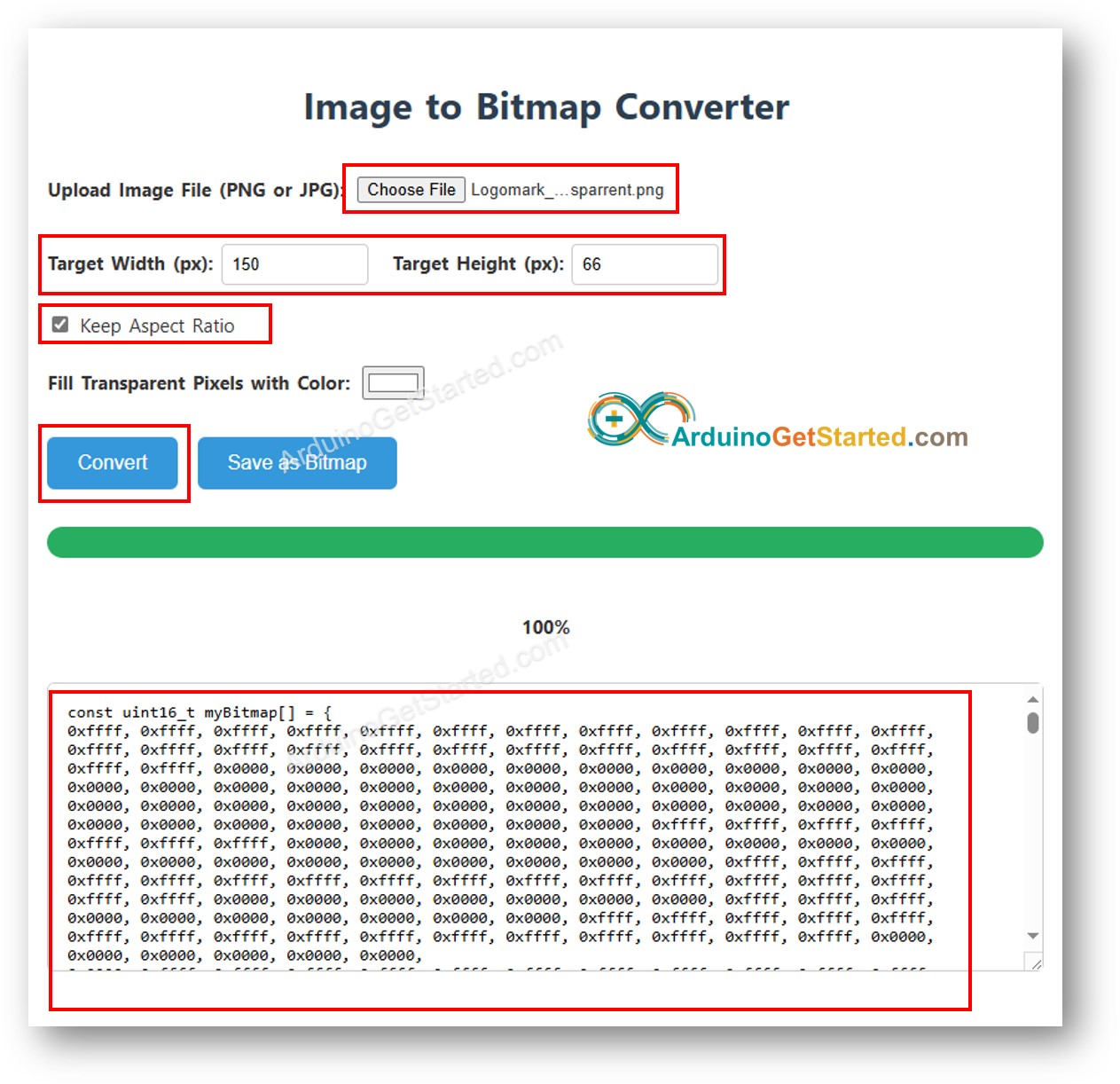
      • Bereiten Sie Ihr Bild vor (JPEG- oder PNG-Format).
      • Wandeln Sie es mit dem Tool Image to Bitmap Converter in ein Bitmap-Array um.
        • Laden Sie Ihr Bild hoch und stellen Sie die Größe passend zu Ihrem Panel ein.
        • Wählen Sie bei transparenten PNGs eine Hintergrundfarbe.
        • Klicken Sie auf Convert und kopieren Sie dann das erzeugte Array in bitmap.h.
        Bild in Bitmap-Array umwandeln
        • Passen Sie img_width und img_height an und klicken Sie dann erneut auf Run.

        Hinweis: Wenn Sie bitmap.h ändern und der Sketch nicht neu kompiliert wird, fügen Sie irgendwo in der Sketch-Datei ein Leerzeichen ein, um einen Neuaufbau zu erzwingen.

        Methoden-Kurzreferenz

        Methode Was sie macht Verwendung
        drawRGBBitmap(x,y,bitmap,w,h) Zeichnet ein RGB565-PROGMEM-Bitmap ab Pixel (x, y). TFT_display.drawRGBBitmap(0, 0, myImage, 240, 320);
        fillScreen(color) Löscht den Bildschirm vor dem Zeichnen des Bildes. TFT_display.fillScreen(BLACK);
        invertDisplay(flag) Schaltet die Farbinvertierung des Panels ein oder aus. TFT_display.invertDisplay(true);

    Arduino UNO Q Code — Bild von SD-Karte zeichnen

    Dieser Sketch liest eine 24-Bit-BMP-Bilddatei von einer Micro-SD-Karte und überträgt die Pixeldaten in kleinen Blöcken an das Display. Bei diesem Ansatz wird das Bild gestreamt, ohne jemals das gesamte Bild im RAM zu halten, was ihn für große Panels praktikabel macht.

    Schließen Sie die SD-Karte an denselben SPI-Bus wie das Display an. Teilen Sie MOSI (D11), SCK (D13) und MISO (D12). Weisen Sie dem SD-Modul einen separaten CS-Pin zu — er ist im Sketch als SD_CS (D4) definiert.

    Was der Code macht:

    • Initialisiert die SD-Karte an ihrem eigenen CS-Pin
    • Liest den BMP-Header, um Breite und Höhe des Bildes zu ermitteln
    • Zentriert das Bild auf dem Bildschirm
    • Streamt die Pixel zeilenweise und zeichnet sie auf dem TFT-Display
    • Gibt Fortschritts- und Fehlermeldungen in der App-Lab-Konsole aus
    /* * Dieser Arduino UNO Q Code wurde von newbiely.de entwickelt * Dieser Arduino UNO Q Code wird der Öffentlichkeit ohne jegliche Einschränkung zur Verfügung gestellt. * Für vollständige Anleitungen und Schaltpläne besuchen Sie bitte: * https://newbiely.de/tutorials/arduino-uno-q/arduino-uno-q-tft-lcd-touch-display-spi */ /* Created by DIYables This example code is in the public domain Product page: https://diyables.io */ // ============================================= // Single include brings in the base class plus all driver classes. // ============================================= #include "Arduino_RouterBridge.h" #include <DIYables_TFT_SPI.h> #include <SD.h> // ============================================= // Wiring (Arduino UNO Q - MCU side) // --------------------------------------------- // TFT + SD module Arduino UNO Q // ----------------------- --------------------------------- // VCC -> 3.3V // GND -> GND // TFT CS -> D10 (TFT_CS_PIN) // TFT RESET -> D9 (TFT_RST_PIN) // TFT DC / RS -> D8 (TFT_DC_PIN) // SD CS -> D4 (SD_CS) // SDI / MOSI (shared) -> D11 (hardware SPI MOSI) // SDO / MISO (shared) -> D12 (hardware SPI MISO) // SCK (shared) -> D13 (hardware SPI SCK) // LED -> 3.3V (or any GPIO via initBacklight) // // The Arduino UNO Q MCU pins are 3.3V - no level converter is needed. // ============================================= // ============================================= // SPI pin definitions (adjust for your board) // ============================================= #define TFT_CS_PIN 10 #define TFT_DC_PIN 8 #define TFT_RST_PIN 9 // Panel resolution in native (portrait) orientation - change to match your module #define TFT_WIDTH 240 #define TFT_HEIGHT 320 #define SD_CS 4 // SD card chip select (must differ from TFT_CS_PIN) // ============================================= // Create display object (uncomment matching driver) // ============================================= // DIYables_ILI9341_SPI TFT_display(TFT_WIDTH, TFT_HEIGHT, TFT_CS_PIN, TFT_DC_PIN, TFT_RST_PIN); // DIYables_ILI9488_SPI TFT_display(TFT_WIDTH, TFT_HEIGHT, TFT_CS_PIN, TFT_DC_PIN, TFT_RST_PIN); DIYables_ST7789_SPI TFT_display(TFT_WIDTH, TFT_HEIGHT, TFT_CS_PIN, TFT_DC_PIN, TFT_RST_PIN); #define WHITE DIYables_TFT_SPI::colorRGB(255, 255, 255) #define BUFFPIXEL 20 File bmpFile; uint16_t SCREEN_WIDTH; uint16_t SCREEN_HEIGHT; // Helper functions to read BMP file header uint16_t read16(File &f) { uint16_t result; result = f.read(); result |= (f.read() << 8); return result; } uint32_t read32(File &f) { uint32_t result; result = f.read(); result |= ((uint32_t)f.read() << 8); result |= ((uint32_t)f.read() << 16); result |= ((uint32_t)f.read() << 24); return result; } int32_t readS32(File &f) { int32_t result; result = f.read(); result |= ((uint32_t)f.read() << 8); result |= ((uint32_t)f.read() << 16); result |= ((uint32_t)f.read() << 24); return result; } bool getBMPDimensions(const char *filename, uint32_t &w, uint32_t &h) { File f = SD.open(filename); if (!f) return false; if (read16(f) != 0x4D42) { f.close(); return false; } read32(f); // file size read32(f); // reserved read32(f); // image offset read32(f); // DIB header size w = read32(f); int32_t sh = readS32(f); h = (sh < 0) ? -sh : sh; f.close(); return true; } void drawBMP(const char *filename, int x, int y) { bmpFile = SD.open(filename); if (!bmpFile) { Monitor.println("File not found"); return; } if (read16(bmpFile) != 0x4D42) { Monitor.println("Not a BMP file"); bmpFile.close(); return; } uint32_t fileSize = read32(bmpFile); read32(bmpFile); // Reserved uint32_t imageOffset = read32(bmpFile); uint32_t dibHeaderSize = read32(bmpFile); uint32_t bmpWidth = read32(bmpFile); int32_t bmpHeight = readS32(bmpFile); bool topDown = false; if (bmpHeight < 0) { bmpHeight = -bmpHeight; topDown = true; } if (read16(bmpFile) != 1) { Monitor.println("Invalid BMP file"); bmpFile.close(); return; } uint16_t depth = read16(bmpFile); if (depth != 24) { Monitor.println("Only 24-bit BMP is supported"); bmpFile.close(); return; } if (read32(bmpFile) != 0) { Monitor.println("Unsupported BMP compression"); bmpFile.close(); return; } bmpFile.seek(imageOffset); uint8_t sdbuffer[3 * BUFFPIXEL]; uint16_t color; uint32_t rowSize = (bmpWidth * 3 + 3) & ~3; if (x >= SCREEN_WIDTH || y >= SCREEN_HEIGHT) return; uint32_t maxRow = min((uint32_t)bmpHeight, (uint32_t)(SCREEN_HEIGHT - y)); uint32_t maxCol = min(bmpWidth, (uint32_t)(SCREEN_WIDTH - x)); for (uint32_t row = 0; row < maxRow; row++) { int32_t rowPos = topDown ? row : bmpHeight - 1 - row; uint32_t filePosition = imageOffset + rowPos * rowSize; bmpFile.seek(filePosition); for (uint32_t col = 0; col < maxCol; col += BUFFPIXEL) { uint32_t pixelsToRead = min((uint32_t)BUFFPIXEL, maxCol - col); bmpFile.read(sdbuffer, 3 * pixelsToRead); for (uint32_t i = 0; i < pixelsToRead; i++) { uint8_t b = sdbuffer[i * 3]; uint8_t g = sdbuffer[i * 3 + 1]; uint8_t r = sdbuffer[i * 3 + 2]; color = DIYables_TFT_SPI::colorRGB(r, g, b); if ((x + col + i) < SCREEN_WIDTH && (y + row) < SCREEN_HEIGHT) { TFT_display.drawPixel(x + col + i, y + row, color); } } } } bmpFile.close(); Monitor.println("BMP drawn"); } void setup() { Monitor.begin(9600); if (!SD.begin(SD_CS)) { Monitor.println("SD card initialization failed!"); return; } Monitor.println("SD card initialized."); TFT_display.begin(); TFT_display.setRotation(1); // Landscape SCREEN_WIDTH = TFT_display.width(); SCREEN_HEIGHT = TFT_display.height(); TFT_display.fillScreen(WHITE); uint32_t imgWidth, imgHeight; if (getBMPDimensions("diyables.bmp", imgWidth, imgHeight)) { int x = (SCREEN_WIDTH - imgWidth) / 2; int y = (SCREEN_HEIGHT - imgHeight) / 2; drawBMP("diyables.bmp", x, y); } else { Monitor.println("Failed to get BMP dimensions"); } } void loop() { }

    Schnellanleitung

    • Laden Sie diyables.bmp herunter und kopieren Sie die Datei in das Stammverzeichnis Ihrer Micro-SD-Karte.
    • Stecken Sie die Micro-SD-Karte in den Kartensteckplatz des Displaymoduls.
    • Kopieren Sie den obigen Code und fügen Sie ihn in sketch/sketch.ino ein.
    • Klicken Sie in Arduino App Lab auf die Run-Schaltfläche.
    Run-Schaltfläche in Arduino App Lab auf dem Arduino UNO Q klicken
    • Öffnen Sie den Tab Console und wählen Sie den Unter-Tab Serial Monitor, um die Fortschrittsmeldungen zu sehen.

    Das Bild wird von der Karte gelesen und auf dem Bildschirm angezeigt.

    Um Ihr eigenes Bild zu verwenden:

    • Verwenden Sie den Image to Bitmap Converter, um Ihr Bild umzuwandeln — klicken Sie auf Save as Bitmap, um die .bmp-Datei herunterzuladen.
    • Halten Sie den Dateinamen kurz (weniger als 9 Zeichen, ohne .bmp).
    • Kopieren Sie die .bmp-Datei auf die Micro-SD-Karte, passen Sie den Dateinamen im Sketch an und klicken Sie auf Run.

    App Lab Konsolenausgabe

    DIYables_Apps
    Stop
    sketch.ino
    1#include "Arduino_RouterBridge.h"
    Serial Monitor
    Python
    Message (Enter to send a message to "Newbiely" on usb(2820070321))
    New Line
    9600 baud
    [2026-08-20 09:00:01] SD card initialized. [2026-08-20 09:00:02] BMP drawn

    Methoden-Kurzreferenz

    Methode Was sie macht Verwendung
    SD.begin(cs) Initialisiert die SD-Karte an ihrem eigenen Chip-Select-Pin. SD.begin(SD_CS);
    SD.open(name) Öffnet eine auf der SD-Karte gespeicherte Datei. File f = SD.open("diyables.bmp");
    width() / height() Liefert die aktuelle Bildschirmgröße nach der Drehung. uint16_t w = TFT_display.width();
    drawPixel(x,y,color) Zeichnet ein einzelnes Pixel in der angegebenen Farbe. TFT_display.drawPixel(10, 20, color);

    Arduino UNO Q Code — Externe Schriftart verwenden

    Dieser Sketch stellt Text auf dem Bildschirm mit einer benutzerdefinierten, Adafruit-GFX-kompatiblen Schriftart dar. Im Vergleich zur eingebauten 5x7-Bitmap-Schrift bieten benutzerdefinierte Schriftarten bessere Lesbarkeit und Gestaltung. Die Schriftdatei wird als Header eingebunden und mit einem einzigen Aufruf von setFont() aktiviert.

    Was der Code macht:

    • Bindet den Schrift-Header FreeSansBold12pt7b ein
    • Aktiviert die Schriftart mit setFont()
    • Gibt dieselben Temperatur- und Luftfeuchtigkeitswerte wie zuvor aus, jetzt in der benutzerdefinierten Schriftart
    /* * Dieser Arduino UNO Q Code wurde von newbiely.de entwickelt * Dieser Arduino UNO Q Code wird der Öffentlichkeit ohne jegliche Einschränkung zur Verfügung gestellt. * Für vollständige Anleitungen und Schaltpläne besuchen Sie bitte: * https://newbiely.de/tutorials/arduino-uno-q/arduino-uno-q-tft-lcd-touch-display-spi */ /* Created by DIYables This example code is in the public domain Product page: https://diyables.io */ // ============================================= // Single include brings in the base class plus all driver classes. // ============================================= #include <DIYables_TFT_SPI.h> #include <Fonts/FreeSansBold12pt7b.h> // ============================================= // Wiring (Arduino UNO Q - MCU side) // --------------------------------------------- // TFT module Arduino UNO Q // ------------ --------------------------------- // VCC -> 3.3V // GND -> GND // CS -> D10 (TFT_CS_PIN) // RESET -> D9 (TFT_RST_PIN) // DC / RS -> D8 (TFT_DC_PIN) // SDI / MOSI -> D11 (hardware SPI MOSI) // SCK -> D13 (hardware SPI SCK) // LED -> 3.3V (or any GPIO via initBacklight) // SDO / MISO -> D12 (only needed when reading from display) // // The Arduino UNO Q MCU pins are 3.3V - no level converter is needed. // ============================================= // ============================================= // SPI pin definitions (adjust for your board) // ============================================= #define TFT_CS_PIN 10 #define TFT_DC_PIN 8 #define TFT_RST_PIN 9 // Panel resolution in native (portrait) orientation - change to match your module #define TFT_WIDTH 240 #define TFT_HEIGHT 320 // ============================================= // Create display object (uncomment matching driver) // ============================================= // DIYables_ILI9341_SPI TFT_display(TFT_WIDTH, TFT_HEIGHT, TFT_CS_PIN, TFT_DC_PIN, TFT_RST_PIN); // DIYables_ILI9488_SPI TFT_display(TFT_WIDTH, TFT_HEIGHT, TFT_CS_PIN, TFT_DC_PIN, TFT_RST_PIN); DIYables_ST7789_SPI TFT_display(TFT_WIDTH, TFT_HEIGHT, TFT_CS_PIN, TFT_DC_PIN, TFT_RST_PIN); #define MAGENTA DIYables_TFT_SPI::colorRGB(255, 0, 255) #define WHITE DIYables_TFT_SPI::colorRGB(255, 255, 255) void setup() { TFT_display.begin(); TFT_display.setFont(&FreeSansBold12pt7b); TFT_display.setRotation(1); // Landscape TFT_display.fillScreen(WHITE); TFT_display.setTextColor(MAGENTA); TFT_display.setTextSize(1); float temperature = 23.5; float humidity = 78.6; TFT_display.setCursor(20, 30); TFT_display.print("Temperature: "); TFT_display.print(temperature, 1); TFT_display.print(char(247)); TFT_display.println("C"); TFT_display.setCursor(20, 70); TFT_display.print("Humidity: "); TFT_display.print(humidity, 1); TFT_display.print("%"); } void loop() { }

    Schnellanleitung

    • Kopieren Sie den obigen Code und fügen Sie ihn in sketch/sketch.ino ein.
    • Klicken Sie in Arduino App Lab auf die Run-Schaltfläche.
    Run-Schaltfläche in Arduino App Lab auf dem Arduino UNO Q klicken

    Das Display stellt den Text in der benutzerdefinierten Schriftart dar. Beachten Sie die verbesserte Qualität der Zeichen im Vergleich zur eingebauten Schrift.

    Wichtig: Einige benutzerdefinierte Schriftarten enthalten keine Sonderzeichen wie das Gradzeichen. Die eingebaute Schrift unterstützt diese hingegen.

    Methoden-Kurzreferenz

    Methode Was sie macht Verwendung
    setFont(&FontName) Aktiviert eine benutzerdefinierte GFX-kompatible Schriftart. NULL übergeben, um die eingebaute 5x7-Schrift wiederherzustellen. TFT_display.setFont(&FreeSans12pt7b);
    setCursor(x, y) Bewegt den Textcursor an die angegebene Position. TFT_display.setCursor(10, 40);
    setTextColor(color) Legt die Vordergrundfarbe des Textes fest. TFT_display.setTextColor(WHITE);
    print(text) Gibt eine Zeichenkette an der aktuellen Cursorposition in der aktiven Schriftart aus. TFT_display.print("Hello!");

    Arduino UNO Q Code — Touch-Punkt abfragen

    Dieser Sketch liest Touch-Koordinaten vom XPT2046-Touch-Controller aus, gibt sie in der Arduino-App-Lab-Konsole aus und zeichnet einen roten Punkt an der berührten Stelle. Wenn Sie ihn zuerst ausführen, sehen Sie den Zahlenbereich Ihres konkreten Panels.

    Verdrahtung: T_CLK an D13, T_DIN an D11, T_DO an D12 (gemeinsamer SPI-Bus mit dem Display). T_CS an D7, T_IRQ an D2 oder unverbunden.

    Was der Code macht:

    • Initialisiert den XPT2046 am gemeinsamen SPI-Bus
    • Wendet die Standard-Touch-Kalibrierwerte an
    • Wartet auf eine Berührung und liest die Bildschirmkoordinaten aus
    • Gibt die Koordinaten in der Konsole aus und markiert die Stelle mit einem roten Punkt
    /* * Dieser Arduino UNO Q Code wurde von newbiely.de entwickelt * Dieser Arduino UNO Q Code wird der Öffentlichkeit ohne jegliche Einschränkung zur Verfügung gestellt. * Für vollständige Anleitungen und Schaltpläne besuchen Sie bitte: * https://newbiely.de/tutorials/arduino-uno-q/arduino-uno-q-tft-lcd-touch-display-spi */ /* Touch Get Point Example ----------------------- This example demonstrates how to read and display touch coordinates using a DIYables SPI TFT display with a 4-wire resistive touch panel. When you touch the screen, the sketch prints the mapped (screen) X and Y coordinates to the Arduino App Lab console and draws a red dot at the touched location. NOTE: Run the TouchCalibration example first and paste the calibration values into setTouchCalibration() below if the touch coordinates are inaccurate. Created by DIYables This example code is in the public domain Product page: https://diyables.io */ // ============================================= // Single include brings in the base class plus all driver classes. // ============================================= #include "Arduino_RouterBridge.h" #include <DIYables_TFT_SPI.h> // ============================================= // Wiring (Arduino UNO Q - MCU side) // ============================================= // TFT pins (always required) // TFT module Arduino UNO Q // ------------ --------------------------------- // VCC -> 3.3V // GND -> GND // CS -> D10 (TFT_CS_PIN) // RESET -> D9 (TFT_RST_PIN) // DC / RS -> D8 (TFT_DC_PIN) // SDI / MOSI -> D11 (hardware SPI MOSI) // SCK -> D13 (hardware SPI SCK) // SDO / MISO -> D12 (only needed when reading from display) // LED -> 3.3V (or any GPIO via initBacklight) // // XPT2046 / HR2046 / ADS7843 SPI touch controller // (modules with pins: T_CS, T_CLK, T_DIN, T_DO, T_IRQ) // Touch pin Arduino UNO Q // ------------ --------------------------------- // T_CS -> D2 (TOUCH_CS_PIN) // T_IRQ -> D2 (TOUCH_IRQ_PIN, optional - use -1 to skip) // T_CLK -> D13 (shared with display SCK) // T_DIN -> D11 (shared with display MOSI) // T_DO -> D12 (shared with display MISO) // // The Arduino UNO Q MCU pins are 3.3V - no level converter is needed. // ============================================= // ============================================= // SPI pin definitions (adjust for your board) // ============================================= #define TFT_CS_PIN 10 #define TFT_DC_PIN 8 #define TFT_RST_PIN 9 // Panel resolution in native (portrait) orientation - change to match your module #define TFT_WIDTH 240 #define TFT_HEIGHT 320 // MOSI and SCK use default hardware SPI pins // ============================================= // Touch pin definitions (XPT2046 / HR2046 SPI touch controller) // ============================================= #define TOUCH_CS_PIN 2 // T_CS (any GPIO) #define TOUCH_IRQ_PIN -1 // T_IRQ (any GPIO, or -1 if not connected) // ============================================= // ============================================= // Calibration values. // Run the TouchCalibration example and update these if touch is inaccurate. // Typical raw ranges: // - XPT2046 / HR2046 : ~200..3900 (default below) // - 4-wire resistive : ~100..900 // ============================================= #define TOUCH_LEFT_X 300 #define TOUCH_RIGHT_X 3700 #define TOUCH_TOP_Y 300 #define TOUCH_BOT_Y 3700 // ============================================= // Create display object (uncomment matching driver) // ============================================= // DIYables_ILI9341_SPI TFT_display(TFT_WIDTH, TFT_HEIGHT, TFT_CS_PIN, TFT_DC_PIN, TFT_RST_PIN); // DIYables_ILI9488_SPI TFT_display(TFT_WIDTH, TFT_HEIGHT, TFT_CS_PIN, TFT_DC_PIN, TFT_RST_PIN); DIYables_ST7789_SPI TFT_display(TFT_WIDTH, TFT_HEIGHT, TFT_CS_PIN, TFT_DC_PIN, TFT_RST_PIN); #define RED DIYables_TFT_SPI::colorRGB(255, 0, 0) #define WHITE DIYables_TFT_SPI::colorRGB(255, 255, 255) void setup() { Monitor.begin(9600); TFT_display.begin(); TFT_display.setRotation(0); TFT_display.fillScreen(WHITE); TFT_display.initTouchSPI(TOUCH_CS_PIN, TOUCH_IRQ_PIN); // If touch X is mirrored on your board, uncomment: //TFT_display.setTouchInvertX(true); // If touch Y is mirrored on your board, uncomment: //TFT_display.setTouchInvertY(false); TFT_display.setTouchCalibration(TOUCH_LEFT_X, TOUCH_RIGHT_X, TOUCH_TOP_Y, TOUCH_BOT_Y); Monitor.println("Touch the screen to see coordinates."); } void loop() { int x, y; if (TFT_display.getTouch(x, y)) { Monitor.print("Touch at: "); Monitor.print(x); Monitor.print(", "); Monitor.println(y); TFT_display.fillCircle(x, y, 4, RED); delay(200); } }

    Schnellanleitung

    • Kopieren Sie den obigen Code und fügen Sie ihn in sketch/sketch.ino ein.
    • Klicken Sie in Arduino App Lab auf die Run-Schaltfläche.
    Run-Schaltfläche in Arduino App Lab auf dem Arduino UNO Q klicken
    • Öffnen Sie den Tab Console und wählen Sie den Unter-Tab Serial Monitor.
    • Berühren Sie den Bildschirm und beobachten Sie, wie die Koordinaten erscheinen!

    App Lab Konsolenausgabe

    DIYables_Apps
    Stop
    sketch.ino
    1#include "Arduino_RouterBridge.h"
    Serial Monitor
    Python
    Message (Enter to send a message to "Newbiely" on usb(2820070321))
    New Line
    9600 baud
    [2026-08-20 09:05:00] Touch the screen to see coordinates. [2026-08-20 09:05:04] Touch at: 118, 96 [2026-08-20 09:05:06] Touch at: 63, 210 [2026-08-20 09:05:09] Touch at: 187, 148 [2026-08-20 09:05:12] Touch at: 42, 287

    Methoden-Kurzreferenz

    Methode Was sie macht Verwendung
    initTouchSPI(cs, irq) Initialisiert den XPT2046 am gemeinsamen SPI-Bus. -1 für irq verwenden, wenn der Interrupt-Pin nicht angeschlossen ist. TFT_display.initTouchSPI(7, 2);
    setTouchCalibration(minX,maxX,minY,maxY) Bildet rohe ADC-Werte auf Bildschirm-Pixelkoordinaten ab. TFT_display.setTouchCalibration(300, 3700, 300, 3700);
    getTouch(x, y) Liefert kalibrierte Touch-Koordinaten in Bildschirmpixeln. Gibt true zurück, wenn gedrückt. if (TFT_display.getTouch(x, y)) { ... }
    readTouchRaw(x, y, z) Liefert rohe ADC-Touch-Werte ohne Anwendung einer Kalibrierung. TFT_display.readTouchRaw(x, y, z);

    Arduino UNO Q Code — Mit Touch zeichnen

    Dieser Sketch verwandelt den SPI-TFT-Touchscreen in ein einfaches Zeichenfeld für den Finger. Kalibrierte Touch-Koordinaten setzen an jedem Punkt, den der Finger berührt, kleine gefüllte Kreise, sodass beim Bewegen eine durchgehende Zeichnung entsteht.

    Was der Code macht:

    • Richtet das Display und den XPT2046-Touch-Controller ein
    • Prüft fortlaufend, ob der Bildschirm gedrückt wird
    • Zeichnet an jedem Touch-Punkt einen kleinen roten Punkt
    /* * Dieser Arduino UNO Q Code wurde von newbiely.de entwickelt * Dieser Arduino UNO Q Code wird der Öffentlichkeit ohne jegliche Einschränkung zur Verfügung gestellt. * Für vollständige Anleitungen und Schaltpläne besuchen Sie bitte: * https://newbiely.de/tutorials/arduino-uno-q/arduino-uno-q-tft-lcd-touch-display-spi */ /* Touch Draw Lines Example ------------------------- Draws lines on the screen following the pen. - Touch and drag on the screen to draw. - Lift the pen to stop drawing. - Touch again to start a new line from the last point. NOTE: Run the TouchCalibration example and update setTouchCalibration() below if the touch coordinates are inaccurate. Created by DIYables This example code is in the public domain Product page: https://diyables.io */ // ============================================= // Single include brings in the base class plus all driver classes. // ============================================= #include <DIYables_TFT_SPI.h> // ============================================= // Wiring (Arduino UNO Q - MCU side) // ============================================= // TFT pins (always required) // TFT module Arduino UNO Q // ------------ --------------------------------- // VCC -> 3.3V // GND -> GND // CS -> D10 (TFT_CS_PIN) // RESET -> D9 (TFT_RST_PIN) // DC / RS -> D8 (TFT_DC_PIN) // SDI / MOSI -> D11 (hardware SPI MOSI) // SCK -> D13 (hardware SPI SCK) // SDO / MISO -> D12 (only needed when reading from display) // LED -> 3.3V (or any GPIO via initBacklight) // // XPT2046 / HR2046 / ADS7843 SPI touch controller // (modules with pins: T_CS, T_CLK, T_DIN, T_DO, T_IRQ) // Touch pin Arduino UNO Q // ------------ --------------------------------- // T_CS -> D2 (TOUCH_CS_PIN) // T_IRQ -> D2 (TOUCH_IRQ_PIN, optional - use -1 to skip) // T_CLK -> D13 (shared with display SCK) // T_DIN -> D11 (shared with display MOSI) // T_DO -> D12 (shared with display MISO) // // The Arduino UNO Q MCU pins are 3.3V - no level converter is needed. // ============================================= // ============================================= // SPI pin definitions (adjust for your board) // ============================================= #define TFT_CS_PIN 10 #define TFT_DC_PIN 8 #define TFT_RST_PIN 9 // Panel resolution in native (portrait) orientation - change to match your module #define TFT_WIDTH 240 #define TFT_HEIGHT 320 // ============================================= // Touch pin definitions (XPT2046 / HR2046 SPI touch controller) // ============================================= #define TOUCH_CS_PIN 2 // T_CS (any GPIO) #define TOUCH_IRQ_PIN -1 // T_IRQ (any GPIO, or -1 if not connected) // ============================================= // ============================================= // Calibration values. // Run the TouchCalibration example and update these if touch is inaccurate. // Typical raw ranges: // - XPT2046 / HR2046 : ~200..3900 (default below) // - 4-wire resistive : ~100..900 // ============================================= #define TOUCH_LEFT_X 300 #define TOUCH_RIGHT_X 3700 #define TOUCH_TOP_Y 300 #define TOUCH_BOT_Y 3700 // ============================================= // Create display object (uncomment matching driver) // ============================================= // DIYables_ILI9341_SPI TFT_display(TFT_WIDTH, TFT_HEIGHT, TFT_CS_PIN, TFT_DC_PIN, TFT_RST_PIN); // DIYables_ILI9488_SPI TFT_display(TFT_WIDTH, TFT_HEIGHT, TFT_CS_PIN, TFT_DC_PIN, TFT_RST_PIN); DIYables_ST7789_SPI TFT_display(TFT_WIDTH, TFT_HEIGHT, TFT_CS_PIN, TFT_DC_PIN, TFT_RST_PIN); #define RED DIYables_TFT_SPI::colorRGB(255, 0, 0) #define WHITE DIYables_TFT_SPI::colorRGB(255, 255, 255) #define PEN_RADIUS 3 void setup() { TFT_display.begin(); TFT_display.setRotation(0); TFT_display.fillScreen(WHITE); TFT_display.initTouchSPI(TOUCH_CS_PIN, TOUCH_IRQ_PIN); // If touch X is mirrored on your board, uncomment: //TFT_display.setTouchInvertX(true); // If touch Y is mirrored on your board, uncomment: //TFT_display.setTouchInvertY(false); TFT_display.setTouchCalibration(TOUCH_LEFT_X, TOUCH_RIGHT_X, TOUCH_TOP_Y, TOUCH_BOT_Y); } void loop() { int x, y; if (TFT_display.getTouch(x, y)) { TFT_display.fillCircle(x, y, PEN_RADIUS, RED); } }

    Schnellanleitung

    • Kopieren Sie den obigen Code und fügen Sie ihn in sketch/sketch.ino ein.
    • Klicken Sie in Arduino App Lab auf die Run-Schaltfläche.
    Run-Schaltfläche in Arduino App Lab auf dem Arduino UNO Q klicken

    Sie können jetzt auf dem Bildschirm zeichnen:

    • Berühren und ziehen Sie auf dem Bildschirm, um zu malen.
    • Heben Sie den Finger an, um das Zeichnen zu beenden.
    • Berühren Sie erneut, um fortzufahren.

    Methoden-Kurzreferenz

    Methode Was sie macht Verwendung
    initTouchSPI(cs, irq) Richtet den XPT2046 am gemeinsamen SPI-Bus ein. TFT_display.initTouchSPI(7, -1);
    setTouchInvertX(invert) / setTouchInvertY(invert) Spiegelt die Touch-Achse, wenn X oder Y auf Ihrem Panel gespiegelt ist. VOR setTouchCalibration() aufrufen. TFT_display.setTouchInvertY(true);
    getTouch(x, y) Liefert kalibrierte Touch-Koordinaten. Gibt true zurück, solange gedrückt wird. if (TFT_display.getTouch(x, y)) { ... }
    fillCircle(x, y, r, color) Zeichnet einen kleinen Punkt am Touch-Punkt. TFT_display.fillCircle(x, y, 3, RED);

    Arduino UNO Q Code — Touch-Schaltfläche

    Dieser Sketch zeichnet eine rechteckige Schaltfläche auf den Bildschirm und prüft die Touch-Koordinaten gegen die Grenzen der Schaltfläche. Wenn die Schaltfläche angetippt wird, wird sie hervorgehoben und ein Ereignis in der App-Lab-Konsole ausgegeben. Dies ist der einfachste Weg, eine touchgesteuerte Benutzeroberfläche zu bauen.

    Der T_IRQ-Pin ist für dieses Beispiel optional. Übergeben Sie -1 als irq-Argument, wenn Sie ihn lieber nicht anschließen möchten.

    Was der Code macht:

    • Zeichnet eine rote Schaltfläche mit der Beschriftung "PRESS"
    • Prüft, ob jede Berührung innerhalb des Rechtecks der Schaltfläche liegt
    • Entprellt den Druck, sodass ein einzelnes Antippen genau ein Ereignis auslöst
    • Zeichnet die Schaltfläche grau mit "PRESSED" neu und protokolliert Druck- und Loslass-Ereignisse
    /* * Dieser Arduino UNO Q Code wurde von newbiely.de entwickelt * Dieser Arduino UNO Q Code wird der Öffentlichkeit ohne jegliche Einschränkung zur Verfügung gestellt. * Für vollständige Anleitungen und Schaltpläne besuchen Sie bitte: * https://newbiely.de/tutorials/arduino-uno-q/arduino-uno-q-tft-lcd-touch-display-spi */ /* Touch Button Press/Release Example ------------------------------------ This example shows how to detect press and release events on a rectangular button using a DIYables SPI TFT display with a 4-wire resistive touch panel. When you touch inside the button, it changes colour and shows "PRESSED". When you release, it returns to its original state. NOTE: Run the TouchCalibration example and update setTouchCalibration() below if the touch coordinates are inaccurate. Created by DIYables This example code is in the public domain Product page: https://diyables.io */ // ============================================= // Single include brings in the base class plus all driver classes. // ============================================= #include "Arduino_RouterBridge.h" #include <DIYables_TFT_SPI.h> // ============================================= // Wiring (Arduino UNO Q - MCU side) // ============================================= // TFT pins (always required) // TFT module Arduino UNO Q // ------------ --------------------------------- // VCC -> 3.3V // GND -> GND // CS -> D10 (TFT_CS_PIN) // RESET -> D9 (TFT_RST_PIN) // DC / RS -> D8 (TFT_DC_PIN) // SDI / MOSI -> D11 (hardware SPI MOSI) // SCK -> D13 (hardware SPI SCK) // SDO / MISO -> D12 (only needed when reading from display) // LED -> 3.3V (or any GPIO via initBacklight) // // XPT2046 / HR2046 / ADS7843 SPI touch controller // (modules with pins: T_CS, T_CLK, T_DIN, T_DO, T_IRQ) // Touch pin Arduino UNO Q // ------------ --------------------------------- // T_CS -> D2 (TOUCH_CS_PIN) // T_IRQ -> D2 (TOUCH_IRQ_PIN, optional - use -1 to skip) // T_CLK -> D13 (shared with display SCK) // T_DIN -> D11 (shared with display MOSI) // T_DO -> D12 (shared with display MISO) // // The Arduino UNO Q MCU pins are 3.3V - no level converter is needed. // ============================================= // ============================================= // SPI pin definitions (adjust for your board) // ============================================= #define TFT_CS_PIN 10 #define TFT_DC_PIN 8 #define TFT_RST_PIN 9 // Panel resolution in native (portrait) orientation - change to match your module #define TFT_WIDTH 240 #define TFT_HEIGHT 320 // ============================================= // Touch pin definitions (XPT2046 / HR2046 SPI touch controller) // ============================================= #define TOUCH_CS_PIN 2 // T_CS (any GPIO) #define TOUCH_IRQ_PIN -1 // T_IRQ (any GPIO, or -1 if not connected) // ============================================= // ============================================= // Calibration values. // Run the TouchCalibration example and update these if touch is inaccurate. // Typical raw ranges: // - XPT2046 / HR2046 : ~200..3900 (default below) // - 4-wire resistive : ~100..900 // ============================================= #define TOUCH_LEFT_X 300 #define TOUCH_RIGHT_X 3700 #define TOUCH_TOP_Y 300 #define TOUCH_BOT_Y 3700 // ============================================= // Create display object (uncomment matching driver) // ============================================= // DIYables_ILI9341_SPI TFT_display(TFT_WIDTH, TFT_HEIGHT, TFT_CS_PIN, TFT_DC_PIN, TFT_RST_PIN); // DIYables_ILI9488_SPI TFT_display(TFT_WIDTH, TFT_HEIGHT, TFT_CS_PIN, TFT_DC_PIN, TFT_RST_PIN); DIYables_ST7789_SPI TFT_display(TFT_WIDTH, TFT_HEIGHT, TFT_CS_PIN, TFT_DC_PIN, TFT_RST_PIN); #define BLACK DIYables_TFT_SPI::colorRGB( 0, 0, 0) #define WHITE DIYables_TFT_SPI::colorRGB(255, 255, 255) #define GRAY DIYables_TFT_SPI::colorRGB(128, 128, 128) #define RED DIYables_TFT_SPI::colorRGB(255, 0, 0) #define BUTTON_X 30 #define BUTTON_Y 100 #define BUTTON_W 180 #define BUTTON_H 60 #define DEBOUNCE_DELAY 50 bool lastPressed = false; bool stablePressed = false; unsigned long lastDebounceTime = 0; void drawButton(bool pressed) { uint16_t bg = pressed ? GRAY : RED; TFT_display.fillRect(BUTTON_X, BUTTON_Y, BUTTON_W, BUTTON_H, bg); TFT_display.drawRect(BUTTON_X, BUTTON_Y, BUTTON_W, BUTTON_H, BLACK); TFT_display.setTextColor(WHITE, bg); TFT_display.setTextSize(3); TFT_display.setCursor(BUTTON_X + 10, BUTTON_Y + 16); TFT_display.print(pressed ? "PRESSED" : " PRESS "); } void setup() { Monitor.begin(9600); TFT_display.begin(); TFT_display.setRotation(0); TFT_display.fillScreen(WHITE); TFT_display.initTouchSPI(TOUCH_CS_PIN, TOUCH_IRQ_PIN); // If touch X is mirrored on your board, uncomment: //TFT_display.setTouchInvertX(true); // If touch Y is mirrored on your board, uncomment: //TFT_display.setTouchInvertY(false); TFT_display.setTouchCalibration(TOUCH_LEFT_X, TOUCH_RIGHT_X, TOUCH_TOP_Y, TOUCH_BOT_Y); drawButton(false); } void loop() { int x, y; bool pressed = false; if (TFT_display.getTouch(x, y)) { if (x >= BUTTON_X && x < (BUTTON_X + BUTTON_W) && y >= BUTTON_Y && y < (BUTTON_Y + BUTTON_H)) { pressed = true; } } if (pressed != lastPressed) { lastDebounceTime = millis(); } lastPressed = pressed; if ((millis() - lastDebounceTime) > DEBOUNCE_DELAY) { if (pressed != stablePressed) { stablePressed = pressed; drawButton(stablePressed); Monitor.println(stablePressed ? "Button PRESSED" : "Button RELEASED"); } } }

    Schnellanleitung

    • Kopieren Sie den obigen Code und fügen Sie ihn in sketch/sketch.ino ein.
    • Klicken Sie in Arduino App Lab auf die Run-Schaltfläche.
    Run-Schaltfläche in Arduino App Lab auf dem Arduino UNO Q klicken
    • Öffnen Sie den Tab Console und wählen Sie den Unter-Tab Serial Monitor.
    • Tippen Sie auf die Schaltfläche auf dem Bildschirm — sie ändert ihre Farbe, solange sie gedrückt wird.

    App Lab Konsolenausgabe

    DIYables_Apps
    Stop
    sketch.ino
    1#include "Arduino_RouterBridge.h"
    Serial Monitor
    Python
    Message (Enter to send a message to "Newbiely" on usb(2820070321))
    New Line
    9600 baud
    [2026-08-20 09:10:02] Button PRESSED [2026-08-20 09:10:03] Button RELEASED [2026-08-20 09:10:07] Button PRESSED [2026-08-20 09:10:08] Button RELEASED

    Methoden-Kurzreferenz

    Methode Was sie macht Verwendung
    initTouchSPI(cs, irq) Initialisiert den XPT2046. -1 für irq übergeben, um ohne Interrupt-Pin abzufragen. TFT_display.initTouchSPI(7, -1);
    setTouchCalibration(minX,maxX,minY,maxY) Wendet die Kalibrierung an, sodass getTouch() Display-Pixelkoordinaten zurückgibt. TFT_display.setTouchCalibration(300, 3700, 300, 3700);
    getTouch(x, y) Liefert die aktuelle kalibrierte Touch-Position. Gibt true zurück, solange der Bildschirm gedrückt wird. if (TFT_display.getTouch(x, y)) { ... }
    fillRect(x, y, w, h, color) Zeichnet ein gefülltes farbiges Rechteck als Hintergrund der Schaltfläche. TFT_display.fillRect(10, 10, 120, 60, BLUE);

    Arduino UNO Q Code — Touch-Kalibrierung

    Die obigen Touch-Beispiele verwenden Standard-Kalibrierwerte und funktionieren auf den meisten Panels. Wenn die Touch-Position nicht genau ist, führen Sie diesen Sketch aus, um den rohen ADC-Bereich Ihres eigenen XPT2046-Panels zu messen. Berühren Sie jede Ecke, wenn Sie dazu aufgefordert werden, und kopieren Sie dann die vier ausgegebenen Zahlen in setTouchCalibration() in Ihren anderen Touch-Sketches.

    Eine Kalibrierung ist nötig, weil die resistive Touch-Schicht aufgrund von Fertigungsunterschieden nicht perfekt mit den Displaypixeln übereinstimmt. Sie muss nur einmal pro Display durchgeführt werden.

    Was der Code macht:

    • Lässt in jeder der vier Ecken einen roten Punkt blinken, nummeriert von 1 bis 4
    • Mittelt mehrere Rohwerte, während Sie jede Ecke gedrückt halten
    • Gibt live die rohen Z-, X- und Y-Werte aus, damit Sie prüfen können, ob eine Berührung erkannt wird
    • Gibt am Ende eine sofort verwendbare setTouchCalibration()-Zeile aus
    /* * Dieser Arduino UNO Q Code wurde von newbiely.de entwickelt * Dieser Arduino UNO Q Code wird der Öffentlichkeit ohne jegliche Einschränkung zur Verfügung gestellt. * Für vollständige Anleitungen und Schaltpläne besuchen Sie bitte: * https://newbiely.de/tutorials/arduino-uno-q/arduino-uno-q-tft-lcd-touch-display-spi */ /* Touch Screen Calibration Example --------------------------------- This example measures the raw touch coordinates at all four screen corners and prints ready-to-use calibration values to the App Lab console. It uses readTouchRaw() directly — it does NOT rely on getTouch() or any existing calibration values, so it works even when touch is completely broken. INSTRUCTIONS: 1. Upload this sketch to the Arduino UNO Q MCU with the Run button. 2. Open the Console tab in Arduino App Lab and select the Serial Monitor subtab. 3. The screen shows a blinking red dot in each corner, numbered 1–4: 1 = Top-left 2 = Top-right 3 = Bottom-right 4 = Bottom-left 4. Press and HOLD firmly on the blinking dot. Keep holding until the console prints "Captured!" for that corner. 5. Release, then wait for the next dot to appear and repeat. 6. After all 4 corners, the console prints the calibration values and a ready-to-use setTouchCalibration() call. Copy it into your sketch. NOTE: While waiting, the console continuously prints the live raw Z/X/Y readings so you can confirm that touch is being detected. Created by DIYables This example code is in the public domain Product page: https://diyables.io */ // ============================================= // Single include brings in the base class plus all driver classes. // ============================================= #include "Arduino_RouterBridge.h" #include <DIYables_TFT_SPI.h> // ============================================= // Wiring (Arduino UNO Q) // ============================================= // TFT pins (always required) // TFT module Arduino UNO Q // ------------ --------------------------------- // VCC -> 3.3V // GND -> GND // CS -> D10 (TFT_CS_PIN) // RESET -> D9 (TFT_RST_PIN) // DC / RS -> D8 (TFT_DC_PIN) // SDI / MOSI -> D11 (hardware SPI MOSI) // SCK -> D13 (hardware SPI SCK) // SDO / MISO -> D12 (only needed when reading from display) // LED -> 3.3V (or any GPIO via initBacklight) // // XPT2046 / HR2046 / ADS7843 SPI touch controller // (modules with pins: T_CS, T_CLK, T_DIN, T_DO, T_IRQ) // Touch pin Arduino UNO Q // ------------ --------------------------------- // T_CS -> D2 (TOUCH_CS_PIN) // T_IRQ -> D2 (TOUCH_IRQ_PIN, optional - use -1 to skip) // T_CLK -> D13 (shared with display SCK) // T_DIN -> D11 (shared with display MOSI) // T_DO -> D12 (shared with display MISO) // // The Arduino UNO Q MCU pins are 3.3V - no level converter is needed. // ============================================= // ============================================= // SPI pin definitions (adjust for your board) // ============================================= #define TFT_CS_PIN 10 #define TFT_DC_PIN 8 #define TFT_RST_PIN 9 // Panel resolution in native (portrait) orientation - change to match your module #define TFT_WIDTH 240 #define TFT_HEIGHT 320 // ============================================= // Touch pin definitions (XPT2046 / HR2046 SPI touch controller) // ============================================= #define TOUCH_CS_PIN 2 // T_CS (any GPIO) #define TOUCH_IRQ_PIN -1 // T_IRQ (any GPIO, or -1 if not connected) // ============================================= // ============================================= // Create display object (uncomment matching driver) // ============================================= // DIYables_ILI9341_SPI TFT_display(TFT_WIDTH, TFT_HEIGHT, TFT_CS_PIN, TFT_DC_PIN, TFT_RST_PIN); // DIYables_ILI9488_SPI TFT_display(TFT_WIDTH, TFT_HEIGHT, TFT_CS_PIN, TFT_DC_PIN, TFT_RST_PIN); DIYables_ST7789_SPI TFT_display(TFT_WIDTH, TFT_HEIGHT, TFT_CS_PIN, TFT_DC_PIN, TFT_RST_PIN); // Minimum pressure to count as a valid touch. #define TOUCH_Z_MIN 10 // How many consecutive valid samples required before a corner is accepted. #define SAMPLES_NEEDED 10 // Delay between samples (ms). #define SAMPLE_DELAY_MS 30 #define DOT_RADIUS 12 #define BLACK DIYables_TFT_SPI::colorRGB( 0, 0, 0) #define WHITE DIYables_TFT_SPI::colorRGB(255, 255, 255) #define RED DIYables_TFT_SPI::colorRGB(255, 0, 0) // Corner pixel positions — filled in setup() once display size is known. // Order: 0=top-left, 1=top-right, 2=bottom-right, 3=bottom-left int cx[4], cy[4]; // Captured averaged raw values per corner. int cap_x[4], cap_y[4]; // ----------------------------------------------------------------------- void drawDot(int corner, bool on) { uint16_t color = on ? RED : WHITE; TFT_display.fillCircle(cx[corner], cy[corner], DOT_RADIUS, color); TFT_display.setTextSize(2); TFT_display.setTextColor(BLACK, color); TFT_display.setCursor(cx[corner] - 6, cy[corner] - 8); TFT_display.print(corner + 1); } void captureCorner(int corner) { const char* names[] = { "Top-left", "Top-right", "Bottom-right", "Bottom-left" }; Monitor.println(); Monitor.print("Corner "); Monitor.print(corner + 1); Monitor.print(" ("); Monitor.print(names[corner]); Monitor.println(")"); Monitor.println(" Press and HOLD firmly on the blinking dot."); Monitor.println(" Keep holding until you see 'Captured!'"); unsigned long lastBlink = 0; unsigned long lastPrint = 0; bool dotOn = false; int goodSamples = 0; long sumX = 0, sumY = 0; while (true) { // Blink the dot if (millis() - lastBlink > 400) { lastBlink = millis(); dotOn = !dotOn; drawDot(corner, dotOn); } int raw_x, raw_y, z; TFT_display.readTouchRaw(raw_x, raw_y, z); // Print live readings every 500 ms if (millis() - lastPrint > 500) { lastPrint = millis(); Monitor.print(" Z="); Monitor.print(z); Monitor.print(" X="); Monitor.print(raw_x); Monitor.print(" Y="); Monitor.println(raw_y); } if (z >= TOUCH_Z_MIN) { sumX += raw_x; sumY += raw_y; goodSamples++; if (goodSamples >= SAMPLES_NEEDED) { cap_x[corner] = sumX / goodSamples; cap_y[corner] = sumY / goodSamples; Monitor.print(" Captured! raw_x="); Monitor.print(cap_x[corner]); Monitor.print(" raw_y="); Monitor.println(cap_y[corner]); drawDot(corner, false); delay(500); return; } } else { goodSamples = 0; sumX = 0; sumY = 0; } delay(SAMPLE_DELAY_MS); } } // ----------------------------------------------------------------------- void setup() { Monitor.begin(9600); TFT_display.begin(); TFT_display.setRotation(0); // Always calibrate in rotation 0 TFT_display.fillScreen(WHITE); TFT_display.initTouchSPI(TOUCH_CS_PIN, TOUCH_IRQ_PIN); // If touch X is mirrored on your board, uncomment the line below // BEFORE calibrating (so the printed values match your panel): //TFT_display.setTouchInvertX(true); // If touch Y is mirrored on your board, uncomment: //TFT_display.setTouchInvertY(false); int w = TFT_display.width(); int h = TFT_display.height(); int m = DOT_RADIUS + 4; cx[0] = m; cy[0] = m; cx[1] = w - m; cy[1] = m; cx[2] = w - m; cy[2] = h - m; cx[3] = m; cy[3] = h - m; Monitor.println("=== Touch Calibration ==="); for (int i = 0; i < 4; i++) { captureCorner(i); } // Derive calibration values from the four corners int min_x = (cap_x[0] + cap_x[3]) / 2; // left edge int max_x = (cap_x[1] + cap_x[2]) / 2; // right edge int min_y = (cap_y[0] + cap_y[1]) / 2; // top edge int max_y = (cap_y[2] + cap_y[3]) / 2; // bottom edge Monitor.println(); Monitor.println("=== Calibration Results ==="); Monitor.print(" Left X (min_x): "); Monitor.println(min_x); Monitor.print(" Right X (max_x): "); Monitor.println(max_x); Monitor.print(" Top Y (min_y): "); Monitor.println(min_y); Monitor.print(" Bot Y (max_y): "); Monitor.println(max_y); Monitor.println(); Monitor.println("Copy this line into your sketch:"); Monitor.print(" TFT_display.setTouchCalibration("); Monitor.print(min_x); Monitor.print(", "); Monitor.print(max_x); Monitor.print(", "); Monitor.print(min_y); Monitor.print(", "); Monitor.print(max_y); Monitor.println(");"); TFT_display.fillScreen(WHITE); TFT_display.setTextColor(BLACK); TFT_display.setTextSize(2); TFT_display.setCursor(10, 10); TFT_display.println("Done! Check"); TFT_display.setCursor(10, 35); TFT_display.println("App Lab console"); } void loop() {}

    Schnellanleitung

    • Kopieren Sie den obigen Code und fügen Sie ihn in sketch/sketch.ino ein.
    • Klicken Sie in Arduino App Lab auf die Run-Schaltfläche.
    Run-Schaltfläche in Arduino App Lab auf dem Arduino UNO Q klicken
    • Öffnen Sie den Tab Console und wählen Sie den Unter-Tab Serial Monitor.
    • Drücken und halten Sie jeden blinkenden Eckpunkt der Reihe nach: oben links, oben rechts, unten rechts, unten links.
    • Kopieren Sie die ausgegebene setTouchCalibration()-Zeile in setup() Ihrer anderen Touch-Sketches.

    App Lab Konsolenausgabe

    DIYables_Apps
    Stop
    sketch.ino
    1#include "Arduino_RouterBridge.h"
    Serial Monitor
    Python
    Message (Enter to send a message to "Newbiely" on usb(2820070321))
    New Line
    9600 baud
    [2026-08-20 09:15:00] === Touch Calibration === [2026-08-20 09:15:04] Captured! raw_x=312 raw_y=289 [2026-08-20 09:15:11] Captured! raw_x=3704 raw_y=305 [2026-08-20 09:15:19] Captured! raw_x=3688 raw_y=3712 [2026-08-20 09:15:26] Captured! raw_x=298 raw_y=3695 [2026-08-20 09:15:27] TFT_display.setTouchCalibration(305, 3696, 297, 3703);

    Methoden-Kurzreferenz

    Methode Was sie macht Verwendung
    initTouchSPI(cs, irq) Initialisiert den XPT2046-Touch-Controller. TFT_display.initTouchSPI(7, 2);
    readTouchRaw(x, y, z) Liest rohe ADC-Werte, um den Kalibrierbereich zu messen. TFT_display.readTouchRaw(x, y, z);
    setTouchCalibration(minX,maxX,minY,maxY) Speichert die Kalibrierwerte, sodass getTouch() korrekt auf Pixelkoordinaten abbildet. TFT_display.setTouchCalibration(305, 3696, 297, 3703);
    setTouchInvertX(invert) / setTouchInvertY(invert) Spiegelt die Touch-Achse, wenn X oder Y auf Ihrem Panel gespiegelt ist. VOR der Kalibrierung aufrufen, damit die gespeicherten Werte übereinstimmen. TFT_display.setTouchInvertY(true);

    Arduino UNO Q Code — Benutzerdefinierter SPI-Bus

    Dieser Sketch zeigt, wie Sie dem Display-Konstruktor eine explizite SPIClass-Instanz übergeben. Verwenden Sie diesen Ansatz, wenn Sie den Bus explizit benennen, ihn mit zusätzlicher Konfiguration teilen oder das Display auf Platinen, die eine zweite SPI-Schnittstelle haben, auf diese verlegen möchten.

    Die MCU des Arduino UNO Q stellt einen einzigen Hardware-SPI-Bus an D11, D13 und D12 bereit, daher bleibt MY_SPI hier &SPI. Derselbe Sketch läuft unverändert auf Platinen mit zwei Bussen, indem man nur dieses eine Define austauscht.

    Was der Code macht:

    • Definiert MY_SPI als Zeiger auf den zu verwendenden SPI-Bus
    • Übergibt diesen Zeiger als letztes Konstruktorargument
    • Zeichnet ein Testmuster aus roten, grünen und blauen Farbbalken
    • Gibt eine Bestätigungsbeschriftung über den Balken aus
    /* * Dieser Arduino UNO Q Code wurde von newbiely.de entwickelt * Dieser Arduino UNO Q Code wird der Öffentlichkeit ohne jegliche Einschränkung zur Verfügung gestellt. * Für vollständige Anleitungen und Schaltpläne besuchen Sie bitte: * https://newbiely.de/tutorials/arduino-uno-q/arduino-uno-q-tft-lcd-touch-display-spi */ /* Created by DIYables This example code is in the public domain Product page: https://diyables.io This example demonstrates how to use a custom (non-default) SPI bus with the DIYables TFT SPI library. This is useful on boards that have multiple SPI interfaces, such as: - ESP32: HSPI / VSPI - Arduino Giga / Portenta: SPI1 - Raspberry Pi Pico: SPI1 */ // ============================================= // Single include brings in the base class plus all driver classes. // ============================================= #include <DIYables_TFT_SPI.h> // ============================================= // Wiring (Arduino UNO Q - default SPI bus) // --------------------------------------------- // NOTE: The Arduino UNO Q MCU exposes ONE hardware SPI bus on the Uno // headers, so this example is most useful on boards with multiple buses // (ESP32, Giga, RP2040...). On the Arduino UNO Q, MY_SPI must remain // &SPI and the wiring is the standard hardware SPI mapping below. // // TFT module Arduino UNO Q // ------------ --------------------------------- // VCC -> 3.3V // GND -> GND // CS -> D10 (TFT_CS_PIN) // RESET -> D9 (TFT_RST_PIN) // DC / RS -> D8 (TFT_DC_PIN) // SDI / MOSI -> D11 (hardware SPI MOSI) // SCK -> D13 (hardware SPI SCK) // LED -> 3.3V (or any GPIO via initBacklight) // SDO / MISO -> D12 (only needed when reading from display) // // The Arduino UNO Q MCU pins are 3.3V - no level converter is needed. // ============================================= // ============================================= // SPI pin definitions (adjust for your board) // ============================================= #define TFT_CS_PIN 10 #define TFT_DC_PIN 8 #define TFT_RST_PIN 9 // Panel resolution in native (portrait) orientation - change to match your module #define TFT_WIDTH 240 #define TFT_HEIGHT 320 // ============================================= // Select alternate SPI bus (uncomment for your board) // ============================================= // --- ESP32: use HSPI --- // SPIClass hspi(HSPI); // #define MY_SPI &hspi // --- Arduino Giga / Portenta / RP2040: use SPI1 --- // #define MY_SPI &SPI1 // --- Default SPI (fallback, and the correct choice on Arduino UNO Q) --- #define MY_SPI &SPI // ============================================= // Create display object with custom SPI bus // (uncomment matching driver) // ============================================= // DIYables_ILI9341_SPI TFT_display(TFT_WIDTH, TFT_HEIGHT, TFT_CS_PIN, TFT_DC_PIN, TFT_RST_PIN, MY_SPI); // DIYables_ILI9488_SPI TFT_display(TFT_WIDTH, TFT_HEIGHT, TFT_CS_PIN, TFT_DC_PIN, TFT_RST_PIN, MY_SPI); DIYables_ST7789_SPI TFT_display(TFT_WIDTH, TFT_HEIGHT, TFT_CS_PIN, TFT_DC_PIN, TFT_RST_PIN, MY_SPI); #define BLACK DIYables_TFT_SPI::colorRGB(0, 0, 0) #define WHITE DIYables_TFT_SPI::colorRGB(255, 255, 255) #define RED DIYables_TFT_SPI::colorRGB(255, 0, 0) #define GREEN DIYables_TFT_SPI::colorRGB(0, 255, 0) #define BLUE DIYables_TFT_SPI::colorRGB(0, 0, 255) void setup() { // For ESP32 HSPI: optionally remap pins before begin() // hspi.begin(14, 12, 13, -1); // SCK, MISO, MOSI, SS TFT_display.begin(); TFT_display.setRotation(1); // Landscape TFT_display.fillScreen(BLACK); uint16_t w = TFT_display.width(); uint16_t h = TFT_display.height(); // Draw a simple test pattern TFT_display.fillRect(0, 0, w / 3, h, RED); TFT_display.fillRect(w / 3, 0, w / 3, h, GREEN); TFT_display.fillRect(w * 2 / 3, 0, w / 3, h, BLUE); TFT_display.setTextColor(WHITE); TFT_display.setTextSize(2); TFT_display.setCursor(10, h / 2 - 10); TFT_display.print("Custom SPI bus OK"); } void loop() { // Nothing to do }

    Schnellanleitung

    • Kopieren Sie den obigen Code und fügen Sie ihn in sketch/sketch.ino ein.
    • Klicken Sie in Arduino App Lab auf die Run-Schaltfläche.
    Run-Schaltfläche in Arduino App Lab auf dem Arduino UNO Q klicken

    Das Display startet am expliziten SPI-Bus und stellt das Farbbalken-Testmuster dar.

    Methoden-Kurzreferenz

    Methode Was sie macht Verwendung
    DIYables_ILI9341_SPI(w,h,cs,dc,rst,spi) Konstruktorvariante, die einen Zeiger auf eine beliebige SPIClass akzeptiert. Standardmäßig &SPI, wenn das Argument weggelassen wird. DIYables_ILI9341_SPI tft(240, 320, 10, 9, 8, &SPI);
    begin() Initialisiert das Display am konfigurierten SPI-Bus. TFT_display.begin();

    Bridge: Linux + MCU

    Dieser Abschnitt zeigt, wie Sie beide Prozessoren des Arduino UNO Q programmieren, damit die Linux-Seite das SPI-TFT-Display steuern und Touch-Eingaben aus der Ferne auslesen kann:

    • Das SPI-TFT-Display und der XPT2046-Touch-Controller sind mit der MCU (STM32) verbunden — die MCU rendert sämtliche Ausgaben und liest jede Berührung aus
    • Die MPU kann das TFT nicht direkt ansteuern oder Touch-Eingaben direkt lesen — sie muss Ergebnisse von der MCU über Bridge.call() anfordern, was den passenden Bridge.provide()-Callback auf der MCU auslöst
    • Die MPU hat WLAN — da sie ein vollständiges Debian Linux ausführt, kann sie auf das Internet zugreifen, REST-APIs aufrufen und Display-Aktualisierungen von überall senden
    • Arduino_RouterBridge ermöglicht die RPC-Kommunikation zwischen den beiden Prozessoren — der Arduino-Router-Dienst unter Linux verwaltet den gesamten Datenverkehr
    • ⚠️ /dev/ttyHS1 (Linux) und Serial1 (MCU) sind vom Router RESERVIERT — öffnen Sie sie niemals in Ihrem eigenen Code

    Kurz gesagt: Die MCU steuert das SPI-TFT-Display an und liest Touch-Eingaben → die MPU fordert Befehle und Touch-Daten an → die MPU nutzt sie über das Internet.

    MCU-Code (Bridge)

    /* * Dieser Arduino UNO Q Code wurde von newbiely.de entwickelt * Dieser Arduino UNO Q Code wird der Öffentlichkeit ohne jegliche Einschränkung zur Verfügung gestellt. * Für vollständige Anleitungen und Schaltpläne besuchen Sie bitte: * https://newbiely.de/tutorials/arduino-uno-q/arduino-uno-q-tft-lcd-touch-display-spi */ #include "Arduino_RouterBridge.h" #include <DIYables_TFT_SPI.h> // SPI TFT display pins on the Arduino UNO Q MCU #define TFT_CS_PIN 10 #define TFT_DC_PIN 8 #define TFT_RST_PIN 9 // Panel resolution in native (portrait) orientation #define TFT_WIDTH 240 #define TFT_HEIGHT 320 // XPT2046 touch controller pins (shared SPI bus) #define TOUCH_CS_PIN 2 // T_CS #define TOUCH_IRQ_PIN -1 // T_IRQ (-1 if not connected) // Touch calibration - run the TouchCalibration sketch and update these #define TOUCH_LEFT_X 300 #define TOUCH_RIGHT_X 3700 #define TOUCH_TOP_Y 300 #define TOUCH_BOT_Y 3700 // Uncomment the line that matches your driver chip // DIYables_ILI9341_SPI TFT_display(TFT_WIDTH, TFT_HEIGHT, TFT_CS_PIN, TFT_DC_PIN, TFT_RST_PIN); // DIYables_ILI9488_SPI TFT_display(TFT_WIDTH, TFT_HEIGHT, TFT_CS_PIN, TFT_DC_PIN, TFT_RST_PIN); DIYables_ST7789_SPI TFT_display(TFT_WIDTH, TFT_HEIGHT, TFT_CS_PIN, TFT_DC_PIN, TFT_RST_PIN); #define WHITE DIYables_TFT_SPI::colorRGB(255, 255, 255) #define BLUE DIYables_TFT_SPI::colorRGB(0, 0, 255) #define RED DIYables_TFT_SPI::colorRGB(255, 0, 0) String current_text = ""; int last_touch_x = -1; int last_touch_y = -1; // Called from Linux via Bridge.call("display_text", "...") String display_text(String text) { current_text = text; TFT_display.fillScreen(WHITE); TFT_display.setTextColor(BLUE); TFT_display.setTextSize(2); TFT_display.setCursor(10, 40); TFT_display.println(text); return "TFT shows: " + text; } // Called from Linux via Bridge.call("clear_tft") String clear_tft() { current_text = ""; TFT_display.fillScreen(WHITE); return "TFT is clear"; } // Called from Linux via Bridge.call("get_touch") String get_touch() { if (last_touch_x < 0) return "No touch detected"; return "Touch: " + String(last_touch_x) + ", " + String(last_touch_y); } // Called from Linux via Bridge.call("get_status") String get_status() { if (current_text == "") return "TFT is clear"; return "TFT shows: " + current_text; } void setup() { Bridge.begin(); Monitor.begin(9600); TFT_display.begin(); TFT_display.setRotation(0); TFT_display.fillScreen(WHITE); TFT_display.initTouchSPI(TOUCH_CS_PIN, TOUCH_IRQ_PIN); TFT_display.setTouchCalibration(TOUCH_LEFT_X, TOUCH_RIGHT_X, TOUCH_TOP_Y, TOUCH_BOT_Y); // Expose MCU functions to the Linux side. // provide_safe is used for callbacks that call standard Arduino APIs. Bridge.provide_safe("display_text", display_text); Bridge.provide_safe("clear_tft", clear_tft); Bridge.provide("get_touch", get_touch); Bridge.provide("get_status", get_status); Monitor.println("SPI TFT Bridge ready"); } void loop() { int x, y; if (TFT_display.getTouch(x, y)) { last_touch_x = x; last_touch_y = y; Monitor.println("Touch at: " + String(x) + ", " + String(y)); TFT_display.fillCircle(x, y, 4, RED); delay(150); // Debounce } }

    Python-Code (Bridge)

    /* * Dieser Arduino UNO Q Code wurde von newbiely.de entwickelt * Dieser Arduino UNO Q Code wird der Öffentlichkeit ohne jegliche Einschränkung zur Verfügung gestellt. * Für vollständige Anleitungen und Schaltpläne besuchen Sie bitte: * https://newbiely.de/tutorials/arduino-uno-q/arduino-uno-q-tft-lcd-touch-display-spi */ from arduino.app_utils import * import time def loop(): # Ask the MCU to show text on the SPI TFT display result = Bridge.call("display_text", "Hello UNO Q") print(result) time.sleep(3) result = Bridge.call("display_text", "Touch the screen!") print(result) time.sleep(5) # Ask the MCU for the last touch point it detected result = Bridge.call("get_touch") print(result) time.sleep(2) result = Bridge.call("clear_tft") print(result) time.sleep(2) result = Bridge.call("get_status") print(result) time.sleep(2) App.run(user_loop=loop)

    Schnellanleitung

    • Verbinden: Verdrahten Sie das SPI-TFT-Display und den XPT2046-Touch-Controller mit dem Arduino UNO Q und schließen Sie dann das USB-C-Kabel an.
    • Arduino App Lab öffnen: Starten Sie Arduino App Lab und warten Sie, bis die Platine erkannt wird.
    • Eine neue App erstellen: Klicken Sie auf Create New App, nennen Sie sie DIYables_TftSpiBridge und klicken Sie dann auf Create.
    • Den MCU-Sketch einfügen: Kopieren Sie den obigen MCU-Bridge-Code und fügen Sie ihn in sketch/sketch.ino ein.
    • Den Python-Code einfügen: Kopieren Sie den obigen Python-Bridge-Code und fügen Sie ihn in die Python-Datei der App ein.
    • Install the library: Click the Add sketch library button (the open book icon with a + sign) in the left sidebar.
    Add sketch library in Arduino App Lab on Arduino UNO Q
    • Search for Arduino_RouterBridge created by Arduino and click the Install button.
    My Apps / DIYables Apps
    Run
    Bricks
    No bricks added...
    Sketch Libraries
    No sketch libra...
    Files
    python
    sketch
    .gitignore
    README.md
    app.yaml
    sketch.ino
    Add sketch library
    Arduino_RouterBridge Arduino

    This library provides a simple RPC bridge for Arduino UNO Q boards, allowing communication between the board and other devices using MsgPack serialization.

    0.4.1
    Install
    More Info
    • Search for DIYables TFT SPI created by DIYables.io and click the Install button.
    My Apps / DIYables Apps
    Run
    Bricks
    No bricks added...
    Sketch Libraries
    No sketch libra...
    Files
    python
    sketch
    .gitignore
    README.md
    app.yaml
    sketch.ino
    Add sketch library
    DIYables TFT SPI DIYables.io

    Works with both touch and non-touch versions of the same SPI TFT modules. Supports ILI9341 (240x320, 16-bit RGB565), ILI9488 (320x480, 18-bit RGB666), and ST7789 (240x320, 16-bit RGB565) displays over SPI. Includes built-in driver for XPT2046 / HR2046 / ADS7843 SPI touch controllers and 4-wire resistive touch panels - no separate touch library required. Use the display-only API for non-touch panels, or add initTouchSPI() to enable touch on modules that include a touch controller. Extends Adafruit GFX for full graphics support. Works with any Arduino-compatible board that has SPI.

    1.0.3
    Install
    More Info
    • Hochladen: Klicken Sie in Arduino App Lab auf die Run-Schaltfläche.
    Run-Schaltfläche in Arduino App Lab auf dem Arduino UNO Q klicken
    • Hinweis: Stellen Sie sicher, dass Bridge.begin() im MCU-Sketch aufgerufen wird und der Sketch hochgeladen ist, bevor Sie das Python-Skript auf der Linux-Seite ausführen.
    • ⚠️ Warnung: Öffnen Sie in Ihrem Code niemals direkt /dev/ttyHS1 (unter Linux) und verwenden Sie nicht Serial1 (auf der MCU) — diese sind vom Arduino Router reserviert, und ein Zugriff darauf unterbricht die Bridge.

    App Lab Konsolenausgabe

    DIYables_Apps
    Stop
    sketch.ino
    1#include "Arduino_RouterBridge.h"
    Serial Monitor
    Python
    Message (Enter to send a message to "Newbiely" on usb(2820070321))
    New Line
    9600 baud
    [2026-08-20 09:20:00] SPI TFT Bridge ready [2026-08-20 09:20:06] Touch at: 118, 96 [2026-08-20 09:20:09] Touch at: 63, 210 [2026-08-20 09:20:14] Touch at: 187, 148
    DIYables_Apps
    Stop
    sketch.ino
    1#include "Arduino_RouterBridge.h"
    Serial Monitor
    Python
    [2026-08-20 09:20:00] TFT shows: Hello UNO Q [2026-08-20 09:20:03] TFT shows: Touch the screen! [2026-08-20 09:20:08] Touch: 118, 96 [2026-08-20 09:20:10] TFT is clear [2026-08-20 09:20:12] TFT is clear

    Telegram

    Steuern Sie das SPI-TFT-Display von überall aus mit Telegram. Senden Sie eine Nachricht von Ihrem Handy, und das Display wird in Echtzeit aktualisiert — und fragen Sie die Platine, wo Sie den Bildschirm zuletzt berührt haben.

    Wenn Sie noch keinen Telegram-Bot haben, lesen Sie Wie man einen Telegram-Bot erstellt, um Ihr Bot-Token zu erhalten, bevor Sie fortfahren.

    Dieser Abschnitt behandelt:

    • Das Ausführen eines Python-Skripts auf der Linux-Seite des Arduino UNO Q, das auf Telegram-Nachrichten wartet
    • Das Weiterleiten von Befehlen aus Telegram an die MCU-Seite, um auf das SPI-TFT-Display zu schreiben
    • Das Zurücksenden des MCU-Ergebnisses — des Displaystatus oder des letzten Touch-Punkts — als Telegram-Antwort

    MCU-Sketch: Behalten Sie denselben MCU-Sketch aus dem vorherigen Bridge-Abschnitt bei — keine Änderungen nötig. Stellen Sie sicher, dass er bereits hochgeladen ist und auf dem STM32 läuft, bevor Sie fortfahren.

    Python-Code (Telegram)

    /* * Dieser Arduino UNO Q Code wurde von newbiely.de entwickelt * Dieser Arduino UNO Q Code wird der Öffentlichkeit ohne jegliche Einschränkung zur Verfügung gestellt. * Für vollständige Anleitungen und Schaltpläne besuchen Sie bitte: * https://newbiely.de/tutorials/arduino-uno-q/arduino-uno-q-tft-lcd-touch-display-spi */ from arduino.app_utils import * import requests import time TELEGRAM_TOKEN = "YOUR_TELEGRAM_BOT_TOKEN" CHAT_ID = "YOUR_CHAT_ID" last_update_id = 0 def get_updates(): global last_update_id url = f"https://api.telegram.org/bot{TELEGRAM_TOKEN}/getUpdates" params = {"offset": last_update_id + 1, "timeout": 5} try: response = requests.get(url, params=params, timeout=10) data = response.json() if data["ok"]: return data["result"] except Exception: pass return [] def send_message(text): url = f"https://api.telegram.org/bot{TELEGRAM_TOKEN}/sendMessage" requests.post(url, data={"chat_id": CHAT_ID, "text": text}) def loop(): global last_update_id updates = get_updates() for update in updates: last_update_id = update["update_id"] message = update.get("message", {}) text = message.get("text", "") if text.startswith("/display "): display_text = text[9:].strip() result = Bridge.call("display_text", display_text) send_message(result) elif text == "/clear": result = Bridge.call("clear_tft") send_message(result) elif text == "/touch": result = Bridge.call("get_touch") send_message(result) elif text == "/status": result = Bridge.call("get_status") send_message(result) elif text == "/start": send_message("Commands:\n/display <text> - Show text on the SPI TFT\n/clear - Clear the display\n/touch - Get the last touch point\n/status - Get the current display status") App.run(user_loop=loop)

    Schnellanleitung

    • Ersetzen Sie YOUR_TELEGRAM_BOT_TOKEN durch Ihr tatsächliches Bot-Token von BotFather.
    • Ersetzen Sie YOUR_CHAT_ID durch Ihre Telegram-Chat-ID.
    • Fügen Sie diesen Python-Code in die Python-Datei Ihrer App ein und behalten Sie denselben MCU-Sketch aus dem Bridge-Abschnitt bei.
    • Klicken Sie in Arduino App Lab auf die Run-Schaltfläche.
    Run-Schaltfläche in Arduino App Lab auf dem Arduino UNO Q klicken
    • Öffnen Sie Telegram und senden Sie /start an Ihren Bot, um die Befehlsliste zu sehen.
    • Hinweis: Ersetzen Sie YOUR_BOT_TOKEN durch das Token, das Sie von @BotFather in Telegram erhalten haben.

    App Lab Konsolenausgabe

    DIYables_Apps
    Stop
    sketch.ino
    1#include "Arduino_RouterBridge.h"
    Serial Monitor
    Python
    [2026-08-20 09:30:00] Waiting for Telegram messages... [2026-08-20 09:30:12] Received: /display Hello from Telegram [2026-08-20 09:30:28] Received: /touch [2026-08-20 09:30:41] Received: /status [2026-08-20 09:30:55] Received: /clear
    Telegram
    Telegram 12:45
    Welcome to Telegram!
    ArduinoBot 10:19
    Chatting with Arduino...
    telegram-botfather
    BotFather Yesterday
    Your bot has been created.

    ArduinoBot

    bot
    Today
    /display Hello from Telegram
    10:15 AM ✓✓
    TFT shows: Hello from Telegram
    10:16 AM
    /touch
    10:17 AM ✓✓
    Touch: 118, 96
    10:18 AM
    /status
    10:19 AM ✓✓
    TFT shows: Hello from Telegram
    10:20 AM
    /clear
    10:21 AM ✓✓
    TFT is clear
    10:22 AM

    OpenClaw

    You can adapt the OpenClaw to this tutorial by refering the instruction on Arduino Uno Q - OpenClaw Tutorial

    Fehlerbehebung

    Wenn sich das Display nicht wie erwartet verhält, prüfen Sie zuerst Folgendes:

    • Schwarzer Bildschirm — Stellen Sie sicher, dass CS, DC, MOSI und SCK alle angeschlossen sind. Eine fehlende CS-Leitung lässt das Display inaktiv.
    • Falscher Treiber — Es darf nur eine Konstruktorzeile aktiv sein. Die anderen beiden müssen auskommentiert bleiben.
    • Verschobenes oder abgeschnittenes Bild — Breite und Höhe im Konstruktor müssen der physischen Panelgröße entsprechen.
    • Nichts zu sehen bei heller Hintergrundbeleuchtung — Prüfen Sie, dass VCC und LED / BL an 3,3V und nicht an 5V liegen.
    • Touch funktioniert nicht — Führen Sie den Touch-Kalibrierungs-Sketch aus, um für Ihr Panel spezifische Kalibrierwerte zu erhalten.
    • Touch-Achse vertauscht — Rufen Sie setTouchInvertX(true) oder setTouchInvertY(true) vor setTouchCalibration() auf.

    Plattformunterstützung

    Die Bibliothek DIYables_TFT_SPI verwendet nur Standard-Arduino-APIs — SPI, digitalWrite und millis:

    • Sie läuft auf der MCU des Arduino UNO Q (STM32) über Arduino App Lab
    • Dieselben Sketches laufen auch unverändert auf anderen Arduino-kompatiblen Platinen
    • Zwischen den Platinen müssen nur die Pin-Nummern und die Panelgröße im Konstruktor angepasst werden

    Projektideen

    Mit einem SPI-TFT-Display und dem Arduino UNO Q können Sie viele kreative Projekte bauen:

    • WLAN-Wetter-Dashboard: Die Linux-Seite ruft eine Wettervorhersage von einer Online-API ab, und die MCU zeichnet sie auf den TFT-Bildschirm
    • Touch-Bedienfeld: Zeichnen Sie Bildschirm-Schaltflächen, die an die MCU angeschlossene LEDs, Relais oder Motoren schalten
    • Nachrichtentafel aus der Ferne: Senden Sie Text per Telegram, der von überall auf der Welt sofort auf dem Display erscheint
    • Bilderrahmen: Zeigen Sie auf der Micro-SD-Karte gespeicherte BMP-Bilder nacheinander als Diashow an
    • Unterschriftenfeld: Erfassen Sie eine mit dem Finger gezeichnete Unterschrift und lassen Sie die Linux-Seite sie in die Cloud hochladen
    • Live-Sensormonitor: Zeigen Sie Temperatur-, Luftfeuchtigkeits- oder Entfernungswerte als große, gut lesbare Zahlen an

    Fordern Sie sich selbst heraus

    Bereit, mit dem SPI-TFT-Display am Arduino UNO Q weiterzugehen? Probieren Sie diese Aufgaben:

    • Einfach: Ändern Sie Stiftfarbe und Radius im Touch-Draw-Sketch, sodass jede neue Berührung in einer anderen Farbe malt.
    • Mittel: Fügen Sie neben der ersten eine zweite Bildschirm-Schaltfläche hinzu und geben Sie für jede Schaltfläche eine andere Meldung in der App-Lab-Konsole aus.
    • Fortgeschritten: Bauen Sie ein per Telegram gesteuertes Dashboard: Die Python-Seite ruft über WLAN Live-Wetterdaten ab, sendet sie über Bridge, und die MCU zeichnet auf dem SPI-TFT-Display eine Temperaturanzeige mit einem farbigen Balken.

    ※ UNSERE NACHRICHTEN

    • Sie können gerne den Link zu diesem Tutorial teilen. Bitte verwenden Sie jedoch unsere Inhalte nicht auf anderen Websites. Wir haben viel Mühe und Zeit in die Erstellung der Inhalte investiert, bitte respektieren Sie unsere Arbeit!