
Raspberry Pi - Piezo Buzzer

Diese Anleitung zeigt Ihnen, wie Sie Raspberry Pi zur Steuerung des Piezo-Buzzers verwenden. Im Detail werden wir lernen:

Hardware-Anforderungen

1×Raspberry Pi 5
1×3-24V Aktiver Piezo Buzzer
1×Aktives Piezo Buzzer Modul
1×Passives Piezo Buzzer Modul
1×Breadboard (Steckplatine)
1×Jumper-Kabel
1×(Empfohlen) Schraubklemmenblock-Shield für Raspberry Pi
1×(Empfohlen) Raspberry Pi Prototyping-Grundplatte & Breadboard-Kit
1×(Empfohlen) HDMI-Touchscreen-Monitor für Raspberry Pi

Oder Sie können die folgenden Kits kaufen:

1×DIYables Sensor-Kit (30 Sensoren/Displays)
1×DIYables Sensor-Kit (18 Sensoren/Displays)
Offenlegung: Einige der in diesem Abschnitt bereitgestellten Links sind Amazon-Affiliate-Links. Wir können eine Provision für Käufe erhalten, die über diese Links getätigt werden, ohne zusätzliche Kosten für Sie. Wir schätzen Ihre Unterstützung.

Über den Piezo-Buzzer

Ein Piezo-Buzzer wird verwendet, um Töne, Pieptöne oder sogar eine Melodie eines Liedes zu erzeugen.

Auf dem Markt erhältlich ist ein 3V-24V aktiver Buzzer, der einen doppelten Zweck erfüllt: Er funktioniert sowohl als 3-5V aktiver Buzzer als auch als Hochspannungs-Buzzer (12V und darüber).

  • Wenn Sie diesen Buzzer direkt an einen Arduino-Pin anschließen, erzeugt er einen Standardton, was ihn ideal für Anwendungen wie Tonindikatoren macht, zum Beispiel Tastatur-Töne.
  • Andererseits gibt er, wenn er über ein Relais an eine Hochspannung angeschlossen wird, einen lauten Ton von sich, wodurch er für Warnsignale geeignet ist.

Die Piezo-Buzzer Pinbelegung

Piezo-Buzzer haben normalerweise zwei Pins:

  • Der Negative (-) Pin sollte mit GND (0V) verbunden werden
  • Der Positive (+) Pin erhält das Steuersignal vom Raspberry Pi (direkt oder indirekt über Relais)
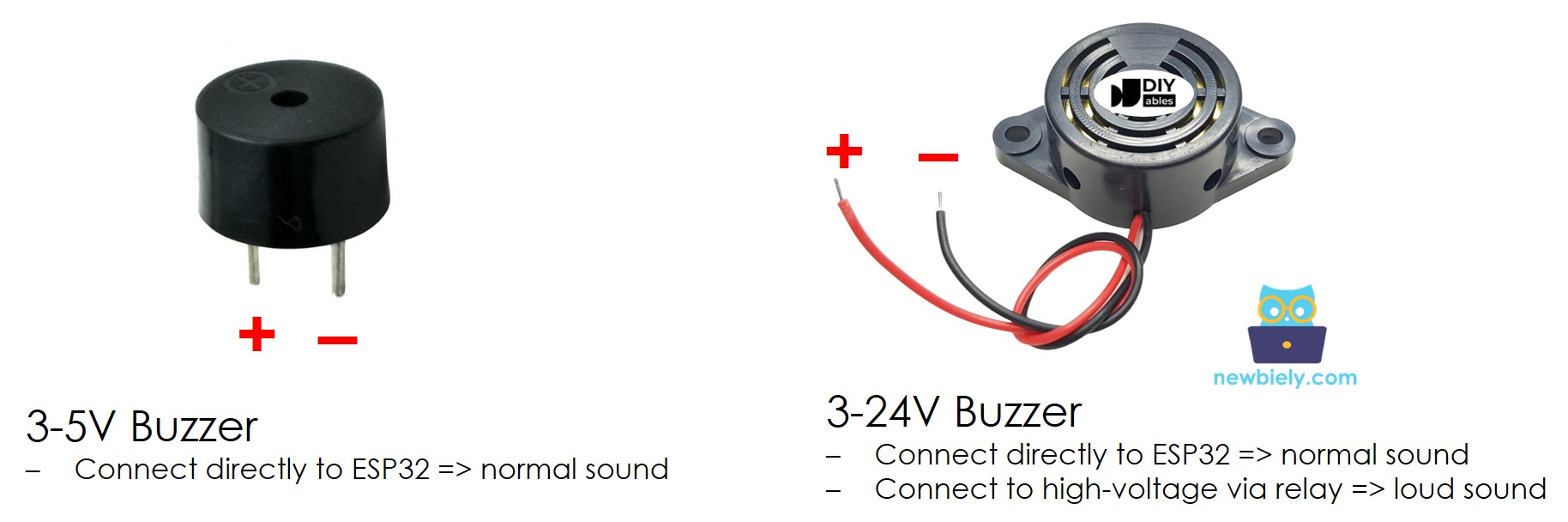
Piezo Buzzer Pinbelegung

Wie der Piezo-Buzzer funktioniert

Siehe Wie Piezo-Buzzer funktionieren

Verkabelungsdiagramm

  • Das Verkabelungsdiagramm zwischen Raspberry Pi und Piezo-Buzzer
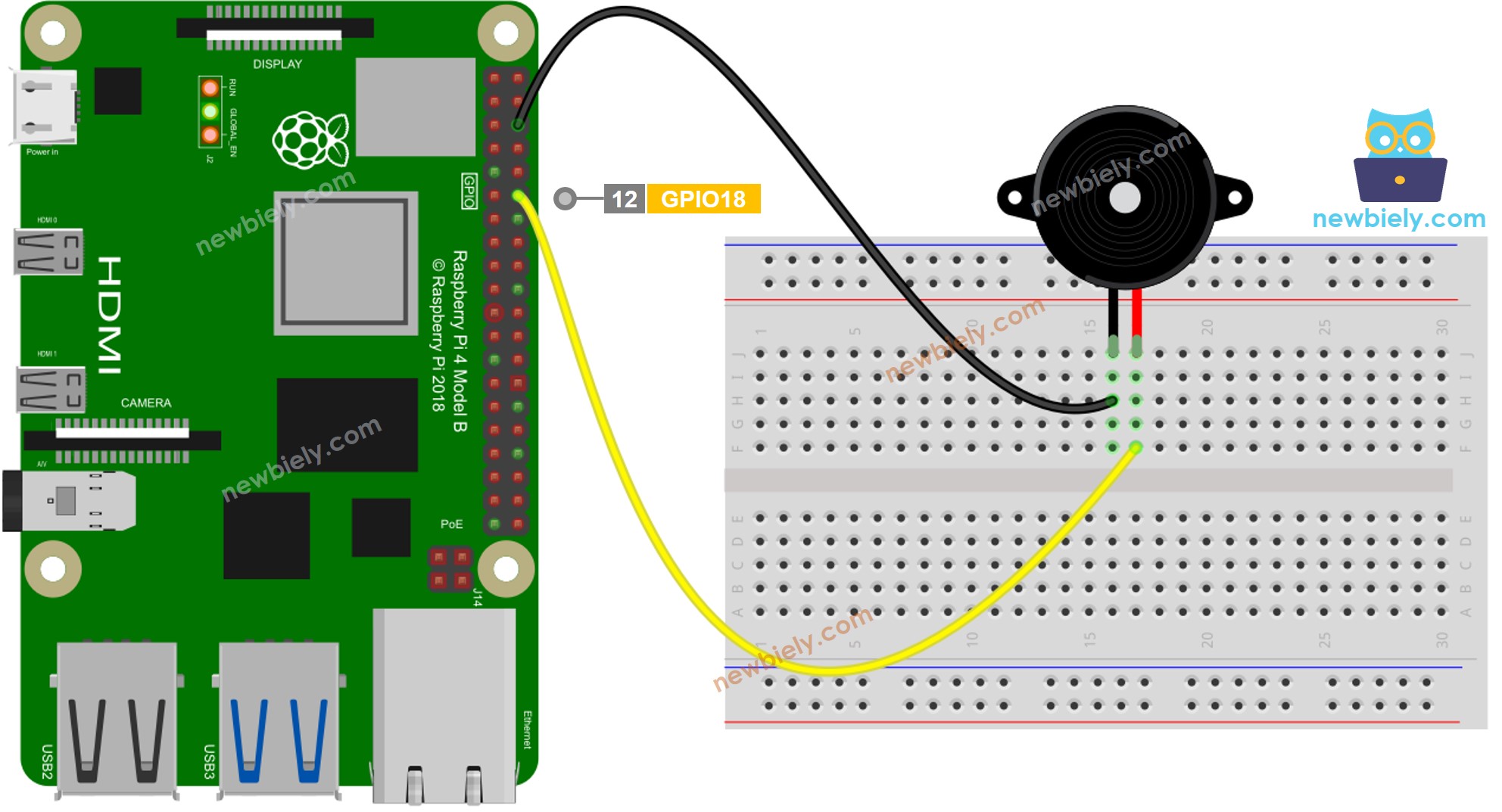
Raspberry Pi Piezo Buzzer Verkabelungsdiagramm

Dieses Bild wurde mit Fritzing erstellt. Klicken Sie, um das Bild zu vergrößern.

  • Das Verkabelungsdiagramm zwischen Raspberry Pi und Piezo-Buzzer Modul
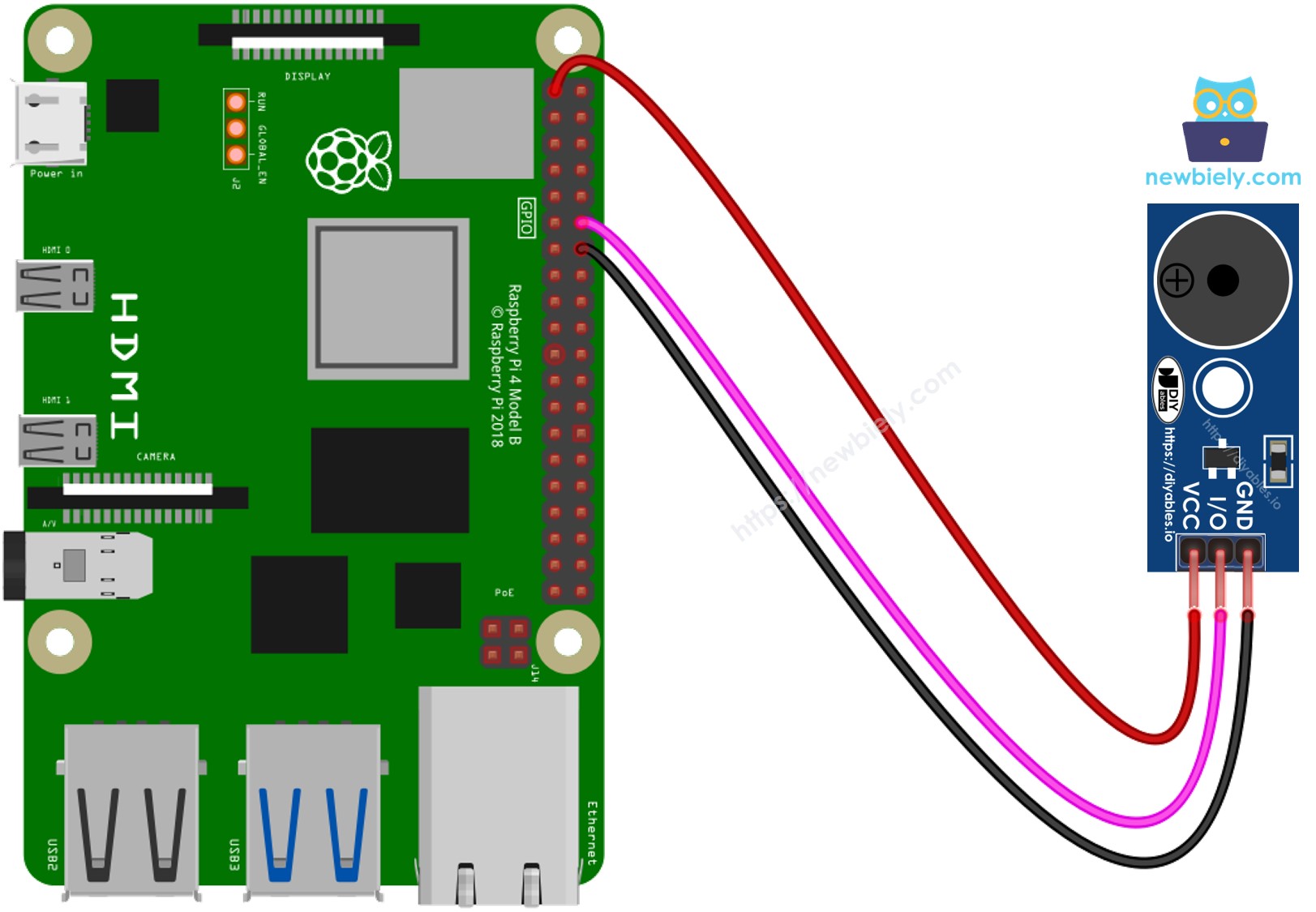
Raspberry Pi Piezo Buzzer Modul Verkabelungsdiagramm

Dieses Bild wurde mit Fritzing erstellt. Klicken Sie, um das Bild zu vergrößern.

Um Ihren Verdrahtungsaufbau zu vereinfachen und zu organisieren, empfehlen wir die Verwendung eines Schraubklemmenblock-Shields für Raspberry Pi. Dieses Shield gewährleistet sicherere und besser verwaltbare Verbindungen, wie unten gezeigt:
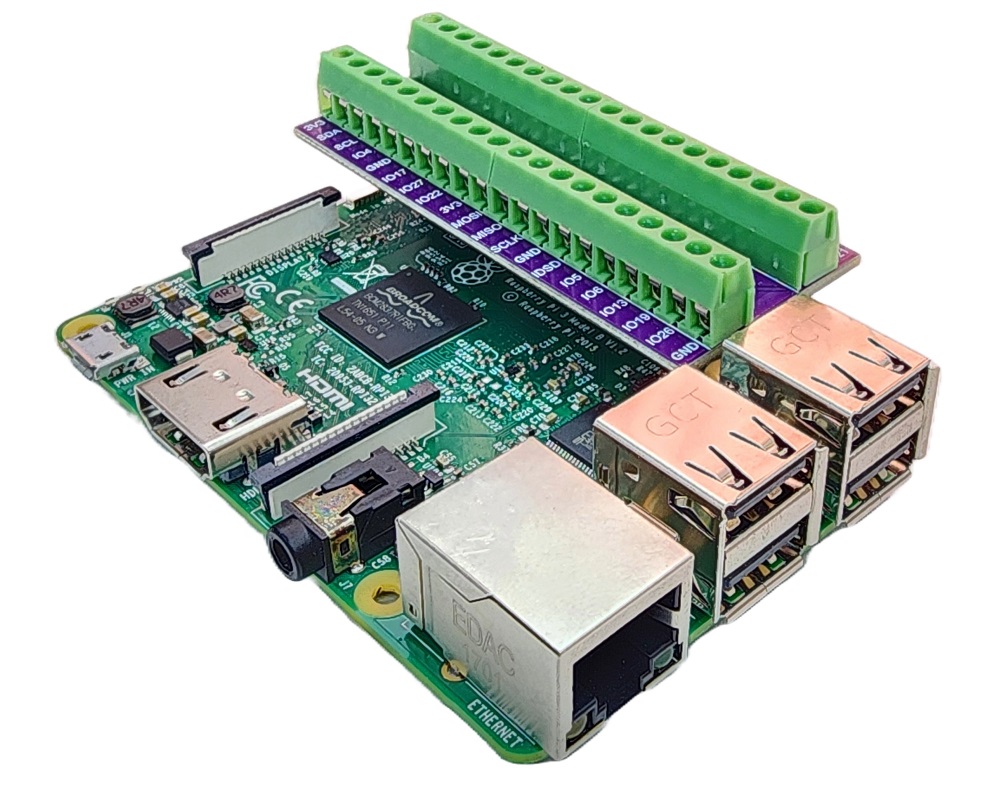
Raspberry Pi Schraubklemmenblock-Shield

Raspberry Pi Code

Schnelle Schritte

  • Stellen Sie sicher, dass Sie Raspbian oder ein anderes Raspberry Pi-kompatibles Betriebssystem auf Ihrem Pi installiert haben.
  • Stellen Sie sicher, dass Ihr Raspberry Pi mit demselben lokalen Netzwerk wie Ihr PC verbunden ist.
  • Stellen Sie sicher, dass Ihr Raspberry Pi mit dem Internet verbunden ist, falls Sie einige Bibliotheken installieren müssen.
  • Falls dies das erste Mal ist, dass Sie Raspberry Pi verwenden, siehe wie Sie das Raspberry Pi einrichten
  • Verbinden Sie Ihren PC über SSH mit dem Raspberry Pi unter Verwendung des integrierten SSH-Clients auf Linux und macOS oder PuTTY auf Windows. Siehe wie Sie Ihren PC über SSH mit Raspberry Pi verbinden.
  • Stellen Sie sicher, dass Sie die RPi.GPIO Bibliothek installiert haben. Falls nicht, installieren Sie sie mit folgendem Befehl:
sudo apt-get update sudo apt-get install python3-rpi.gpio
  • Erstellen Sie eine Python-Skript-Datei buzzer.py und fügen Sie folgenden Code hinzu:
# Dieser Raspberry Pi Code wurde von newbiely.de entwickelt # Dieser Raspberry Pi Code wird der Öffentlichkeit ohne jegliche Einschränkung zur Verfügung gestellt. # Für vollständige Anleitungen und Schaltpläne besuchen Sie bitte: # https://newbiely.de/tutorials/raspberry-pi/raspberry-pi-piezo-buzzer import RPi.GPIO as GPIO import time # Set the GPIO mode (BCM or BOARD) GPIO.setmode(GPIO.BCM) # Define the GPIO pin number to which the buzzer is connected BUZZER_PIN = 18 # Set up the GPIO pin as an output GPIO.setup(BUZZER_PIN, GPIO.OUT) # Constants for note names and their corresponding frequencies C4 = 261 G3 = 196 A3 = 220 B3 = 247 # Dictionary to map numeric values to note names note_names = { C4: "C4", G3: "G3", A3: "A3", B3: "B3", } # List of notes in the melody melody = [ C4, G3, G3, A3, G3, 0, B3, C4 ] # List of note durations (in milliseconds) note_durations = [ 400, 200, 200, 400, 400, 400, 400, 400 ] # Pause duration between notes (in milliseconds) pause_duration = 300 def play_tone(pin, frequency, duration): # Calculate the period based on the frequency period = 1.0 / frequency # Calculate the time for half of the period half_period = period / 2.0 # Calculate the number of cycles for the given duration cycles = int(duration / period) for _ in range(cycles): # Set the GPIO pin to HIGH GPIO.output(pin, GPIO.HIGH) # Wait for half of the period time.sleep(half_period) # Set the GPIO pin to LOW GPIO.output(pin, GPIO.LOW) # Wait for the other half of the period time.sleep(half_period) try: while True: # Infinite loop # Iterate over the notes of the melody for i in range(len(melody)): # To calculate the note duration, take the value from the list and divide it by 1,000 (convert to seconds) note_duration = note_durations[i] / 1000.0 note_freq = melody[i] note_name = note_names.get(note_freq, "Pause") print(f"Playing {note_name} (Frequency: {note_freq} Hz) for {note_duration} seconds") # Play the tone play_tone(BUZZER_PIN, note_freq, note_duration) # Add a brief pause between notes (optional) time.sleep(pause_duration / 1000.0) # Stop the tone playing (optional) GPIO.output(BUZZER_PIN, GPIO.LOW) # Allow the user to stop the buzzer by pressing Ctrl+C except KeyboardInterrupt: GPIO.output(BUZZER_PIN, GPIO.LOW) GPIO.cleanup()
  • Speichern Sie die Datei und führen Sie das Python-Skript aus, indem Sie folgenden Befehl im Terminal ausführen:
python3 buzzer.py
  • Hören Sie sich die Melodie eines Liedes an, die vom Piezo-Buzzer ausgegeben wird.

Das Skript läuft in einer Endlosschleife kontinuierlich, bis Sie Strg + C im Terminal drücken.

Raspberry Pi Code Modifizieren

Jetzt werden wir den Code ändern, um das Lied "Jingle Bells" zu spielen.

  • Erstellen Sie eine Python-Skript-Datei buzzer_Jingle_Bells.py und fügen Sie folgenden Code hinzu:
# Dieser Raspberry Pi Code wurde von newbiely.de entwickelt # Dieser Raspberry Pi Code wird der Öffentlichkeit ohne jegliche Einschränkung zur Verfügung gestellt. # Für vollständige Anleitungen und Schaltpläne besuchen Sie bitte: # https://newbiely.de/tutorials/raspberry-pi/raspberry-pi-piezo-buzzer import RPi.GPIO as GPIO import time # Set the GPIO mode (BCM or BOARD) GPIO.setmode(GPIO.BCM) # Define the GPIO pin number to which the buzzer is connected BUZZER_PIN = 18 # Set up the GPIO pin as an output GPIO.setup(BUZZER_PIN, GPIO.OUT) # Constants for note names and their corresponding frequencies C4 = 261 D4 = 293 E4 = 329 F4 = 349 G4 = 392 A4 = 440 B4 = 493 # Dictionary to map numeric values to note names note_names = { C4: "C4", D4: "D4", E4: "E4", F4: "F4", G4: "G4", A4: "A4", B4: "B4", } # List of notes in the "Jingle Bells" melody melody = [ E4, E4, E4, E4, E4, E4, E4, G4, C4, D4, E4, F4, F4, F4, F4, F4, E4, E4, E4, E4, E4, D4, D4, E4, D4, G4 ] # List of note durations (in milliseconds) note_durations = [ 200, 200, 400, 200, 200, 400, 200, 200, 200, 200, 200, 200, 200, 400, 200, 200, 200, 200, 200, 200, 200, 200, 200, 400, 200, 200 ] # Pause duration between notes (in milliseconds) pause_duration = 300 def play_tone(pin, frequency, duration): # Calculate the period based on the frequency period = 1.0 / frequency # Calculate the time for half of the period half_period = period / 2.0 # Calculate the number of cycles for the given duration cycles = int(duration / period) for _ in range(cycles): # Set the GPIO pin to HIGH GPIO.output(pin, GPIO.HIGH) # Wait for half of the period time.sleep(half_period) # Set the GPIO pin to LOW GPIO.output(pin, GPIO.LOW) # Wait for the other half of the period time.sleep(half_period) try: while True: # Infinite loop # Iterate over the notes of the melody for i in range(len(melody)): # To calculate the note duration, take the value from the list and divide it by 1,000 (convert to seconds) note_duration = note_durations[i] / 1000.0 note_freq = melody[i] note_name = note_names.get(note_freq, "Pause") print(f"Playing {note_name} (Frequency: {note_freq} Hz) for {note_duration} seconds") # Play the tone play_tone(BUZZER_PIN, note_freq, note_duration) # Add a brief pause between notes (optional) time.sleep(pause_duration / 1000.0) # Stop the tone playing (optional) GPIO.output(BUZZER_PIN, GPIO.LOW) # Allow the user to stop the buzzer by pressing Ctrl+C except KeyboardInterrupt: GPIO.output(BUZZER_PIN, GPIO.LOW) GPIO.cleanup()
  • Speichern Sie die Datei und führen Sie das Python-Skript aus, indem Sie folgenden Befehl im Terminal ausführen:
python3 buzzer_Jingle_Bells.py
  • Sie können diesen Code mit dem vorherigen Code vergleichen, um die Unterschiede zu sehen

Mit dieser Änderung wird der Code nun die Melodie von "Jingle Bells" mit dem am Raspberry Pi angeschlossenen Piezo-Buzzer spielen. Genießen Sie die festliche Melodie!

Video Tutorial

Wir erwägen die Erstellung von Video-Tutorials. Wenn Sie Video-Tutorials für wichtig halten, abonnieren Sie bitte unseren YouTube-Kanal , um uns zu motivieren, die Videos zu erstellen.

Fordern Sie sich selbst heraus

  • Verwenden Sie einen Piezo-Buzzer, um Ihr Lieblingslied zu spielen.
  • Nutzen Sie einen Raspberry Pi Bewegungssensor, um automatisch einen Alarm auszulösen, wenn sich jemand Ihren wertvollen Gegenständen nähert. Siehe Raspberry Pi - Bewegungssensor für weitere Informationen.

※ UNSERE NACHRICHTEN

  • Sie können gerne den Link zu diesem Tutorial teilen. Bitte verwenden Sie jedoch unsere Inhalte nicht auf anderen Websites. Wir haben viel Mühe und Zeit in die Erstellung der Inhalte investiert, bitte respektieren Sie unsere Arbeit!