
ESP8266 - ILI9341 ILI9488 ST7789 TFT LCD Touch Display SPI Schnittstelle

Dies ist eine praktische, sachliche Anleitung zum Verbinden eines SPI TFT-Displays mit einem ESP8266 NodeMCU Board. Der ESP8266 ist ein kompakter, Wi-Fi-fähiger Mikrocontroller, der mit 80-160 MHz läuft und mit 3,3V arbeitet. Sein Hardware-SPI-Bus befindet sich auf GPIO13 (MOSI), GPIO14 (SCK) und GPIO12 (MISO) - beachten Sie, dass diese NICHT wie bei Arduino Boards als D11/D13/D12 gekennzeichnet sind.

Hier ist, was wir abdecken werden:

Dieses Lernprogramm behandelt sowohl Touch- als auch Non-Touch SPI TFT LCD-Displays. Es funktioniert mit 1,3, 1,54, 2,2, 2,4, 2,8, 3,2 und 3,5 Zoll Panels, die von ILI9341, ILI9488 oder ST7789 Controller-Chips gesteuert werden.
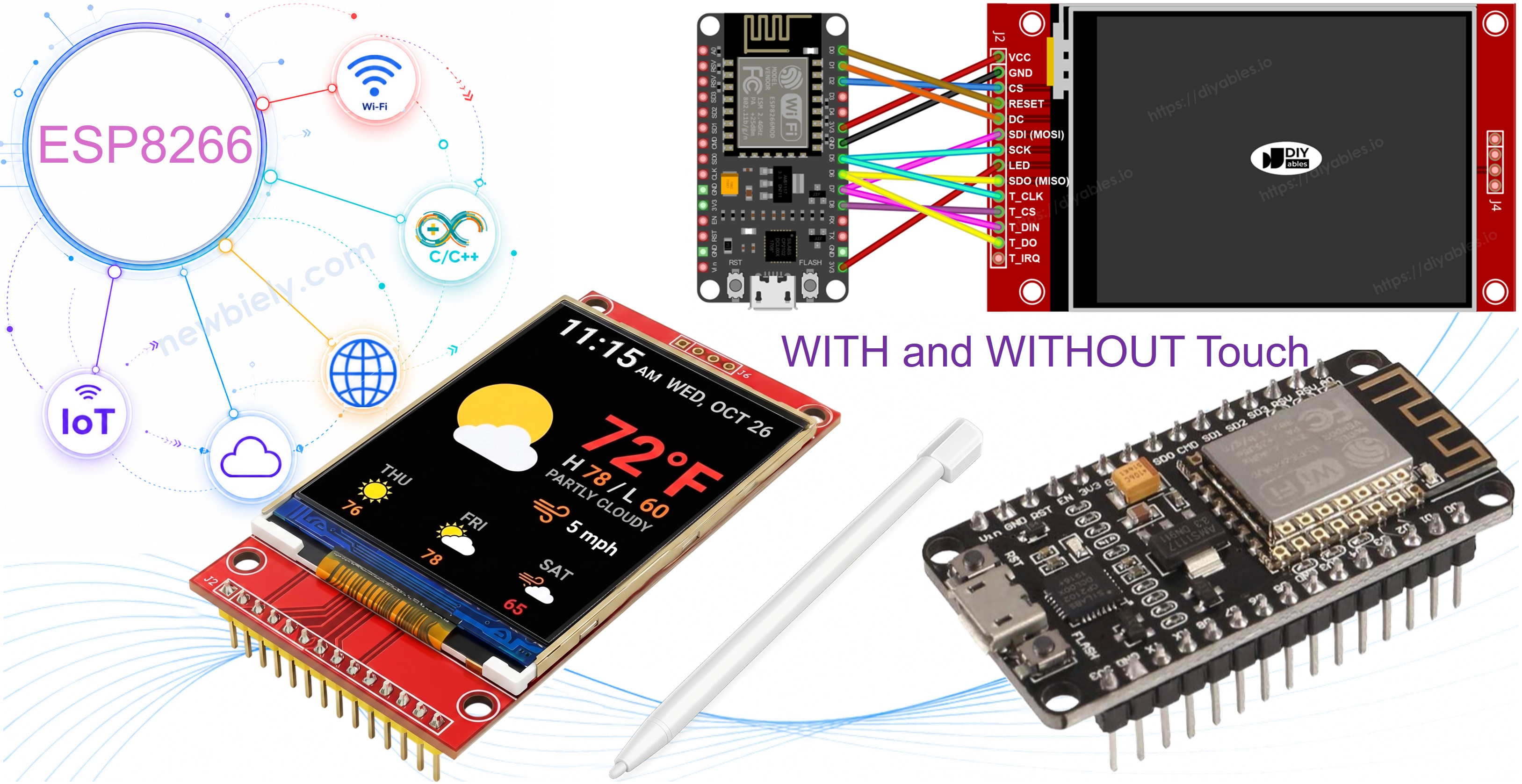
ESP8266 NodeMCU TFT SPI Display

Hardware erforderlich

1×ESP8266 NodeMCU Entwicklungsboard
1×USB-Kabel (Type-A bis Micro-B)
1×SPI TFT Display-Modul
1×Jumper-Drähte
1×(Empfohlen) Schraubklemmen-Erweiterungsboard für ESP8266
1×(Empfohlen) Stromverteiler für ESP8266 Typ-C

Oder Sie können die folgenden Kits kaufen:

1×DIYables Sensor-Kit (18 Sensoren/Displays)
Offenlegung: Einige der in diesem Abschnitt bereitgestellten Links sind Amazon-Affiliate-Links. Wir können eine Provision für Käufe erhalten, die über diese Links getätigt werden, ohne zusätzliche Kosten für Sie. Wir schätzen Ihre Unterstützung.

Das SPI TFT Display

SPI TFT Module verwenden einen dedizierten Driver-IC, um Zeichenbefehle zu empfangen und die LCD-Pixel über einen schnellen SPI-Link zu steuern. Drei Treiber werden unterstützt:

  • ILI9341 - 16-Bit RGB565 Farbe, bis zu 40 MHz SPI.
  • ILI9488 - 18-Bit RGB666 Farbe über SPI, bis zu 24 MHz.
  • ST7789 - 16-Bit RGB565 Farbe, bis zu 40 MHz SPI.

Empfehlung: Wenn Sie noch kein Display gekauft haben, empfehlen wir den ST7789 Treiber. Er ist weit verbreitet, läuft mit voller 40 MHz SPI-Geschwindigkeit und ist die einfachste Wahl für neue Projekte.

Zeichnungsaufrufe erfolgen über die Adafruit GFX API: Formen, Text, Schriftarten und Bitmaps sind alle verfügbar.

Hinweis: Der ESP8266 arbeitet mit 3,3V. Verbinden Sie TFT VCC mit dem 3,3V-Pin. Wenden Sie NICHT 5V an - das beschädigt das Board.

Boot-Pin-Warnung: GPIO0, GPIO2 und GPIO15 beeinflussen den Boot-Modus auf dem ESP8266. Vermeiden Sie deren Verwendung für TFT CS, DC oder RST, um Upload-Fehler zu vermeiden. GPIO4, GPIO5 und GPIO16 sind sichere Optionen.

Pinbelegung

Die meisten SPI TFT LCD-Displays haben die folgenden Pins:

Display-Pins:

Pin Funktion
VCC Stromversorgung
GND Masse
CS Chip Select — wird niedrig gezogen, um das Display auf dem SPI-Bus auszuwählen
DC / RS Daten- / Befehlsauswahl — hoch für Pixeldaten, niedrig für Befehle
RST Hardware-Reset — optional; auf 3,3V binden, wenn nicht verwendet
MOSI / SDI / SDA SPI-Dateneingang (MCU → Display)
SCK / CLK SPI-Takt
MISO / SDO SPI-Datenausgang (Display → MCU) — optional für reinen Display-Betrieb
LED / BL / BLK Backlight-Stromversorgung — mit 3,3V oder PWM-Pin für Dimmung verbinden

SD-Karten-Pins (wenn Ihre Anwendung auf die SD-Karte zugreifen muss):

Pin Funktion
SD_CS / TF_CS SD-Karten-Chip-Select
MOSI / SDI MOSI — Daten von MCU zu SD-Karte
SCK / CLK SCK — SPI-Takt
MISO / SDO MISO — Daten von SD-Karte zu MCU

Für TFT-Displays, die Touch unterstützen, gibt es zusätzliche Touch-Pins (wenn Ihre Anwendung die Touch-Funktion nutzt und das Display diese unterstützt):

Pin Funktion
T_CS Touch-Controller-Chip-Select
T_CLK SCK — SPI-Takt
T_DIN MOSI — Daten von MCU zu Touch-Controller
T_DO MISO — Daten von Touch-Controller zu MCU
T_IRQ Touch-Interrupt — optional; signalisiert, wenn der Bildschirm berührt wird

Hinweis: Einige Non-Touch-Display-Module zeigen auch T_CS, T_CLK, T_DIN, T_DO und T_IRQ Pins. Diese funktionieren auf diesen Boards nicht — der Touch-Controller IC ist nicht bestückt. Sie erscheinen, weil die Leiterplatte das gleiche Layout wie die Touch-fähige Version wiederverwendet, um Fertigungsvarianten zu reduzieren.
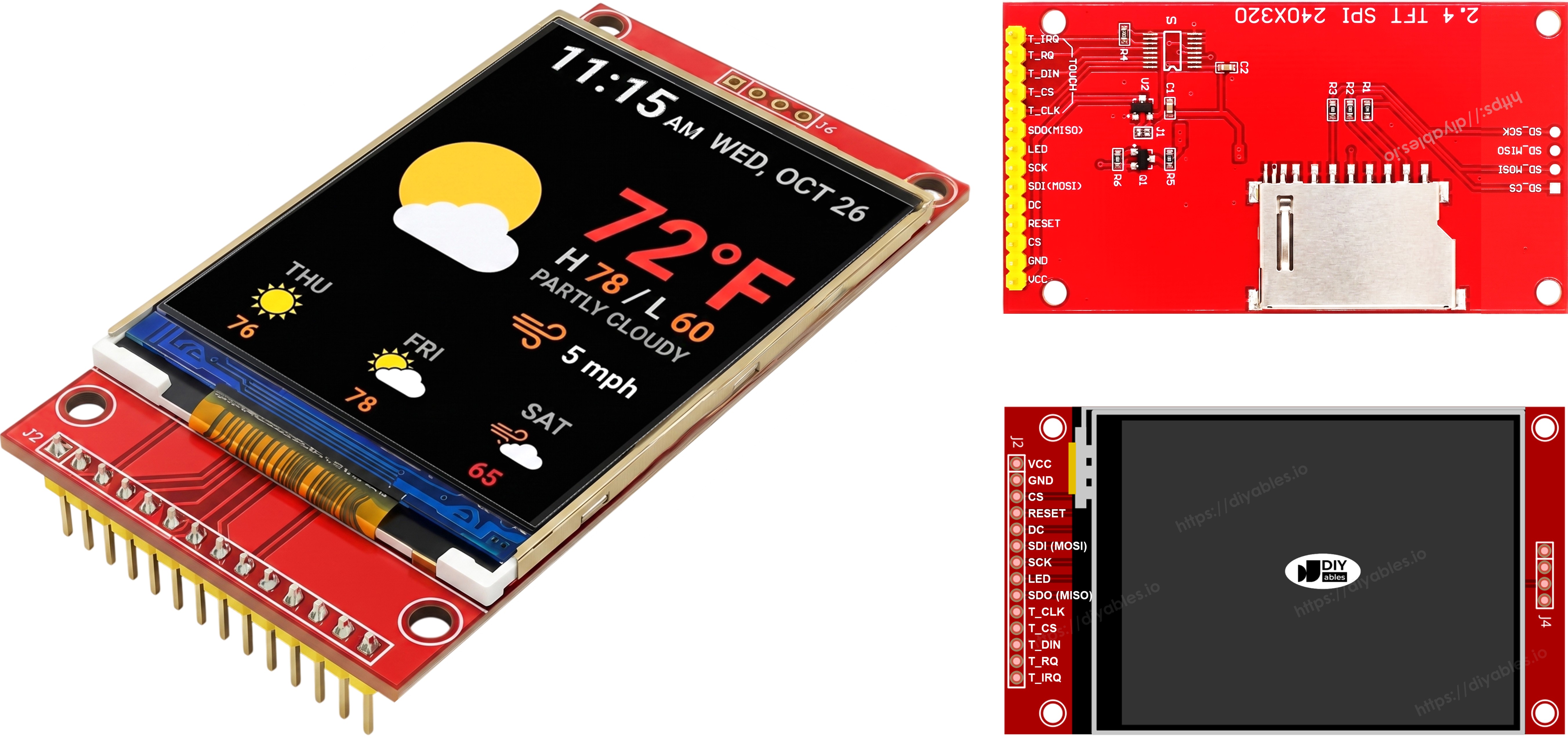
TFT SPI Display Pinbelegung

Schaltschema

Ohne Touch

Verbinden Sie MOSI mit D7 (GPIO13), SCK mit D5 (GPIO14), MISO mit D6 (GPIO12) auf dem ESP8266 NodeMCU. CS, DC und RST können ein beliebiger verfügbarer Boot-sicherer GPIO sein — D2 (GPIO4), D1 (GPIO5), D0 (GPIO16) werden in den Beispielen verwendet.

Display:

TFT Pin ESP8266 NodeMCU Pin GPIO Nummer Beschreibung
VCC 3V3 - Stromversorgung (nur 3,3V)
GND GND - Masse
CS D2 GPIO4 Chip Select (Boot-sicher)
DC / RS D1 GPIO5 Daten- / Befehlsauswahl (Boot-sicher)
RST D0 GPIO16 Reset (Boot-sicher, optional)
MOSI / SDI D7 GPIO13 Hardware SPI MOSI
SCK D5 GPIO14 Hardware SPI Takt
MISO / SDO D6 GPIO12 Hardware SPI MISO (optional)
LED / BL 3V3 - Backlight-Stromversorgung

SD-Karte (wenn Ihre Anwendung auf die SD-Karte zugreifen muss):

SD Pin ESP8266 NodeMCU Pin GPIO Nummer Beschreibung
SD_CS / TF_CS D8 GPIO15 SD-Karten-Chip-Select (Boot-empfindlich — siehe Hinweis unten)
MOSI / SDI D7 GPIO13 Gemeinsam mit Display MOSI (D7/GPIO13)
SCK / CLK D5 GPIO14 Gemeinsam mit Display SCK (D5/GPIO14)
MISO / SDO D6 GPIO12 Gemeinsam mit Display MISO (D6/GPIO12)

⚠ Boot-Pin-Hinweis (SD_CS): GPIO15 (D8) muss beim Boot LOW sein. Es wird für SD_CS in diesen Beispielen verwendet. Standard-SD-Module haben einen Pull-Down-Widerstand, der dies automatisch erfüllt. Wenn Uploads nach dem Hinzufügen des SD-Moduls nicht mehr funktionieren, trennen Sie die SD_CS-Leitung und versuchen Sie es erneut.
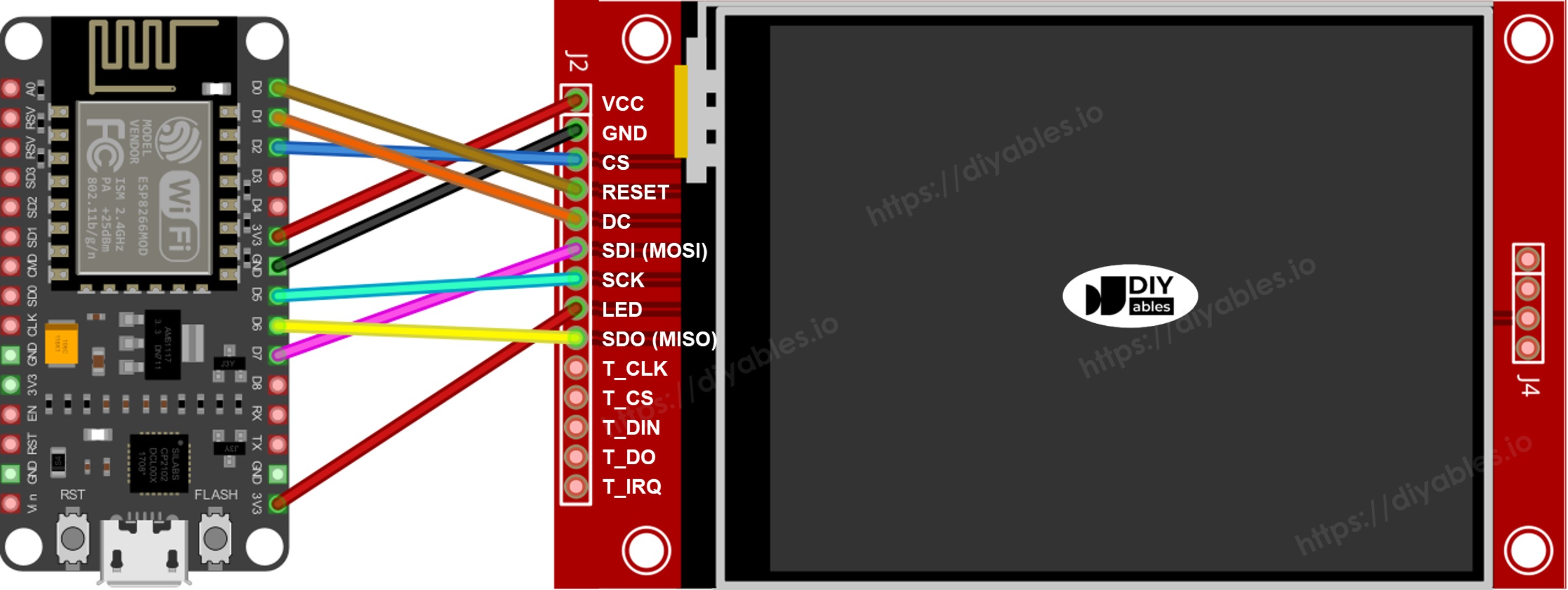
ESP8266 NodeMCU TFT SPI Display Schaltschema ohne Touch

Dieses Bild wurde mit Fritzing erstellt. Klicken Sie, um das Bild zu vergrößern.

Weitere Informationen finden Sie unter ESP8266-Pinbelegung und wie man ESP8266 und andere Komponenten mit Strom versorgt.

Mit Touch

Verbinden Sie den XPT2046 Touch-Controller mit dem ESP8266 NodeMCU SPI-Bus und teilen Sie D7 (GPIO13), D5 (GPIO14) und D6 (GPIO12) mit dem Display.

Display:

TFT Pin ESP8266 NodeMCU Pin GPIO Nummer Beschreibung
VCC 3V3 - Stromversorgung (nur 3,3V)
GND GND - Masse
CS D2 GPIO4 Chip Select (Boot-sicher)
DC / RS D1 GPIO5 Daten- / Befehlsauswahl (Boot-sicher)
RST D0 GPIO16 Reset (Boot-sicher, optional)
MOSI / SDI D7 GPIO13 Hardware SPI MOSI
SCK D5 GPIO14 Hardware SPI Takt
MISO / SDO D6 GPIO12 Hardware SPI MISO (optional)
LED / BL 3V3 - Backlight-Stromversorgung

Touch-Controller (wenn Ihre Anwendung die Touch-Funktion nutzt und das Display diese unterstützt):

Touch Pin ESP8266 NodeMCU Pin GPIO Nummer Beschreibung
T_CS D3 GPIO0 Touch-Chip-Select (Boot-empfindlich — siehe Hinweis unten)
T_IRQ D4 GPIO2 Touch-Interrupt, optional (Boot-empfindlich — siehe Hinweis unten)
T_DIN D7 GPIO13 Gemeinsam mit Display MOSI (D7/GPIO13)
T_CLK D5 GPIO14 Gemeinsam mit Display SCK (D5/GPIO14)
T_DO D6 GPIO12 Gemeinsam mit Display MISO (D6/GPIO12)

⚠ Boot-Pin-Beschränkungs-Hinweis: Der ESP8266 hat nur drei Boot-sichere GPIOs, die nicht Teil des Hardware-SPI-Bus sind: GPIO4 (D2), GPIO5 (D1) und GPIO16 (D0). Diese sind bereits von TFT CS, DC und RST belegt. Jeder zusätzliche CS-Pin (TOUCH_CS, SD_CS) und das optionale TOUCH_IRQ müssen daher einen der Boot-empfindlichen Pins verwenden:

  • GPIO0 / D3 — muss beim Boot HIGH sein. Wird für TOUCH_CS in diesen Beispielen verwendet.
  • GPIO2 / D4 — muss beim Boot HIGH sein. Wird für TOUCH_IRQ in diesen Beispielen verwendet.
  • GPIO15 / D8 — muss beim Boot LOW sein. Wird für SD_CS in diesen Beispielen verwendet.

Diese Pins sind zur Laufzeit vollständig nutzbar. Die Onboard-Widerstände des NodeMCU Board erfüllen normalerweise die Boot-Anforderungen. Wenn ein Modul jedoch einen dieser Pins während des Einschaltens oder Zurücksetzen aktiv auf die falsche Ebene treibt, startet das Board im Flash-Modus statt Ihren Sketch auszuführen. Wenn Uploads nach dem Hinzufügen eines Touch- oder SD-Moduls nicht mehr funktionieren, trennen Sie die CS-Leitung des Moduls und versuchen Sie den Upload erneut, dann verbinden Sie sie wieder.
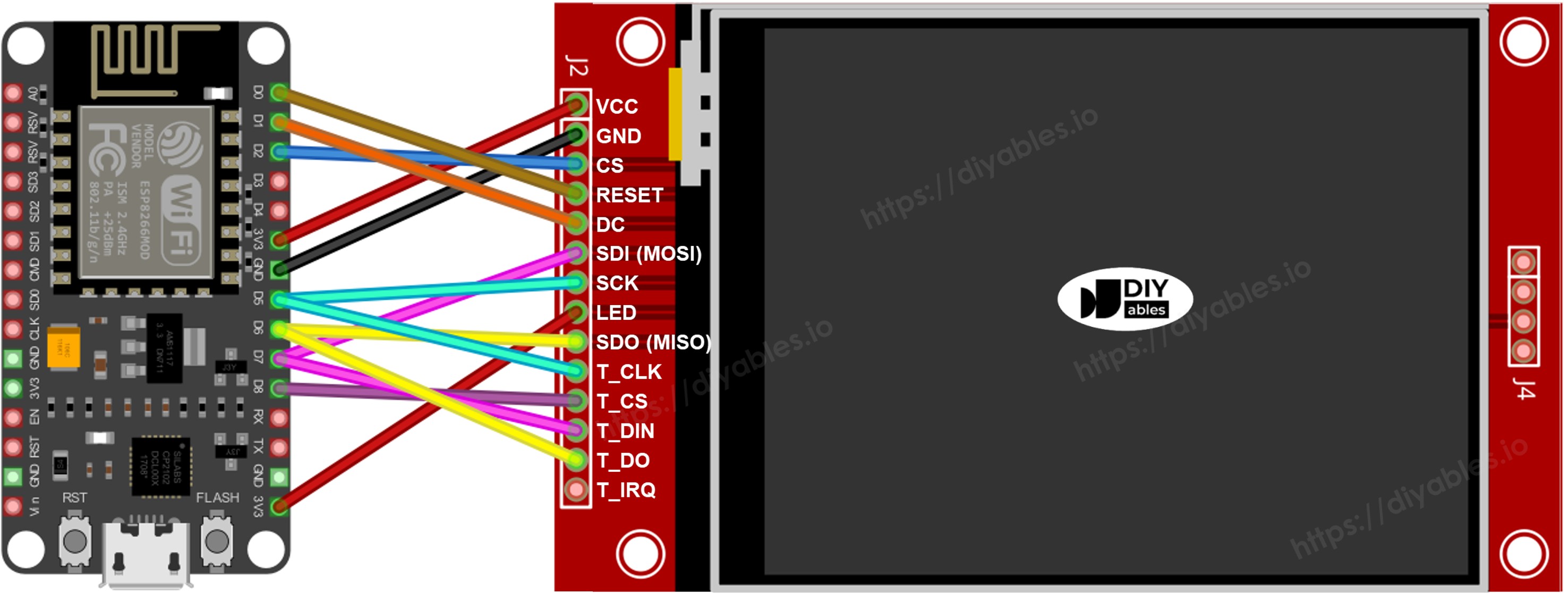
ESP8266 NodeMCU TFT SPI Display Schaltschema mit Touch

Dieses Bild wurde mit Fritzing erstellt. Klicken Sie, um das Bild zu vergrößern.

Wenn Ihr MCU zwei oder mehr Hardware-SPI-Schnittstellen hat, können Sie jedes Peripheriegerät (Display, SD-Karte, Touch-Controller) seinem eigenen dedizierten SPI-Bus zuweisen. Wenn Ihr MCU nur eine Hardware-SPI-Schnittstelle hat, teilen sich alle drei Peripheriegeräte die gleichen drei Datenleitungen (MOSI, SCK, MISO) — auf dem ESP8266 sind dies D7/GPIO13, D5/GPIO14 und D6/GPIO12. Jedes Peripheriegerät hat seinen eigenen CS-Pin, sodass immer nur einer aktiv ist. Die DIYables_TFT_SPI-Bibliothek verwaltet sowohl das Display als auch den XPT2046 Touch-Controller über eine einzige API — keine separate SPI-Bibliothek ist für die Touch-Seite erforderlich.

Bibliotheksinstallation

  1. Verbinden Sie den NodeMCU mit Ihrem Computer über ein Micro-B USB-Kabel.
  2. Öffnen Sie Arduino IDE. Wählen Sie NodeMCU 1.0 (ESP-12E Module) aus der Board-Liste und wählen Sie den richtigen Port.
  3. Öffnen Sie das Bibliotheken Panel.
  4. Geben Sie "DIYables_TFT_SPI" in der Suchleiste ein und finden Sie den DIYables Eintrag.
  5. Klicken Sie auf Installieren. Akzeptieren Sie alle Abhängigkeitsinstallationen.
  • Search for DIYables TFT SPI created by DIYables.io and click the Install button.
Newbiely | Arduino IDE 2.3.8
──
File
Edit
Sketch
Tools
Help
Nodemcu 1.0 (ESP-12E Module)
Library Manager
Type:
All
Topic:
All
DIYables TFT SPI by DIYables.io
Works with both touch and non-touch versions of the same SPI TFT modules. Supports ILI9341 (240x320, 16-bit RGB565), ILI9488 (320x480, 18-bit RGB666), and ST7789 (240x320, 16-bit RGB565) displays over SPI. Includes built-in driver for XPT2046 / HR2046 / ADS7843 SPI touch controllers and 4-wire resistive touch panels - no separate touch library required. Use the display-only API for non-touch panels, or add initTouchSPI() to enable touch on modules that include a touch controller. Extends Adafruit GFX for full graphics support. Works with any Arduino-compatible board that has SPI. More info
1.0.1
INSTALL
Newbiely.ino
···
1 void setup() {
Output
Serial Monitor
Ln 1, Col 1
Nodemcu 1.0 (ESP-12E Module) on COM15
1

Startercode

Jeder ESP8266 TFT-Sketch beginnt mit dieser Grundlage:

#include <DIYables_TFT_SPI.h> #define TFT_CS_PIN D2 // GPIO4 #define TFT_DC_PIN D1 // GPIO5 #define TFT_RST_PIN D0 // GPIO16 // Kommentieren Sie die Zeile, die zu Ihrem Driver-Chip passt: // DIYables_ILI9341_SPI TFT_display(240, 320, TFT_CS_PIN, TFT_DC_PIN, TFT_RST_PIN); // DIYables_ILI9488_SPI TFT_display(320, 480, TFT_CS_PIN, TFT_DC_PIN, TFT_RST_PIN); DIYables_ST7789_SPI TFT_display(240, 320, TFT_CS_PIN, TFT_DC_PIN, TFT_RST_PIN); void setup() { TFT_display.begin(); TFT_display.setRotation(1); } void loop() { // Zeichnungscode hier }

Probieren Sie es aus - Zeichnen Sie Formen

Das DrawShapes-Beispiel zeichnet Kreise, Dreiecke, Rechtecke, abgerundete Rechtecke und Linien unter Verwendung der Adafruit GFX-Zeichen-API.

/* * Dieser ESP8266 NodeMCU Code wurde von newbiely.de entwickelt * Dieser ESP8266 NodeMCU Code wird der Öffentlichkeit ohne jegliche Einschränkung zur Verfügung gestellt. * Für vollständige Anleitungen und Schaltpläne besuchen Sie bitte: * https://newbiely.de/tutorials/esp8266/esp8266-tft-lcd-touch-display-spi */ /* Created by DIYables This example code is in the public domain Product page: https://diyables.io */ // ============================================= // Single include brings in the base class plus all driver classes. // ============================================= #include <DIYables_TFT_SPI.h> // ============================================= // Wiring (ESP8266 NodeMCU) // --------------------------------------------- // TFT module ESP8266 NodeMCU // ------------ --------------------------------- // VCC -> 3.3V (NOT 5V!) // GND -> GND // CS -> D2 / GPIO4 (TFT_CS_PIN) boot-safe // RESET -> D0 / GPIO16 (TFT_RST_PIN) boot-safe // DC / RS -> D1 / GPIO5 (TFT_DC_PIN) boot-safe // SDI / MOSI -> D7 / GPIO13 (hardware SPI MOSI) // SCK -> D5 / GPIO14 (hardware SPI SCK) // SDO / MISO -> D6 / GPIO12 (hardware SPI MISO, optional) // LED -> 3.3V (or any GPIO via initBacklight) // ============================================= // ============================================= // SPI pin definitions (adjust for your board) // ============================================= #define TFT_CS_PIN D2 // GPIO4 #define TFT_DC_PIN D1 // GPIO5 #define TFT_RST_PIN D0 // GPIO16 // Panel resolution in native (portrait) orientation - change to match your module #define TFT_WIDTH 240 #define TFT_HEIGHT 320 // MOSI and SCK use default hardware SPI pins (GPIO13 / GPIO14) // ============================================= // Create display object (uncomment matching driver) // ============================================= // DIYables_ILI9341_SPI TFT_display(TFT_WIDTH, TFT_HEIGHT, TFT_CS_PIN, TFT_DC_PIN, TFT_RST_PIN); // DIYables_ILI9488_SPI TFT_display(TFT_WIDTH, TFT_HEIGHT, TFT_CS_PIN, TFT_DC_PIN, TFT_RST_PIN); DIYables_ST7789_SPI TFT_display(TFT_WIDTH, TFT_HEIGHT, TFT_CS_PIN, TFT_DC_PIN, TFT_RST_PIN); #define BLACK DIYables_TFT_SPI::colorRGB(0, 0, 0) #define BLUE DIYables_TFT_SPI::colorRGB(0, 0, 255) #define RED DIYables_TFT_SPI::colorRGB(255, 0, 0) #define GREEN DIYables_TFT_SPI::colorRGB(0, 255, 0) #define ORANGE DIYables_TFT_SPI::colorRGB(255, 165, 0) #define PINK DIYables_TFT_SPI::colorRGB(255, 192, 203) #define VIOLET DIYables_TFT_SPI::colorRGB(148, 0, 211) #define TURQUOISE DIYables_TFT_SPI::colorRGB(64, 224, 208) #define WHITE DIYables_TFT_SPI::colorRGB(255, 255, 255) // Helper to draw a filled diamond void fillDiamond(int cx, int cy, int h, int v, uint16_t color) { int x0 = cx, y0 = cy - v; int x1 = cx + h, y1 = cy; int x2 = cx, y2 = cy + v; int x3 = cx - h, y3 = cy; TFT_display.fillTriangle(x0, y0, x1, y1, x2, y2, color); TFT_display.fillTriangle(x0, y0, x2, y2, x3, y3, color); } void setup() { TFT_display.begin(); TFT_display.setRotation(1); // Landscape } void loop() { TFT_display.fillScreen(WHITE); uint16_t w = TFT_display.width(); uint16_t h = TFT_display.height(); // Scale positions relative to screen size with better spacing int col1 = w / 8; int col2 = w * 3 / 8; int col3 = w * 5 / 8; int col4 = w * 7 / 8; int row1 = h / 4; int row2 = h / 2; int row3 = h * 3 / 4; // Outlined circle TFT_display.drawCircle(col1, row1, 30, RED); // Filled circle TFT_display.fillCircle(col2, row1, 30, RED); // Outlined triangle TFT_display.drawTriangle(col3 - 30, row1 + 25, col3 + 30, row1 + 25, col3, row1 - 25, BLUE); // Filled triangle TFT_display.fillTriangle(col4 - 30, row1 + 25, col4 + 30, row1 + 25, col4, row1 - 25, GREEN); // Outlined rectangle TFT_display.drawRect(col1 - 35, row2 - 20, 70, 40, ORANGE); // Filled rectangle TFT_display.fillRect(col2 - 35, row2 - 20, 70, 40, TURQUOISE); // Outlined round rectangle TFT_display.drawRoundRect(col3 - 35, row2 - 20, 70, 40, 10, VIOLET); // Filled round rectangle TFT_display.fillRoundRect(col4 - 35, row2 - 20, 70, 40, 10, PINK); // Outlined diamond (centered between col1 and col2) int diamond1_x = (col1 + col2) / 2; TFT_display.drawLine(diamond1_x, row3 - 30, diamond1_x + 25, row3, GREEN); TFT_display.drawLine(diamond1_x + 25, row3, diamond1_x, row3 + 30, GREEN); TFT_display.drawLine(diamond1_x, row3 + 30, diamond1_x - 25, row3, GREEN); TFT_display.drawLine(diamond1_x - 25, row3, diamond1_x, row3 - 30, GREEN); // Filled diamond (centered between col3 and col4) int diamond2_x = (col3 + col4) / 2; fillDiamond(diamond2_x, row3, 25, 30, BLUE); delay(10000); }

Führen Sie den Code aus

  • Verdrahten Sie das TFT-Modul mit dem NodeMCU unter Verwendung der obigen Tabelle. Stromversorgung nur von 3,3V.
  • Stecken Sie das Micro-B USB-Kabel ein.
  • Wählen Sie in Arduino IDE das Board und den Port, fügen Sie den Code ein und drücken Sie Hochladen.
  • Das Display zeigt ein sich wiederholendes Muster von farbigen Formen.

Zeichenfunktionen

Methode Was es zeichnet Beispiel
begin() Das Display initialisieren. TFT_display.begin();
setRotation(r) Orientierung 0-3 einstellen. TFT_display.setRotation(1);
fillScreen(color) Bildschirm mit einfarbiger Farbe ausfüllen. TFT_display.fillScreen(BLACK);
colorRGB(r,g,b) 16-Bit-Farbe aus R, G, B erstellen. colorRGB(255,200,0)
fillCircle(x,y,r,color) Ausgefüllter Kreis. TFT_display.fillCircle(80,80,40,RED);
fillRect(x,y,w,h,color) Ausgefülltes Rechteck. TFT_display.fillRect(10,10,80,50,BLUE);
drawFastHLine(x,y,w,color) Horizontale Linie (schnell). TFT_display.drawFastHLine(0,120,240,WHITE);

Probieren Sie es aus - Text und Zahl anzeigen

Das ShowTextAndNumber-Beispiel rendert Strings und numerische Werte unter Verwendung der Adafruit GFX-Text-Engine.

/* * Dieser ESP8266 NodeMCU Code wurde von newbiely.de entwickelt * Dieser ESP8266 NodeMCU Code wird der Öffentlichkeit ohne jegliche Einschränkung zur Verfügung gestellt. * Für vollständige Anleitungen und Schaltpläne besuchen Sie bitte: * https://newbiely.de/tutorials/esp8266/esp8266-tft-lcd-touch-display-spi */ /* Created by DIYables This example code is in the public domain Product page: https://diyables.io */ // ============================================= // Single include brings in the base class plus all driver classes. // ============================================= #include <DIYables_TFT_SPI.h> // ============================================= // Wiring (ESP8266 NodeMCU) // --------------------------------------------- // TFT module ESP8266 NodeMCU // ------------ --------------------------------- // VCC -> 3.3V (NOT 5V!) // GND -> GND // CS -> D2 / GPIO4 (TFT_CS_PIN) boot-safe // RESET -> D0 / GPIO16 (TFT_RST_PIN) boot-safe // DC / RS -> D1 / GPIO5 (TFT_DC_PIN) boot-safe // SDI / MOSI -> D7 / GPIO13 (hardware SPI MOSI) // SCK -> D5 / GPIO14 (hardware SPI SCK) // SDO / MISO -> D6 / GPIO12 (hardware SPI MISO, optional) // LED -> 3.3V (or any GPIO via initBacklight) // ============================================= // ============================================= // SPI pin definitions (adjust for your board) // ============================================= #define TFT_CS_PIN D2 // GPIO4 #define TFT_DC_PIN D1 // GPIO5 #define TFT_RST_PIN D0 // GPIO16 // Panel resolution in native (portrait) orientation - change to match your module #define TFT_WIDTH 240 #define TFT_HEIGHT 320 // ============================================= // Create display object (uncomment matching driver) // ============================================= // DIYables_ILI9341_SPI TFT_display(TFT_WIDTH, TFT_HEIGHT, TFT_CS_PIN, TFT_DC_PIN, TFT_RST_PIN); // DIYables_ILI9488_SPI TFT_display(TFT_WIDTH, TFT_HEIGHT, TFT_CS_PIN, TFT_DC_PIN, TFT_RST_PIN); DIYables_ST7789_SPI TFT_display(TFT_WIDTH, TFT_HEIGHT, TFT_CS_PIN, TFT_DC_PIN, TFT_RST_PIN); #define MAGENTA DIYables_TFT_SPI::colorRGB(255, 0, 255) #define WHITE DIYables_TFT_SPI::colorRGB(255, 255, 255) void setup() { Serial.begin(9600); Serial.println(F("TFT SPI Display - Show text and numbers")); TFT_display.begin(); TFT_display.setRotation(1); // Landscape TFT_display.fillScreen(WHITE); // Set text color and size TFT_display.setTextColor(MAGENTA); TFT_display.setTextSize(3); // Sample values float temperature = 23.5; float humidity = 78.6; // Display temperature TFT_display.setCursor(20, 20); TFT_display.print("Temperature: "); TFT_display.print(temperature, 1); TFT_display.print(char(247)); TFT_display.println("C"); // Display humidity TFT_display.setCursor(20, 60); TFT_display.print("Humidity: "); TFT_display.print(humidity, 1); TFT_display.print("%"); } void loop() { }

Führen Sie den Code aus

  • Verdrahten und laden Sie wie oben hochgeladen.
  • Das Display druckt Textzeilen in verschiedenen Größen und Farben.

Zeichenfunktionen

Methode Was es zeichnet Beispiel
setTextColor(color) Legt die Vordergrundfarbe für Text fest. TFT_display.setTextColor(WHITE);
setTextSize(size) Skaliert Text. Größe 1 = 6×8 px, Größe 2 = 12×16 px. TFT_display.setTextSize(2);
setCursor(x, y) Positioniert den Text-Cursor bei Pixel (x, y). TFT_display.setCursor(10, 20);
print(value) Rendert einen String oder eine Zahl am Cursor. TFT_display.print("NodeMCU!");
println(value) Rendert und verschiebt den Cursor in die nächste Zeile. TFT_display.println(42);

Probieren Sie es aus - Bild zeichnen

Versuchen Sie, ein Bitmap-Bild auf das Display zu laden. Das DrawImage-Beispiel rendert ein Vollfarb-RGB565-Bild, das im Programm-Flash als PROGMEM const uint16_t Array in bitmap.h gespeichert ist. Auf dem ESP8266 wird PROGMEM-Daten im SPI-Flash-Speicher abgelegt und über einen Read-from-Flash-Befehl statt direkter Zeiger-Dereferenzierung zugegriffen. Die DIYables_TFT_SPI-Bibliothek behandelt dies transparent.

Platzieren Sie bitmap.h im selben Ordner wie der Sketch vor dem Kompilieren.

/* * Dieser ESP8266 NodeMCU Code wurde von newbiely.de entwickelt * Dieser ESP8266 NodeMCU Code wird der Öffentlichkeit ohne jegliche Einschränkung zur Verfügung gestellt. * Für vollständige Anleitungen und Schaltpläne besuchen Sie bitte: * https://newbiely.de/tutorials/esp8266/esp8266-tft-lcd-touch-display-spi */ /* Created by DIYables This example code is in the public domain Product page: https://diyables.io */ // ============================================= // Single include brings in the base class plus all driver classes. // ============================================= #include <DIYables_TFT_SPI.h> #include "bitmap.h" // ============================================= // Wiring (ESP8266 NodeMCU) // --------------------------------------------- // TFT module ESP8266 NodeMCU // ------------ --------------------------------- // VCC -> 3.3V (NOT 5V!) // GND -> GND // CS -> D2 / GPIO4 (TFT_CS_PIN) boot-safe // RESET -> D0 / GPIO16 (TFT_RST_PIN) boot-safe // DC / RS -> D1 / GPIO5 (TFT_DC_PIN) boot-safe // SDI / MOSI -> D7 / GPIO13 (hardware SPI MOSI) // SCK -> D5 / GPIO14 (hardware SPI SCK) // SDO / MISO -> D6 / GPIO12 (hardware SPI MISO, optional) // LED -> 3.3V (or any GPIO via initBacklight) // ============================================= // ============================================= // SPI pin definitions (adjust for your board) // ============================================= #define TFT_CS_PIN D2 // GPIO4 #define TFT_DC_PIN D1 // GPIO5 #define TFT_RST_PIN D0 // GPIO16 // Panel resolution in native (portrait) orientation - change to match your module #define TFT_WIDTH 240 #define TFT_HEIGHT 320 // ============================================= // Create display object (uncomment matching driver) // ============================================= // DIYables_ILI9341_SPI TFT_display(TFT_WIDTH, TFT_HEIGHT, TFT_CS_PIN, TFT_DC_PIN, TFT_RST_PIN); // DIYables_ILI9488_SPI TFT_display(TFT_WIDTH, TFT_HEIGHT, TFT_CS_PIN, TFT_DC_PIN, TFT_RST_PIN); DIYables_ST7789_SPI TFT_display(TFT_WIDTH, TFT_HEIGHT, TFT_CS_PIN, TFT_DC_PIN, TFT_RST_PIN); #define WHITE DIYables_TFT_SPI::colorRGB(255, 255, 255) int img_width = 120; int img_height = 53; void setup() { Serial.begin(9600); Serial.println(F("TFT SPI Display - Draw Image")); TFT_display.begin(); uint16_t SCREEN_WIDTH = TFT_display.width(); uint16_t SCREEN_HEIGHT = TFT_display.height(); int x = (SCREEN_WIDTH - img_width) / 2; int y = (SCREEN_HEIGHT - img_height) / 2; TFT_display.fillScreen(WHITE); TFT_display.drawRGBBitmap(x, y, myBitmap, img_width, img_height); } void loop() { delay(2000); TFT_display.invertDisplay(true); delay(2000); TFT_display.invertDisplay(false); }

Führen Sie den Code aus

  • Kopieren Sie bitmap.h in denselben Ordner wie den Sketch.
  • Verdrahten Sie das TFT-Modul mit dem NodeMCU wie oben gezeigt (GPIO13/14/12 für SPI, GPIO4/5/16 für CS/DC/RST). Verwenden Sie 3,3V für VCC.
  • Stecken Sie das Micro-B USB-Kabel ein.
  • Wählen Sie in Arduino IDE das Board und den Port, drücken Sie Hochladen.
  • Das Display zeigt das aus dem Programm-Flash geladene Bitmap-Bild.

Zeichenfunktionen

Methode Was es zeichnet Beispiel
drawRGBBitmap(x,y,bitmap,w,h) Rendert ein RGB565 PROGMEM Bitmap mit seiner oberen linken Ecke bei (x, y). Verwenden Sie das PROGMEM Schlüsselwort auf dem Array. TFT_display.drawRGBBitmap(0, 0, myImage, 240, 320);
fillScreen(color) Malt den gesamten Bildschirm mit einer einfarbigen Farbe, bevor das Zeichnen erfolgt. TFT_display.fillScreen(BLACK);

Probieren Sie es aus - Bild von SD-Karte zeichnen

Versuchen Sie, ein Bild von einer SD-Karte zu lesen. Das DrawImageSDcard-Beispiel streamt eine rohe RGB565 Binärdatei von einer Micro-SD-Karte direkt auf das Display mit einem kleinen Puffer. Dies vermeidet die Speicherung des vollständigen Bildes im 80 KB Heap des ESP8266.

Verdrahten Sie das SD-Modul mit dem gleichen SPI-Bus: GPIO13 (MOSI), GPIO14 (SCK), GPIO12 (MISO). Die drei Boot-sicheren GPIOs (GPIO4, GPIO5, GPIO16) sind bereits für TFT CS, DC und RST verwendet. SD_CS muss daher einen Boot-empfindlichen Pin verwenden. Die Beispiele verwenden GPIO15 (D8), das beim Boot LOW sein muss — Standard-SD-Module haben einen Pull-Down-Widerstand, der dies automatisch erfüllt. Siehe die Boot-Pin-Beschränkungs-Hinweis in der Verdrahtungssektion.

/* * Dieser ESP8266 NodeMCU Code wurde von newbiely.de entwickelt * Dieser ESP8266 NodeMCU Code wird der Öffentlichkeit ohne jegliche Einschränkung zur Verfügung gestellt. * Für vollständige Anleitungen und Schaltpläne besuchen Sie bitte: * https://newbiely.de/tutorials/esp8266/esp8266-tft-lcd-touch-display-spi */ /* Created by DIYables This example code is in the public domain Product page: https://diyables.io */ // ============================================= // Single include brings in the base class plus all driver classes. // ============================================= #include <DIYables_TFT_SPI.h> #include <SD.h> // ============================================= // Wiring (ESP8266 NodeMCU) // --------------------------------------------- // TFT + SD module ESP8266 NodeMCU // --------------------- --------------------------------- // VCC -> 3.3V (NOT 5V!) // GND -> GND // TFT CS -> D2 / GPIO4 (TFT_CS_PIN) boot-safe // TFT RESET -> D0 / GPIO16 (TFT_RST_PIN) boot-safe // TFT DC / RS -> D1 / GPIO5 (TFT_DC_PIN) boot-safe // SD CS -> D8 / GPIO15 (SD_CS) ⚠ boot-sensitive (must be LOW at boot) // SDI / MOSI (shared)-> D7 / GPIO13 (hardware SPI MOSI) // SDO / MISO (shared)-> D6 / GPIO12 (hardware SPI MISO) // SCK (shared)-> D5 / GPIO14 (hardware SPI SCK) // LED -> 3.3V (or any GPIO via initBacklight) // // NOTE: GPIO15 (D8) must be LOW at boot. Standard SD card modules have an // on-board pull-down that satisfies this automatically. If uploads fail after // connecting the SD module, disconnect D8 from SD_CS and retry uploading. // ============================================= // ============================================= // SPI pin definitions (adjust for your board) // ============================================= #define TFT_CS_PIN D2 // GPIO4 #define TFT_DC_PIN D1 // GPIO5 #define TFT_RST_PIN D0 // GPIO16 // Panel resolution in native (portrait) orientation - change to match your module #define TFT_WIDTH 240 #define TFT_HEIGHT 320 #define SD_CS D8 // GPIO15 (boot-sensitive: must be LOW at boot) // ============================================= // Create display object (uncomment matching driver) // ============================================= // DIYables_ILI9341_SPI TFT_display(TFT_WIDTH, TFT_HEIGHT, TFT_CS_PIN, TFT_DC_PIN, TFT_RST_PIN); // DIYables_ILI9488_SPI TFT_display(TFT_WIDTH, TFT_HEIGHT, TFT_CS_PIN, TFT_DC_PIN, TFT_RST_PIN); DIYables_ST7789_SPI TFT_display(TFT_WIDTH, TFT_HEIGHT, TFT_CS_PIN, TFT_DC_PIN, TFT_RST_PIN); #define WHITE DIYables_TFT_SPI::colorRGB(255, 255, 255) #define BUFFPIXEL 20 File bmpFile; uint16_t SCREEN_WIDTH; uint16_t SCREEN_HEIGHT; // Helper functions to read BMP file header uint16_t read16(File &f) { uint16_t result; result = f.read(); result |= (f.read() << 8); return result; } uint32_t read32(File &f) { uint32_t result; result = f.read(); result |= ((uint32_t)f.read() << 8); result |= ((uint32_t)f.read() << 16); result |= ((uint32_t)f.read() << 24); return result; } int32_t readS32(File &f) { int32_t result; result = f.read(); result |= ((uint32_t)f.read() << 8); result |= ((uint32_t)f.read() << 16); result |= ((uint32_t)f.read() << 24); return result; } bool getBMPDimensions(const char *filename, uint32_t &w, uint32_t &h) { File f = SD.open(filename); if (!f) return false; if (read16(f) != 0x4D42) { f.close(); return false; } read32(f); // file size read32(f); // reserved read32(f); // image offset read32(f); // DIB header size w = read32(f); int32_t sh = readS32(f); h = (sh < 0) ? -sh : sh; f.close(); return true; } void drawBMP(const char *filename, int x, int y) { bmpFile = SD.open(filename); if (!bmpFile) { Serial.println("File not found"); return; } if (read16(bmpFile) != 0x4D42) { Serial.println("Not a BMP file"); bmpFile.close(); return; } uint32_t fileSize = read32(bmpFile); read32(bmpFile); // Reserved uint32_t imageOffset = read32(bmpFile); uint32_t dibHeaderSize = read32(bmpFile); uint32_t bmpWidth = read32(bmpFile); int32_t bmpHeight = readS32(bmpFile); bool topDown = false; if (bmpHeight < 0) { bmpHeight = -bmpHeight; topDown = true; } if (read16(bmpFile) != 1) { Serial.println("Invalid BMP file"); bmpFile.close(); return; } uint16_t depth = read16(bmpFile); if (depth != 24) { Serial.println("Only 24-bit BMP is supported"); bmpFile.close(); return; } if (read32(bmpFile) != 0) { Serial.println("Unsupported BMP compression"); bmpFile.close(); return; } bmpFile.seek(imageOffset); uint8_t sdbuffer[3 * BUFFPIXEL]; uint16_t color; uint32_t rowSize = (bmpWidth * 3 + 3) & ~3; if (x >= SCREEN_WIDTH || y >= SCREEN_HEIGHT) return; uint32_t maxRow = min((uint32_t)bmpHeight, (uint32_t)(SCREEN_HEIGHT - y)); uint32_t maxCol = min(bmpWidth, (uint32_t)(SCREEN_WIDTH - x)); for (uint32_t row = 0; row < maxRow; row++) { int32_t rowPos = topDown ? row : bmpHeight - 1 - row; uint32_t filePosition = imageOffset + rowPos * rowSize; bmpFile.seek(filePosition); for (uint32_t col = 0; col < maxCol; col += BUFFPIXEL) { uint32_t pixelsToRead = min((uint32_t)BUFFPIXEL, maxCol - col); bmpFile.read(sdbuffer, 3 * pixelsToRead); for (uint32_t i = 0; i < pixelsToRead; i++) { uint8_t b = sdbuffer[i * 3]; uint8_t g = sdbuffer[i * 3 + 1]; uint8_t r = sdbuffer[i * 3 + 2]; color = DIYables_TFT_SPI::colorRGB(r, g, b); if ((x + col + i) < SCREEN_WIDTH && (y + row) < SCREEN_HEIGHT) { TFT_display.drawPixel(x + col + i, y + row, color); } } } } bmpFile.close(); Serial.println("BMP drawn"); } void setup() { Serial.begin(9600); if (!SD.begin(SD_CS)) { Serial.println("SD card initialization failed!"); return; } Serial.println("SD card initialized."); TFT_display.begin(); TFT_display.setRotation(1); // Landscape SCREEN_WIDTH = TFT_display.width(); SCREEN_HEIGHT = TFT_display.height(); TFT_display.fillScreen(WHITE); uint32_t imgWidth, imgHeight; if (getBMPDimensions("diyables.bmp", imgWidth, imgHeight)) { int x = (SCREEN_WIDTH - imgWidth) / 2; int y = (SCREEN_HEIGHT - imgHeight) / 2; drawBMP("diyables.bmp", x, y); } else { Serial.println("Failed to get BMP dimensions"); } } void loop() { }

Führen Sie den Code aus

  • Verdrahten Sie das SD-Modul mit dem NodeMCU und teilen Sie GPIO13/14/12 mit dem Display. Verbinden Sie SD CS mit D8 (GPIO15) wie im Code definiert. GPIO15 muss beim Boot LOW sein — Standard-SD-Module erfüllen dies mit einem On-Board-Pull-Down.
  • Kopieren Sie eine rohe RGB565 Binärbild-Datei auf die SD-Karten-Root. Dimensionen müssen mit dem Panel übereinstimmen.
  • Stecken Sie das Micro-B USB-Kabel ein.
  • Wählen Sie in Arduino IDE das Board und den Port, drücken Sie Hochladen.
  • Das Display rendert das von der SD-Karte gestreamte Bild.

Zeichenfunktionen

Methode Was es zeichnet Beispiel
startWrite() Öffnet eine direkte SPI-Schreib-Session und setzt den Display-CS (GPIO4). TFT_display.startWrite();
setAddrWindow(x0,y0,x1,y1) Legt die rechteckige Region fest, die Pixeldaten empfängt. TFT_display.setAddrWindow(0, 0, 239, 319);
pushColors(buf, len) Schreibt einen Puffer von RGB565-Pixelwerten auf das Display. Halten Sie den Puffer klein, um innerhalb von Heap-Limits zu bleiben. TFT_display.pushColors(buf, 256);
endWrite() Schließt die SPI-Session und gibt den CS frei. TFT_display.endWrite();

Probieren Sie es aus - Verwenden Sie eine externe Schriftart

Versuchen Sie, Text mit einer schärferen Schriftart zu rendern. Das UseExternalFont-Beispiel ersetzt die eingebaute 5×7 Pixel-Schriftart durch eine hochwertige Adafruit GFX-kompatible benutzerdefinierte Schriftart. Der Schriftart-Deskriptor wird als Header-Datei eingebunden und mit einem einzelnen Aufruf zu setFont() aktiviert. Rufen Sie setFont(NULL) auf, um zur eingebauten Schriftart zurückzukehren.

/* * Dieser ESP8266 NodeMCU Code wurde von newbiely.de entwickelt * Dieser ESP8266 NodeMCU Code wird der Öffentlichkeit ohne jegliche Einschränkung zur Verfügung gestellt. * Für vollständige Anleitungen und Schaltpläne besuchen Sie bitte: * https://newbiely.de/tutorials/esp8266/esp8266-tft-lcd-touch-display-spi */ /* Created by DIYables This example code is in the public domain Product page: https://diyables.io */ // ============================================= // Single include brings in the base class plus all driver classes. // ============================================= #include <DIYables_TFT_SPI.h> #include <Fonts/FreeSansBold12pt7b.h> // ============================================= // Wiring (ESP8266 NodeMCU) // --------------------------------------------- // TFT module ESP8266 NodeMCU // ------------ --------------------------------- // VCC -> 3.3V (NOT 5V!) // GND -> GND // CS -> D2 / GPIO4 (TFT_CS_PIN) boot-safe // RESET -> D0 / GPIO16 (TFT_RST_PIN) boot-safe // DC / RS -> D1 / GPIO5 (TFT_DC_PIN) boot-safe // SDI / MOSI -> D7 / GPIO13 (hardware SPI MOSI) // SCK -> D5 / GPIO14 (hardware SPI SCK) // SDO / MISO -> D6 / GPIO12 (hardware SPI MISO, optional) // LED -> 3.3V (or any GPIO via initBacklight) // ============================================= // ============================================= // SPI pin definitions (adjust for your board) // ============================================= #define TFT_CS_PIN D2 // GPIO4 #define TFT_DC_PIN D1 // GPIO5 #define TFT_RST_PIN D0 // GPIO16 // Panel resolution in native (portrait) orientation - change to match your module #define TFT_WIDTH 240 #define TFT_HEIGHT 320 // ============================================= // Create display object (uncomment matching driver) // ============================================= // DIYables_ILI9341_SPI TFT_display(TFT_WIDTH, TFT_HEIGHT, TFT_CS_PIN, TFT_DC_PIN, TFT_RST_PIN); // DIYables_ILI9488_SPI TFT_display(TFT_WIDTH, TFT_HEIGHT, TFT_CS_PIN, TFT_DC_PIN, TFT_RST_PIN); DIYables_ST7789_SPI TFT_display(TFT_WIDTH, TFT_HEIGHT, TFT_CS_PIN, TFT_DC_PIN, TFT_RST_PIN); #define MAGENTA DIYables_TFT_SPI::colorRGB(255, 0, 255) #define WHITE DIYables_TFT_SPI::colorRGB(255, 255, 255) void setup() { Serial.begin(9600); Serial.println(F("TFT SPI Display - Use external font")); TFT_display.begin(); TFT_display.setFont(&FreeSansBold12pt7b); TFT_display.setRotation(1); // Landscape TFT_display.fillScreen(WHITE); TFT_display.setTextColor(MAGENTA); TFT_display.setTextSize(1); float temperature = 23.5; float humidity = 78.6; TFT_display.setCursor(20, 30); TFT_display.print("Temperature: "); TFT_display.print(temperature, 1); TFT_display.print(char(247)); TFT_display.println("C"); TFT_display.setCursor(20, 70); TFT_display.print("Humidity: "); TFT_display.print(humidity, 1); TFT_display.print("%"); } void loop() { }

Führen Sie den Code aus

  • Verdrahten Sie das TFT-Modul mit dem NodeMCU wie in der Verdrahtungssektion beschrieben. Verwenden Sie 3,3V für VCC.
  • Stecken Sie das Micro-B USB-Kabel ein.
  • Wählen Sie in Arduino IDE das Board und den Port, drücken Sie Hochladen.
  • Das Display rendert Text mit der benutzerdefinierten Schriftart. Die Glyphe-Qualität ist deutlich besser als die eingebaute Schriftart.

Zeichenfunktionen

Methode Was es zeichnet Beispiel
setFont(&FontName) Wechselt zu einer benutzerdefinierten GFX-Schriftart. Übergeben Sie NULL, um die eingebaute 5×7 Pixel-Schriftart wiederherzustellen. TFT_display.setFont(&FreeSans12pt7b);
setCursor(x, y) Verschiebt den Text-Cursor zur gegebenen Pixelposition. TFT_display.setCursor(10, 40);
setTextColor(color) Legt die Text-Vordergrundfarbe fest. TFT_display.setTextColor(WHITE);
print(text) Druckt einen String am Cursor unter Verwendung der aktiven Schriftart. TFT_display.print("NodeMCU!");

※ UNSERE NACHRICHTEN

  • Sie können gerne den Link zu diesem Tutorial teilen. Bitte verwenden Sie jedoch unsere Inhalte nicht auf anderen Websites. Wir haben viel Mühe und Zeit in die Erstellung der Inhalte investiert, bitte respektieren Sie unsere Arbeit!