
Arduino - ILI9341 ILI9488 ST7789 TFT LCD Touch Display SPI-Schnittstelle

Dieses Tutorial zeigt Ihnen, wie Sie ein SPI TFT Display mit Arduino verwenden. Im Detail werden wir lernen:

Dieses Tutorial behandelt sowohl Touch- als auch Non-Touch SPI TFT LCD Displays. Es funktioniert mit 1,3, 1,54, 2,2, 2,4, 2,8, 3,2 und 3,5 Zoll Panels, die von ILI9341, ILI9488 oder ST7789 Controller Chips gesteuert werden.

Arduino TFT SPI Display

Tipp — einfachere und schnellere Alternative: Wenn Sie Arduino Uno verwenden, erwägen Sie den TFT Touch Shield. Er wird direkt auf den Uno-Header gesteckt — keine Jumper-Drähte und kein Level Converter erforderlich. Er verwendet eine 8-Bit-Parallelschnittstelle, die Pixeldaten erheblich schneller als SPI überträgt.

Erforderliche Hardware

1×Arduino Uno R3
1×USB 2.0 Kabel Typ A/B
1×SPI TFT Display Modul
1×5V bis 3,3V Level Converter
1×Jumper Drähte
1×(Empfohlen) Schraubklemmenblock-Shield für Arduino Uno
1×(Empfohlen) Sensors/Servo Expansion Shield for Arduino Uno
1×(Empfohlen) Breadboard-Shield für Arduino Uno
1×(Empfohlen) Gehäuse für Arduino Uno
1×(Empfohlen) Prototyping-Grundplatte & Breadboard-Kit für Arduino Uno

Oder Sie können die folgenden Kits kaufen:

1×DIYables STEM V3 Starter-Kit (Arduino enthalten)
1×DIYables Sensor-Kit (18 Sensoren/Displays)
Offenlegung: Einige der in diesem Abschnitt bereitgestellten Links sind Amazon-Affiliate-Links. Wir können eine Provision für Käufe erhalten, die über diese Links getätigt werden, ohne zusätzliche Kosten für Sie. Wir schätzen Ihre Unterstützung.

Über das SPI TFT Display

Ein SPI TFT Display ist ein Vollfarb-LCD-Panel, das über den Serial Peripheral Interface (SPI) Bus gesteuert wird. Es verwendet einen dedizierten Driver Chip - meistens die ILI9341, ILI9488 oder ST7789 - um Zeichnungsbefehle zu empfangen und Pixeldaten zu verwalten.

Wichtige Fakten:

  • ILI9341 - 16-Bit RGB565 Farbe, bis zu 40 MHz SPI.
  • ILI9488 - 18-Bit RGB666 Farbe über SPI, bis zu 24 MHz SPI.
  • ST7789 - 16-Bit RGB565 Farbe, bis zu 40 MHz SPI.

Empfehlung: Wenn Sie noch kein Display gekauft haben, empfehlen wir den ST7789 Driver. Er ist weit verbreitet, läuft mit voller 40 MHz SPI-Geschwindigkeit und ist die einfachste Wahl für neue Projekte.

Pinbelegung

Die meisten SPI TFT LCD Displays haben die folgenden Pins:

Display Pins:

Pin Funktion
VCC Stromversorgung
GND Masse
CS Chip Select — wird auf Low gezogen, um die Anzeige auf dem SPI Bus auszuwählen
DC / RS Daten / Befehl Select — High für Pixeldaten, Low für Befehle
RST Hardware Reset — optional; mit 3,3V verbinden, falls nicht verwendet
MOSI / SDI / SDA SPI Dateneingabe (MCU → Display)
SCK / CLK SPI Takt
MISO / SDO SPI Datenausgang (Display → MCU) — optional für nur Display-Verwendung
LED / BL / BLK Hintergrundbeleuchtung Stromversorgung — mit 3,3V oder einem PWM-Pin zum Dimmen verbinden

SD Kartenpin (falls Ihre Anwendung Zugriff auf die SD-Karte benötigt):

Pin Funktion
SD_CS / TF_CS SD-Karte Chip Select
MOSI / SDI MOSI — Daten von MCU zu SD-Karte
SCK / CLK SCK — SPI Takt
MISO / SDO MISO — Daten von SD-Karte zu MCU

Für TFT Displays mit Touch-Unterstützung gibt es zusätzliche Touch-Pins (falls Ihre Anwendung die Touch-Funktion verwendet und das Display diese unterstützt):

Pin Funktion
T_CS Touch Controller Chip Select
T_CLK SCK — SPI Takt
T_DIN MOSI — Daten von MCU zu Touch Controller
T_DO MISO — Daten von Touch Controller zu MCU
T_IRQ Touch Interrupt — optional; signalisiert, wenn der Bildschirm berührt wird

Hinweis: Einige Non-Touch Display Module stellen auch T_CS, T_CLK, T_DIN, T_DO und T_IRQ Pins bereit. Diese sind auf diesen Boards nicht funktional — der Touch Controller IC ist nicht bestückt. Sie erscheinen, weil die PCB dasselbe Layout wie die Touch-aktivierte Version wiederverwendet, um Fertigungsvarianten zu reduzieren.
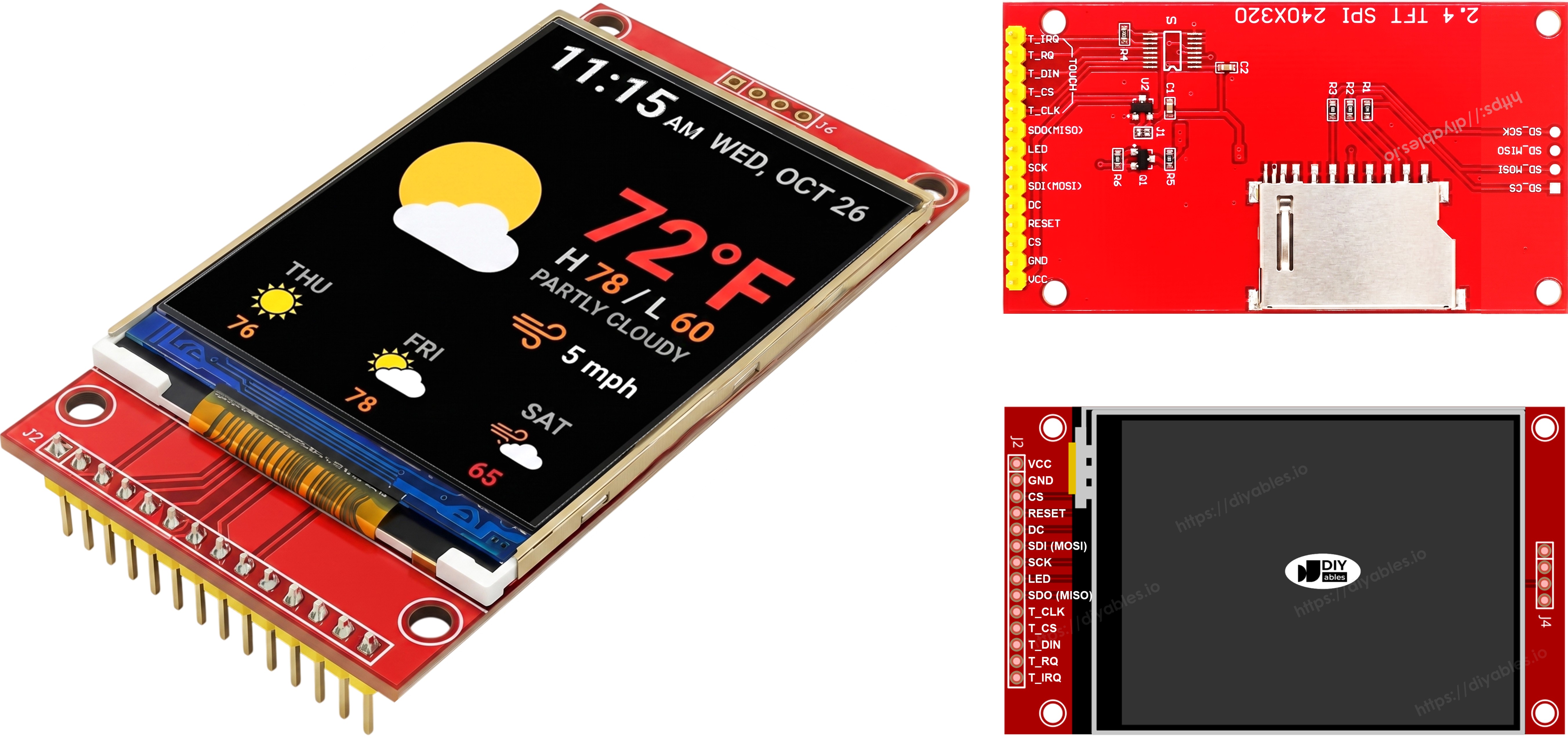
TFT SPI Display Pinbelegung

Verdrahtungsschema

⚠ Wichtig — Spannungsabweichung: Arduino Uno ist eine 5V Platine. Seine GPIO Pins geben 5V Logik aus, aber SPI TFT Displays arbeiten bei 3,3V. Das direkte Verbinden der Signal-Leitungen (MOSI, SCK, CS, DC, RST und T_CS bei Verwendung von Touch) vom Uno zur Anzeige beschädigt das Display. Sie müssen einen 5V bis 3,3V Level Converter auf jeder MCU-gesteuerten Signalleitung zwischen dem Uno und der Anzeige verwenden. Die MISO Leitung (Display → MCU) benötigt keinen Level Converter. Ein einzelnes 4-Kanal-Modul reicht für die Non-Touch-Verdrahtung aus; die With-Touch-Verdrahtung benötigt 6 Kanäle insgesamt (T_CS hinzufügen), verwenden Sie also zwei 4-Kanal-Module oder ein 8-Kanal-Modul. Verbinden Sie das TFT VCC mit dem 3,3V Pin des Uno.

Ohne Touch

Verbinden Sie MOSI mit D11, SCK mit D13, MISO mit D12 am Arduino Uno. CS, DC und RST können beliebige verfügbare GPIO sein — D10, D9, D8 werden in den Beispielen verwendet.

Display:

TFT Pin Arduino Uno Pin Beschreibung
VCC 3,3V Stromversorgung (nur 3,3V — das Display läuft auf 3,3V)
GND GND Masse
CS D10 Chip Select
DC / RS D9 Daten / Befehl Select
RST D8 Reset (optional)
MOSI / SDI D11 Hardware SPI MOSI
SCK D13 Hardware SPI Takt
MISO / SDO D12 Hardware SPI MISO (optional)
LED / BL 3,3V Hintergrundbeleuchtung Stromversorgung

SD-Karte (falls Ihre Anwendung Zugriff auf die SD-Karte benötigt):

SD Pin Arduino Uno Pin Beschreibung
SD_CS / TF_CS beliebiger freier GPIO SD-Karte Chip Select
MOSI / SDI D11 Mit Display MOSI gemeinsam genutzt (D11)
SCK / CLK D13 Mit Display SCK gemeinsam genutzt (D13)
MISO / SDO D12 Mit Display MISO gemeinsam genutzt (D12)
Arduino TFT SPI Display Verdrahtungsschema ohne Touch

Dieses Bild wurde mit Fritzing erstellt. Klicken Sie, um das Bild zu vergrößern.

Mit Touch

Verbinden Sie den XPT2046 Touch Controller mit dem Arduino Uno SPI Bus, wobei D11, D13 und D12 mit dem Display gemeinsam genutzt werden.

Display:

TFT Pin Arduino Uno Pin Beschreibung
VCC 3,3V Stromversorgung (nur 3,3V — das Display läuft auf 3,3V)
GND GND Masse
CS D10 Chip Select
DC / RS D9 Daten / Befehl Select
RST D8 Reset (optional)
MOSI / SDI D11 Hardware SPI MOSI
SCK D13 Hardware SPI Takt
MISO / SDO D12 Hardware SPI MISO (optional)
LED / BL 3,3V Hintergrundbeleuchtung Stromversorgung

Touch Controller (falls Ihre Anwendung die Touch-Funktion verwendet und das Display diese unterstützt):

Touch Pin Arduino Uno Pin Beschreibung
T_CS beliebiger freier GPIO Touch Chip Select
T_IRQ beliebiger freier GPIO Touch Interrupt (optional)
T_DIN D11 Mit Display MOSI gemeinsam genutzt (D11)
T_CLK D13 Mit Display SCK gemeinsam genutzt (D13)
T_DO D12 Mit Display MISO gemeinsam genutzt (D12)
Arduino TFT SPI Display Verdrahtungsschema mit Touch

Dieses Bild wurde mit Fritzing erstellt. Klicken Sie, um das Bild zu vergrößern.

Falls Ihr MCU zwei oder mehr Hardware-SPI-Schnittstellen hat, können Sie jedes Peripheriegerät (Display, SD-Karte, Touch Controller) einem dedizierten SPI-Bus zuweisen. Falls Ihr MCU nur eine Hardware-SPI-Schnittstelle hat, nutzen alle drei Peripheriegeräte die gleichen drei Datenleitungen (MOSI, SCK, MISO) — auf dem Uno sind dies D11, D13 und D12. Jedes Peripheriegerät hat seinen eigenen CS-Pin, sodass jeweils nur eines aktiv ist. Die DIYables_TFT_SPI Bibliothek verwaltet sowohl das Display als auch den XPT2046 Touch Controller durch eine einzelne API — es ist keine separate SPI Bibliothek für die Touch-Seite erforderlich.

Bibliotheksinstallation

  • Verbinden Sie die Arduino Platine mit Ihrem Computer über ein USB-Kabel.
  • Öffnen Sie die Arduino IDE, wählen Sie die richtige Platine und den Port.
  • Navigieren Sie zum Bibliotheken Symbol auf der linken Leiste der Arduino IDE.
  • Suchen Sie "DIYables_TFT_SPI", dann finden Sie die DIYables_TFT_SPI Bibliothek von DIYables.
  • Klicken Sie auf die Schaltfläche Installieren, um die neueste Version der Bibliothek zu installieren.
  • Wenn Sie aufgefordert werden, Abhängigkeiten zu installieren, klicken Sie auf Alle installieren, um auch die Adafruit GFX Bibliothek zu installieren.
  • Search for DIYables TFT SPI created by DIYables.io and click the Install button.
Newbiely | Arduino IDE 2.3.8
──
File
Edit
Sketch
Tools
Help
Arduino Uno
Library Manager
Type:
All
Topic:
All
DIYables TFT SPI by DIYables.io
Works with both touch and non-touch versions of the same SPI TFT modules. Supports ILI9341 (240x320, 16-bit RGB565), ILI9488 (320x480, 18-bit RGB666), and ST7789 (240x320, 16-bit RGB565) displays over SPI. Includes built-in driver for XPT2046 / HR2046 / ADS7843 SPI touch controllers and 4-wire resistive touch panels - no separate touch library required. Use the display-only API for non-touch panels, or add initTouchSPI() to enable touch on modules that include a touch controller. Extends Adafruit GFX for full graphics support. Works with any Arduino-compatible board that has SPI. More info
1.0.1
INSTALL
Newbiely.ino
···
1 void setup() {
Output
Serial Monitor
Ln 1, Col 1
Arduino Uno on COM15
1

Grundstruktur

Jede Skizze, die die DIYables_TFT_SPI Bibliothek verwendet, folgt dieser grundlegenden Struktur:

#include <DIYables_TFT_SPI.h> #define TFT_CS_PIN 10 #define TFT_DC_PIN 9 #define TFT_RST_PIN 8 // Erstellen Sie ein Display Objekt - wählen Sie die Zeile, die Ihrem Driver Chip entspricht: // DIYables_ILI9341_SPI TFT_display(240, 320, TFT_CS_PIN, TFT_DC_PIN, TFT_RST_PIN); // DIYables_ILI9488_SPI TFT_display(320, 480, TFT_CS_PIN, TFT_DC_PIN, TFT_RST_PIN); DIYables_ST7789_SPI TFT_display(240, 320, TFT_CS_PIN, TFT_DC_PIN, TFT_RST_PIN); void setup() { TFT_display.begin(); TFT_display.setRotation(1); // 0=portrait, 1=landscape, 2=portrait flipped, 3=landscape flipped } void loop() { // drawing code here }

Die Breite und Höhe, die an den Konstruktor übergeben werden, müssen mit der in dem Datenblatt Ihres Moduls gedruckten physischen Auflösung übereinstimmen. Module mit dem gleichen Driver Chip werden in verschiedenen Größen verkauft - zum Beispiel sind ST7789 Module in 240x320, 240x240, 135x240 und anderen Varianten erhältlich.

Arduino Code - Formen zeichnen

Das DrawShapes Beispiel zeigt, wie Sie Kreise, Dreiecke, Rechtecke, abgerundete Rechtecke und Linien mit den integrierten Adafruit GFX Zeichenfunktionen zeichnen.

/* * Dieser Arduino Code wurde von newbiely.de entwickelt * Dieser Arduino Code wird der Öffentlichkeit ohne jegliche Einschränkung zur Verfügung gestellt. * Für vollständige Anleitungen und Schaltpläne besuchen Sie bitte: * https://newbiely.de/tutorials/arduino/arduino-tft-lcd-touch-display-spi */ /* Created by DIYables This example code is in the public domain Product page: https://diyables.io */ // ============================================= // Single include brings in the base class plus all driver classes. // ============================================= #include <DIYables_TFT_SPI.h> // ============================================= // Wiring (Arduino Uno / Nano) // --------------------------------------------- // TFT module Arduino Uno / Nano // ------------ --------------------------------- // VCC -> 5V // GND -> GND // CS -> D10 (TFT_CS_PIN) // RESET -> D8 (TFT_RST_PIN) // DC / RS -> D9 (TFT_DC_PIN) // SDI / MOSI -> D11 (hardware SPI MOSI) // SCK -> D13 (hardware SPI SCK) // LED -> 3.3V (or any GPIO via initBacklight) // SDO / MISO -> D12 (only needed when reading from display) // ============================================= // ============================================= // SPI pin definitions (adjust for your board) // ============================================= #define TFT_CS_PIN 10 #define TFT_DC_PIN 9 #define TFT_RST_PIN 8 // Panel resolution in native (portrait) orientation - change to match your module #define TFT_WIDTH 240 #define TFT_HEIGHT 320 // MOSI and SCK use default hardware SPI pins // ============================================= // Create display object (uncomment matching driver) // ============================================= // DIYables_ILI9341_SPI TFT_display(TFT_WIDTH, TFT_HEIGHT, TFT_CS_PIN, TFT_DC_PIN, TFT_RST_PIN); // DIYables_ILI9488_SPI TFT_display(TFT_WIDTH, TFT_HEIGHT, TFT_CS_PIN, TFT_DC_PIN, TFT_RST_PIN); DIYables_ST7789_SPI TFT_display(TFT_WIDTH, TFT_HEIGHT, TFT_CS_PIN, TFT_DC_PIN, TFT_RST_PIN); #define BLACK DIYables_TFT_SPI::colorRGB(0, 0, 0) #define BLUE DIYables_TFT_SPI::colorRGB(0, 0, 255) #define RED DIYables_TFT_SPI::colorRGB(255, 0, 0) #define GREEN DIYables_TFT_SPI::colorRGB(0, 255, 0) #define ORANGE DIYables_TFT_SPI::colorRGB(255, 165, 0) #define PINK DIYables_TFT_SPI::colorRGB(255, 192, 203) #define VIOLET DIYables_TFT_SPI::colorRGB(148, 0, 211) #define TURQUOISE DIYables_TFT_SPI::colorRGB(64, 224, 208) #define WHITE DIYables_TFT_SPI::colorRGB(255, 255, 255) // Helper to draw a filled diamond void fillDiamond(int cx, int cy, int h, int v, uint16_t color) { int x0 = cx, y0 = cy - v; int x1 = cx + h, y1 = cy; int x2 = cx, y2 = cy + v; int x3 = cx - h, y3 = cy; TFT_display.fillTriangle(x0, y0, x1, y1, x2, y2, color); TFT_display.fillTriangle(x0, y0, x2, y2, x3, y3, color); } void setup() { TFT_display.begin(); TFT_display.setRotation(1); // Landscape } void loop() { TFT_display.fillScreen(WHITE); uint16_t w = TFT_display.width(); uint16_t h = TFT_display.height(); // Scale positions relative to screen size with better spacing int col1 = w / 8; int col2 = w * 3 / 8; int col3 = w * 5 / 8; int col4 = w * 7 / 8; int row1 = h / 4; int row2 = h / 2; int row3 = h * 3 / 4; // Outlined circle TFT_display.drawCircle(col1, row1, 30, RED); // Filled circle TFT_display.fillCircle(col2, row1, 30, RED); // Outlined triangle TFT_display.drawTriangle(col3 - 30, row1 + 25, col3 + 30, row1 + 25, col3, row1 - 25, BLUE); // Filled triangle TFT_display.fillTriangle(col4 - 30, row1 + 25, col4 + 30, row1 + 25, col4, row1 - 25, GREEN); // Outlined rectangle TFT_display.drawRect(col1 - 35, row2 - 20, 70, 40, ORANGE); // Filled rectangle TFT_display.fillRect(col2 - 35, row2 - 20, 70, 40, TURQUOISE); // Outlined round rectangle TFT_display.drawRoundRect(col3 - 35, row2 - 20, 70, 40, 10, VIOLET); // Filled round rectangle TFT_display.fillRoundRect(col4 - 35, row2 - 20, 70, 40, 10, PINK); // Outlined diamond (centered between col1 and col2) int diamond1_x = (col1 + col2) / 2; TFT_display.drawLine(diamond1_x, row3 - 30, diamond1_x + 25, row3, GREEN); TFT_display.drawLine(diamond1_x + 25, row3, diamond1_x, row3 + 30, GREEN); TFT_display.drawLine(diamond1_x, row3 + 30, diamond1_x - 25, row3, GREEN); TFT_display.drawLine(diamond1_x - 25, row3, diamond1_x, row3 - 30, GREEN); // Filled diamond (centered between col3 and col4) int diamond2_x = (col3 + col4) / 2; fillDiamond(diamond2_x, row3, 25, 30, BLUE); delay(10000); }

Schnelle Schritte

  • Verbinden Sie das TFT Display mit dem Arduino nach dem Verdrahtungsschema oben.
  • Verbinden Sie die Arduino Platine mit Ihrem Computer über ein USB-Kabel.
  • Öffnen Sie die Arduino IDE, wählen Sie die richtige Platine und den Port.
  • Kopieren Sie den obigen Code und fügen Sie ihn in den Editor der Arduino IDE ein.
  • Ändern Sie die Konstruktor-Zeile, um Ihren Display Driver und Ihre Auflösung anzupassen.
  • Klicken Sie auf die Schaltfläche Hochladen in der Arduino IDE, um den Code auf Arduino hochzuladen.
  • Das Display zeigt ein Muster farbiger Formen, das sich alle paar Sekunden ausfüllt und neu zeichnet.

API Zusammenfassung

Methode Beschreibung Beispiel
TFT_display.begin() Initialisieren Sie das Display. Rufen Sie einmal in setup() auf. TFT_display.begin();
TFT_display.setRotation(r) Legen Sie die Bildschirmausrichtung fest. 0=Hochformat, 1=Querformat. TFT_display.setRotation(1);
TFT_display.fillScreen(color) Füllen Sie den gesamten Bildschirm mit einer Farbe. TFT_display.fillScreen(BLACK);
DIYables_TFT_SPI::colorRGB(r,g,b) Konvertieren Sie RGB-Werte in eine 16-Bit-Farbe. colorRGB(255, 0, 0)
TFT_display.drawCircle(x,y,r,color) Zeichnen Sie einen Kreis Umriss. TFT_display.drawCircle(60, 60, 30, RED);
TFT_display.fillCircle(x,y,r,color) Zeichnen Sie einen gefüllten Kreis. TFT_display.fillCircle(60, 60, 30, RED);
TFT_display.drawRect(x,y,w,h,color) Zeichnen Sie einen Rechteck Umriss. TFT_display.drawRect(10, 10, 80, 40, BLUE);
TFT_display.fillRect(x,y,w,h,color) Zeichnen Sie ein gefülltes Rechteck. TFT_display.fillRect(10, 10, 80, 40, BLUE);
TFT_display.drawLine(x0,y0,x1,y1,color) Zeichnen Sie eine Linie. TFT_display.drawLine(0, 0, 100, 100, GREEN);

Arduino Code - Text und Nummer anzeigen

Das ShowTextAndNumber Beispiel zeigt, wie Sie Text Strings und numerische Werte auf dem Display mit verschiedenen Größen und Positionen drucken.

/* * Dieser Arduino Code wurde von newbiely.de entwickelt * Dieser Arduino Code wird der Öffentlichkeit ohne jegliche Einschränkung zur Verfügung gestellt. * Für vollständige Anleitungen und Schaltpläne besuchen Sie bitte: * https://newbiely.de/tutorials/arduino/arduino-tft-lcd-touch-display-spi */ /* Created by DIYables This example code is in the public domain Product page: https://diyables.io */ // ============================================= // Single include brings in the base class plus all driver classes. // ============================================= #include <DIYables_TFT_SPI.h> // ============================================= // Wiring (Arduino Uno / Nano) // --------------------------------------------- // TFT module Arduino Uno / Nano // ------------ --------------------------------- // VCC -> 5V // GND -> GND // CS -> D10 (TFT_CS_PIN) // RESET -> D8 (TFT_RST_PIN) // DC / RS -> D9 (TFT_DC_PIN) // SDI / MOSI -> D11 (hardware SPI MOSI) // SCK -> D13 (hardware SPI SCK) // LED -> 3.3V (or any GPIO via initBacklight) // SDO / MISO -> D12 (only needed when reading from display) // ============================================= // ============================================= // SPI pin definitions (adjust for your board) // ============================================= #define TFT_CS_PIN 10 #define TFT_DC_PIN 9 #define TFT_RST_PIN 8 // Panel resolution in native (portrait) orientation - change to match your module #define TFT_WIDTH 240 #define TFT_HEIGHT 320 // ============================================= // Create display object (uncomment matching driver) // ============================================= // DIYables_ILI9341_SPI TFT_display(TFT_WIDTH, TFT_HEIGHT, TFT_CS_PIN, TFT_DC_PIN, TFT_RST_PIN); // DIYables_ILI9488_SPI TFT_display(TFT_WIDTH, TFT_HEIGHT, TFT_CS_PIN, TFT_DC_PIN, TFT_RST_PIN); DIYables_ST7789_SPI TFT_display(TFT_WIDTH, TFT_HEIGHT, TFT_CS_PIN, TFT_DC_PIN, TFT_RST_PIN); #define MAGENTA DIYables_TFT_SPI::colorRGB(255, 0, 255) #define WHITE DIYables_TFT_SPI::colorRGB(255, 255, 255) void setup() { Serial.begin(9600); Serial.println(F("TFT SPI Display - Show text and numbers")); TFT_display.begin(); TFT_display.setRotation(1); // Landscape TFT_display.fillScreen(WHITE); // Set text color and size TFT_display.setTextColor(MAGENTA); TFT_display.setTextSize(3); // Sample values float temperature = 23.5; float humidity = 78.6; // Display temperature TFT_display.setCursor(20, 20); TFT_display.print("Temperature: "); TFT_display.print(temperature, 1); TFT_display.print(char(247)); TFT_display.println("C"); // Display humidity TFT_display.setCursor(20, 60); TFT_display.print("Humidity: "); TFT_display.print(humidity, 1); TFT_display.print("%"); } void loop() { }

Schnelle Schritte

  • Verbinden Sie das Display und laden Sie den Code wie oben beschrieben hoch.
  • Das Display druckt mehrere Textzeilen mit verschiedenen Farben und Größen.

API Zusammenfassung

Methode Beschreibung Beispiel
TFT_display.setTextColor(color) Legen Sie die Vordergrundfarbe des Textes fest. TFT_display.setTextColor(WHITE);
TFT_display.setTextSize(size) Legen Sie die Textskala fest (1=6x8 px, 2=12x16 px, ...). TFT_display.setTextSize(2);
TFT_display.setCursor(x, y) Bewegen Sie den Text Cursor zu einer Position. TFT_display.setCursor(10, 20);
TFT_display.print(value) Drucken Sie eine Zeichenkette oder Nummer am Cursor. TFT_display.print("Hello!");
TFT_display.println(value) Drucken Sie und bewegen Sie den Cursor zur nächsten Zeile. TFT_display.println(42);

Arduino Code - Bild zeichnen

Das DrawImage Beispiel zeigt ein RGB565 Vollfarb Bitmap aus dem Programmspeicher (PROGMEM). Die Pixel-Daten befinden sich in einer Companion Bitmap.h Header Datei als const uint16_t Array und werden niemals in SRAM kopiert, was es für speicherbegrenzte Platinen geeignet macht. Fügen Sie bitmap.h zum gleichen Ordner wie die Skizze vor dem Kompilieren hinzu.

/* * Dieser Arduino Code wurde von newbiely.de entwickelt * Dieser Arduino Code wird der Öffentlichkeit ohne jegliche Einschränkung zur Verfügung gestellt. * Für vollständige Anleitungen und Schaltpläne besuchen Sie bitte: * https://newbiely.de/tutorials/arduino/arduino-tft-lcd-touch-display-spi */ /* Created by DIYables This example code is in the public domain Product page: https://diyables.io */ // ============================================= // Single include brings in the base class plus all driver classes. // ============================================= #include <DIYables_TFT_SPI.h> #include "bitmap.h" // ============================================= // Wiring (Arduino Uno / Nano) // --------------------------------------------- // TFT module Arduino Uno / Nano // ------------ --------------------------------- // VCC -> 5V // GND -> GND // CS -> D10 (TFT_CS_PIN) // RESET -> D8 (TFT_RST_PIN) // DC / RS -> D9 (TFT_DC_PIN) // SDI / MOSI -> D11 (hardware SPI MOSI) // SCK -> D13 (hardware SPI SCK) // LED -> 3.3V (or any GPIO via initBacklight) // SDO / MISO -> D12 (only needed when reading from display) // ============================================= // ============================================= // SPI pin definitions (adjust for your board) // ============================================= #define TFT_CS_PIN 10 #define TFT_DC_PIN 9 #define TFT_RST_PIN 8 // Panel resolution in native (portrait) orientation - change to match your module #define TFT_WIDTH 240 #define TFT_HEIGHT 320 // ============================================= // Create display object (uncomment matching driver) // ============================================= // DIYables_ILI9341_SPI TFT_display(TFT_WIDTH, TFT_HEIGHT, TFT_CS_PIN, TFT_DC_PIN, TFT_RST_PIN); // DIYables_ILI9488_SPI TFT_display(TFT_WIDTH, TFT_HEIGHT, TFT_CS_PIN, TFT_DC_PIN, TFT_RST_PIN); DIYables_ST7789_SPI TFT_display(TFT_WIDTH, TFT_HEIGHT, TFT_CS_PIN, TFT_DC_PIN, TFT_RST_PIN); #define WHITE DIYables_TFT_SPI::colorRGB(255, 255, 255) int img_width = 120; int img_height = 53; void setup() { Serial.begin(9600); Serial.println(F("TFT SPI Display - Draw Image")); TFT_display.begin(); uint16_t SCREEN_WIDTH = TFT_display.width(); uint16_t SCREEN_HEIGHT = TFT_display.height(); int x = (SCREEN_WIDTH - img_width) / 2; int y = (SCREEN_HEIGHT - img_height) / 2; TFT_display.fillScreen(WHITE); TFT_display.drawRGBBitmap(x, y, myBitmap, img_width, img_height); } void loop() { delay(2000); TFT_display.invertDisplay(true); delay(2000); TFT_display.invertDisplay(false); }

Schnelle Schritte

  • Verbinden Sie das TFT Display mit dem Arduino nach dem Verdrahtungsschema oben.
  • Platzieren Sie bitmap.h im gleichen Ordner wie die Skizze.
  • Verbinden Sie die Arduino Platine mit Ihrem Computer über ein USB-Kabel.
  • Öffnen Sie die Arduino IDE, wählen Sie die richtige Platine und den Port, fügen Sie den Code ein und klicken Sie auf Hochladen.
  • Das Display zeigt das im Programmspeicher gespeicherte Bitmap Bild.

API Zusammenfassung

Methode Beschreibung Beispiel
TFT_display.drawRGBBitmap(x,y,bitmap,w,h) Zeichnen Sie ein RGB565 Bitmap aus PROGMEM an der Position (x, y). Das Array muss PROGMEM deklariert sein. TFT_display.drawRGBBitmap(0, 0, myImage, 240, 320);
TFT_display.fillScreen(color) Löschen Sie den Bildschirm auf eine Volltonfarbe, bevor Sie das Bitmap zeichnen. TFT_display.fillScreen(BLACK);

Arduino Code - Bild von SD-Karte zeichnen

Das DrawImageSDcard Beispiel liest eine rohe RGB565 Binärbild Datei direkt von einer Micro SD-Karte und streamt Pixel-Daten in Chunks zum Display, wodurch die Notwendigkeit entfällt, das gesamte Bild in RAM zu laden. Verbinden Sie ein SD-Karte Modul mit dem gleichen SPI-Bus wie das Display und definieren Sie seinen CS Pin als SD_CS_PIN in der Skizze.

/* * Dieser Arduino Code wurde von newbiely.de entwickelt * Dieser Arduino Code wird der Öffentlichkeit ohne jegliche Einschränkung zur Verfügung gestellt. * Für vollständige Anleitungen und Schaltpläne besuchen Sie bitte: * https://newbiely.de/tutorials/arduino/arduino-tft-lcd-touch-display-spi */ /* Created by DIYables This example code is in the public domain Product page: https://diyables.io */ // ============================================= // Single include brings in the base class plus all driver classes. // ============================================= #include <DIYables_TFT_SPI.h> #include <SD.h> // ============================================= // Wiring (Arduino Uno / Nano) // --------------------------------------------- // TFT + SD module Arduino Uno / Nano // ----------------------- --------------------------------- // VCC -> 5V // GND -> GND // TFT CS -> D10 (TFT_CS_PIN) // TFT RESET -> D8 (TFT_RST_PIN) // TFT DC / RS -> D9 (TFT_DC_PIN) // SD CS -> D4 (SD_CS) // SDI / MOSI (shared) -> D11 (hardware SPI MOSI) // SDO / MISO (shared) -> D12 (hardware SPI MISO) // SCK (shared) -> D13 (hardware SPI SCK) // LED -> 3.3V (or any GPIO via initBacklight) // ============================================= // ============================================= // SPI pin definitions (adjust for your board) // ============================================= #define TFT_CS_PIN 10 #define TFT_DC_PIN 9 #define TFT_RST_PIN 8 // Panel resolution in native (portrait) orientation - change to match your module #define TFT_WIDTH 240 #define TFT_HEIGHT 320 #define SD_CS 4 // SD card chip select (must differ from TFT_CS_PIN) // ============================================= // Create display object (uncomment matching driver) // ============================================= // DIYables_ILI9341_SPI TFT_display(TFT_WIDTH, TFT_HEIGHT, TFT_CS_PIN, TFT_DC_PIN, TFT_RST_PIN); // DIYables_ILI9488_SPI TFT_display(TFT_WIDTH, TFT_HEIGHT, TFT_CS_PIN, TFT_DC_PIN, TFT_RST_PIN); DIYables_ST7789_SPI TFT_display(TFT_WIDTH, TFT_HEIGHT, TFT_CS_PIN, TFT_DC_PIN, TFT_RST_PIN); #define WHITE DIYables_TFT_SPI::colorRGB(255, 255, 255) #define BUFFPIXEL 20 File bmpFile; uint16_t SCREEN_WIDTH; uint16_t SCREEN_HEIGHT; // Helper functions to read BMP file header uint16_t read16(File &f) { uint16_t result; result = f.read(); result |= (f.read() << 8); return result; } uint32_t read32(File &f) { uint32_t result; result = f.read(); result |= ((uint32_t)f.read() << 8); result |= ((uint32_t)f.read() << 16); result |= ((uint32_t)f.read() << 24); return result; } int32_t readS32(File &f) { int32_t result; result = f.read(); result |= ((uint32_t)f.read() << 8); result |= ((uint32_t)f.read() << 16); result |= ((uint32_t)f.read() << 24); return result; } bool getBMPDimensions(const char *filename, uint32_t &w, uint32_t &h) { File f = SD.open(filename); if (!f) return false; if (read16(f) != 0x4D42) { f.close(); return false; } read32(f); // file size read32(f); // reserved read32(f); // image offset read32(f); // DIB header size w = read32(f); int32_t sh = readS32(f); h = (sh < 0) ? -sh : sh; f.close(); return true; } void drawBMP(const char *filename, int x, int y) { bmpFile = SD.open(filename); if (!bmpFile) { Serial.println("File not found"); return; } if (read16(bmpFile) != 0x4D42) { Serial.println("Not a BMP file"); bmpFile.close(); return; } uint32_t fileSize = read32(bmpFile); read32(bmpFile); // Reserved uint32_t imageOffset = read32(bmpFile); uint32_t dibHeaderSize = read32(bmpFile); uint32_t bmpWidth = read32(bmpFile); int32_t bmpHeight = readS32(bmpFile); bool topDown = false; if (bmpHeight < 0) { bmpHeight = -bmpHeight; topDown = true; } if (read16(bmpFile) != 1) { Serial.println("Invalid BMP file"); bmpFile.close(); return; } uint16_t depth = read16(bmpFile); if (depth != 24) { Serial.println("Only 24-bit BMP is supported"); bmpFile.close(); return; } if (read32(bmpFile) != 0) { Serial.println("Unsupported BMP compression"); bmpFile.close(); return; } bmpFile.seek(imageOffset); uint8_t sdbuffer[3 * BUFFPIXEL]; uint16_t color; uint32_t rowSize = (bmpWidth * 3 + 3) & ~3; if (x >= SCREEN_WIDTH || y >= SCREEN_HEIGHT) return; uint32_t maxRow = min((uint32_t)bmpHeight, (uint32_t)(SCREEN_HEIGHT - y)); uint32_t maxCol = min(bmpWidth, (uint32_t)(SCREEN_WIDTH - x)); for (uint32_t row = 0; row < maxRow; row++) { int32_t rowPos = topDown ? row : bmpHeight - 1 - row; uint32_t filePosition = imageOffset + rowPos * rowSize; bmpFile.seek(filePosition); for (uint32_t col = 0; col < maxCol; col += BUFFPIXEL) { uint32_t pixelsToRead = min((uint32_t)BUFFPIXEL, maxCol - col); bmpFile.read(sdbuffer, 3 * pixelsToRead); for (uint32_t i = 0; i < pixelsToRead; i++) { uint8_t b = sdbuffer[i * 3]; uint8_t g = sdbuffer[i * 3 + 1]; uint8_t r = sdbuffer[i * 3 + 2]; color = DIYables_TFT_SPI::colorRGB(r, g, b); if ((x + col + i) < SCREEN_WIDTH && (y + row) < SCREEN_HEIGHT) { TFT_display.drawPixel(x + col + i, y + row, color); } } } } bmpFile.close(); Serial.println("BMP drawn"); } void setup() { Serial.begin(9600); if (!SD.begin(SD_CS)) { Serial.println("SD card initialization failed!"); return; } Serial.println("SD card initialized."); TFT_display.begin(); TFT_display.setRotation(1); // Landscape SCREEN_WIDTH = TFT_display.width(); SCREEN_HEIGHT = TFT_display.height(); TFT_display.fillScreen(WHITE); uint32_t imgWidth, imgHeight; if (getBMPDimensions("diyables.bmp", imgWidth, imgHeight)) { int x = (SCREEN_WIDTH - imgWidth) / 2; int y = (SCREEN_HEIGHT - imgHeight) / 2; drawBMP("diyables.bmp", x, y); } else { Serial.println("Failed to get BMP dimensions"); } } void loop() { }

Schnelle Schritte

  • Verbinden Sie das SD-Karte Modul mit dem Arduino. Teilen Sie die MOSI (D11), SCK (D13) und MISO (D12) Leitungen mit dem Display. Verbinden Sie das SD Modul CS mit dem als SD_CS_PIN definierten Pin.
  • Kopieren Sie ein rohes RGB565 Binärbild auf die Wurzel der SD-Karte. Die Bild Dimensionen müssen mit der Breite und Höhe des Panels übereinstimmen.
  • Verbinden Sie die Arduino Platine mit Ihrem Computer über ein USB-Kabel.
  • Öffnen Sie die Arduino IDE, wählen Sie die richtige Platine und den Port, fügen Sie den Code ein und klicken Sie auf Hochladen.
  • Das Display zeigt das von der SD-Karte gestreamte Bild.

API Zusammenfassung

Methode Beschreibung Beispiel
TFT_display.startWrite() Beginnen Sie eine direkte SPI Transaktion. Hält CS für die Dauer bestätigt. TFT_display.startWrite();
TFT_display.setAddrWindow(x0,y0,x1,y1) Legen Sie den rechteckigen Bereich von Pixeln zum Schreiben fest. TFT_display.setAddrWindow(0, 0, 239, 319);
TFT_display.pushColors(buf, len) Streamen Sie einen Puffer von RGB565 Pixel Wörtern zum Display. TFT_display.pushColors(buf, 512);
TFT_display.endWrite() Beenden Sie die SPI Transaktion und geben Sie CS frei. TFT_display.endWrite();

Arduino Code - Externe Schriftart verwenden

Das UseExternalFont Beispiel rendert Text unter Verwendung einer Adafruit GFX kompatiblen benutzerdefinierten Schriftart für schärfere, höherwertige Glyphen. Die Schriftart wird als Header Datei eingebunden und durch Aufruf von setFont() aktiviert. Übergeben Sie NULL, um jederzeit zur integrierten 5×7 Pixel Schriftart zurückzukehren.

/* * Dieser Arduino Code wurde von newbiely.de entwickelt * Dieser Arduino Code wird der Öffentlichkeit ohne jegliche Einschränkung zur Verfügung gestellt. * Für vollständige Anleitungen und Schaltpläne besuchen Sie bitte: * https://newbiely.de/tutorials/arduino/arduino-tft-lcd-touch-display-spi */ /* Created by DIYables This example code is in the public domain Product page: https://diyables.io */ // ============================================= // Single include brings in the base class plus all driver classes. // ============================================= #include <DIYables_TFT_SPI.h> #include <Fonts/FreeSansBold12pt7b.h> // ============================================= // Wiring (Arduino Uno / Nano) // --------------------------------------------- // TFT module Arduino Uno / Nano // ------------ --------------------------------- // VCC -> 5V // GND -> GND // CS -> D10 (TFT_CS_PIN) // RESET -> D8 (TFT_RST_PIN) // DC / RS -> D9 (TFT_DC_PIN) // SDI / MOSI -> D11 (hardware SPI MOSI) // SCK -> D13 (hardware SPI SCK) // LED -> 3.3V (or any GPIO via initBacklight) // SDO / MISO -> D12 (only needed when reading from display) // ============================================= // ============================================= // SPI pin definitions (adjust for your board) // ============================================= #define TFT_CS_PIN 10 #define TFT_DC_PIN 9 #define TFT_RST_PIN 8 // Panel resolution in native (portrait) orientation - change to match your module #define TFT_WIDTH 240 #define TFT_HEIGHT 320 // ============================================= // Create display object (uncomment matching driver) // ============================================= // DIYables_ILI9341_SPI TFT_display(TFT_WIDTH, TFT_HEIGHT, TFT_CS_PIN, TFT_DC_PIN, TFT_RST_PIN); // DIYables_ILI9488_SPI TFT_display(TFT_WIDTH, TFT_HEIGHT, TFT_CS_PIN, TFT_DC_PIN, TFT_RST_PIN); DIYables_ST7789_SPI TFT_display(TFT_WIDTH, TFT_HEIGHT, TFT_CS_PIN, TFT_DC_PIN, TFT_RST_PIN); #define MAGENTA DIYables_TFT_SPI::colorRGB(255, 0, 255) #define WHITE DIYables_TFT_SPI::colorRGB(255, 255, 255) void setup() { Serial.begin(9600); Serial.println(F("TFT SPI Display - Use external font")); TFT_display.begin(); TFT_display.setFont(&FreeSansBold12pt7b); TFT_display.setRotation(1); // Landscape TFT_display.fillScreen(WHITE); TFT_display.setTextColor(MAGENTA); TFT_display.setTextSize(1); float temperature = 23.5; float humidity = 78.6; TFT_display.setCursor(20, 30); TFT_display.print("Temperature: "); TFT_display.print(temperature, 1); TFT_display.print(char(247)); TFT_display.println("C"); TFT_display.setCursor(20, 70); TFT_display.print("Humidity: "); TFT_display.print(humidity, 1); TFT_display.print("%"); } void loop() { }

Schnelle Schritte

  • Verbinden Sie das TFT Display mit dem Arduino nach dem Verdrahtungsschema oben.
  • Verbinden Sie die Arduino Platine mit Ihrem Computer über ein USB-Kabel.
  • Öffnen Sie die Arduino IDE, wählen Sie die richtige Platine und den Port, fügen Sie den Code ein und klicken Sie auf Hochladen.
  • Das Display rendert Text in der benutzerdefinierten Schriftart. Vergleichen Sie sie mit der integrierten Schriftart, um die Verbesserung der Schärfe zu sehen.

API Zusammenfassung

Methode Beschreibung Beispiel
TFT_display.setFont(&FontName) Wechseln Sie zu einer benutzerdefinierten GFX kompatiblen Schriftart. Übergeben Sie NULL, um die integrierte 5×7 Schriftart wiederherzustellen. TFT_display.setFont(&FreeSans12pt7b);
TFT_display.setCursor(x, y) Positionieren Sie den Text Cursor vor dem Aufruf von print(). TFT_display.setCursor(10, 40);
TFT_display.setTextColor(color) Legen Sie die Vordergrundfarbe des Textes fest. TFT_display.setTextColor(WHITE);
TFT_display.print(text) Drucken Sie eine Zeichenkette unter Verwendung der aktiven Schriftart. TFT_display.print("Hello!");

Arduino Code - Touch Punkt abrufen

Das TouchGetPoint Beispiel initialisiert den XPT2046 Touch Controller und liest rohe ADC Koordinaten, wann immer der Bildschirm berührt wird. Rohe Werte werden zum Serial Monitor gedruckt. Führen Sie dieses Beispiel zuerst aus, um den numerischen Bereich Ihres Panels zu verstehen, bevor Sie die Kalibrierung anwenden.

Verdrahtung: Verbinden Sie T_CLK, T_DIN und T_DO mit den gleichen SPI Pins wie das Display (D13, D11, D12). Verbinden Sie T_CS mit Pin 7 und T_IRQ mit Pin 6. Der XPT2046 teilt den SPI-Bus mit dem Display.

/* * Dieser Arduino Code wurde von newbiely.de entwickelt * Dieser Arduino Code wird der Öffentlichkeit ohne jegliche Einschränkung zur Verfügung gestellt. * Für vollständige Anleitungen und Schaltpläne besuchen Sie bitte: * https://newbiely.de/tutorials/arduino/arduino-tft-lcd-touch-display-spi */ /* Touch Get Point Example ----------------------- This example demonstrates how to read and display touch coordinates using a DIYables SPI TFT display with a 4-wire resistive touch panel. When you touch the screen, the sketch prints the mapped (screen) X and Y coordinates to the Serial Monitor and draws a red dot at the touched location. NOTE: Run the TouchCalibration example first and paste the calibration values into setTouchCalibration() below if the touch coordinates are inaccurate. Created by DIYables This example code is in the public domain Product page: https://diyables.io */ // ============================================= // Single include brings in the base class plus all driver classes. // ============================================= #include <DIYables_TFT_SPI.h> // ============================================= // Wiring (Arduino Uno / Nano) // ============================================= // TFT pins (always required) // TFT module Arduino Uno / Nano // ------------ --------------------------------- // VCC -> 5V // GND -> GND // CS -> D10 (TFT_CS_PIN) // RESET -> D8 (TFT_RST_PIN) // DC / RS -> D9 (TFT_DC_PIN) // SDI / MOSI -> D11 (hardware SPI MOSI) // SCK -> D13 (hardware SPI SCK) // SDO / MISO -> D12 (only needed when reading from display) // LED -> 3.3V (or any GPIO via initBacklight) // // XPT2046 / HR2046 / ADS7843 SPI touch controller // (modules with pins: T_CS, T_CLK, T_DIN, T_DO, T_IRQ) // Touch pin Arduino Uno / Nano // ------------ --------------------------------- // T_CS -> D7 (TOUCH_CS_PIN) // T_IRQ -> D2 (TOUCH_IRQ_PIN, optional - use -1 to skip) // T_CLK -> D13 (shared with display SCK) // T_DIN -> D11 (shared with display MOSI) // T_DO -> D12 (shared with display MISO) // ============================================= // ============================================= // SPI pin definitions (adjust for your board) // ============================================= #define TFT_CS_PIN 10 #define TFT_DC_PIN 9 #define TFT_RST_PIN 8 // Panel resolution in native (portrait) orientation - change to match your module #define TFT_WIDTH 240 #define TFT_HEIGHT 320 // MOSI and SCK use default hardware SPI pins // ============================================= // Touch pin definitions (XPT2046 / HR2046 SPI touch controller) // ============================================= #define TOUCH_CS_PIN 7 // T_CS (any GPIO) #define TOUCH_IRQ_PIN -1 // T_IRQ (any GPIO, or -1 if not connected) // ============================================= // ============================================= // Calibration values. // Run the TouchCalibration example and update these if touch is inaccurate. // Typical raw ranges: // - XPT2046 / HR2046 : ~200..3900 (default below) // - 4-wire resistive : ~100..900 // ============================================= #define TOUCH_LEFT_X 300 #define TOUCH_RIGHT_X 3700 #define TOUCH_TOP_Y 300 #define TOUCH_BOT_Y 3700 // ============================================= // Create display object (uncomment matching driver) // ============================================= // DIYables_ILI9341_SPI TFT_display(TFT_WIDTH, TFT_HEIGHT, TFT_CS_PIN, TFT_DC_PIN, TFT_RST_PIN); // DIYables_ILI9488_SPI TFT_display(TFT_WIDTH, TFT_HEIGHT, TFT_CS_PIN, TFT_DC_PIN, TFT_RST_PIN); DIYables_ST7789_SPI TFT_display(TFT_WIDTH, TFT_HEIGHT, TFT_CS_PIN, TFT_DC_PIN, TFT_RST_PIN); #define RED DIYables_TFT_SPI::colorRGB(255, 0, 0) #define WHITE DIYables_TFT_SPI::colorRGB(255, 255, 255) void setup() { Serial.begin(9600); TFT_display.begin(); TFT_display.setRotation(0); TFT_display.fillScreen(WHITE); TFT_display.initTouchSPI(TOUCH_CS_PIN, TOUCH_IRQ_PIN); // If touch X is mirrored on your board, uncomment: //TFT_display.setTouchInvertX(true); // If touch Y is mirrored on your board, uncomment: //TFT_display.setTouchInvertY(false); TFT_display.setTouchCalibration(TOUCH_LEFT_X, TOUCH_RIGHT_X, TOUCH_TOP_Y, TOUCH_BOT_Y); Serial.println("Touch the screen to see coordinates."); } void loop() { int x, y; if (TFT_display.getTouch(x, y)) { Serial.print("Touch at: "); Serial.print(x); Serial.print(", "); Serial.println(y); TFT_display.fillCircle(x, y, 4, RED); delay(200); } }

Schnelle Schritte

  • Verbinden Sie den XPT2046 Touch Controller mit dem Arduino. T_CLK→D13, T_DIN→D11, T_DO→D12 (gemeinsam mit Display). T_CS→D7, T_IRQ→D6.
  • Verbinden Sie die Arduino Platine mit Ihrem Computer über ein USB-Kabel.
  • Öffnen Sie die Arduino IDE, wählen Sie die richtige Platine und den Port, fügen Sie den Code ein und klicken Sie auf Hochladen.
  • Öffnen Sie den Serial Monitor bei 9600 Baud. Berühren Sie den Bildschirm, um rohe X, Y und Druck Z Werte zu drucken.

API Zusammenfassung

Methode Beschreibung Beispiel
TFT_display.initTouchSPI(cs, irq) Initialisieren Sie den XPT2046 auf dem gemeinsamen SPI Bus. Übergeben Sie -1 für irq, falls der Pin nicht verbunden ist. TFT_display.initTouchSPI(7, 6);
TFT_display.readTouchRaw(x, y, z) Lesen Sie rohe ADC Werte vom Touch Controller. Gibt true zurück, wenn der Bildschirm berührt wird. TFT_display.readTouchRaw(x, y, z);

Arduino Code - Touch Zeichnen

Das TouchDraw Beispiel verwandelt die Anzeige in eine Finger-Malerei-Leinwand. Wenn Sie einen Finger über den Bildschirm ziehen, werden farbige Punkte an jeder Touch-Koordinate mit kalibrierten Positionen platziert und erstellen so eine durchgehende gezogene Linie.

/* * Dieser Arduino Code wurde von newbiely.de entwickelt * Dieser Arduino Code wird der Öffentlichkeit ohne jegliche Einschränkung zur Verfügung gestellt. * Für vollständige Anleitungen und Schaltpläne besuchen Sie bitte: * https://newbiely.de/tutorials/arduino/arduino-tft-lcd-touch-display-spi */ /* Touch Draw Lines Example ------------------------- Draws lines on the screen following the pen. - Touch and drag on the screen to draw. - Lift the pen to stop drawing. - Touch again to start a new line from the last point. NOTE: Run the TouchCalibration example and update setTouchCalibration() below if the touch coordinates are inaccurate. Created by DIYables This example code is in the public domain Product page: https://diyables.io */ // ============================================= // Single include brings in the base class plus all driver classes. // ============================================= #include <DIYables_TFT_SPI.h> // ============================================= // Wiring (Arduino Uno / Nano) // ============================================= // TFT pins (always required) // TFT module Arduino Uno / Nano // ------------ --------------------------------- // VCC -> 5V // GND -> GND // CS -> D10 (TFT_CS_PIN) // RESET -> D8 (TFT_RST_PIN) // DC / RS -> D9 (TFT_DC_PIN) // SDI / MOSI -> D11 (hardware SPI MOSI) // SCK -> D13 (hardware SPI SCK) // SDO / MISO -> D12 (only needed when reading from display) // LED -> 3.3V (or any GPIO via initBacklight) // // XPT2046 / HR2046 / ADS7843 SPI touch controller // (modules with pins: T_CS, T_CLK, T_DIN, T_DO, T_IRQ) // Touch pin Arduino Uno / Nano // ------------ --------------------------------- // T_CS -> D7 (TOUCH_CS_PIN) // T_IRQ -> D2 (TOUCH_IRQ_PIN, optional - use -1 to skip) // T_CLK -> D13 (shared with display SCK) // T_DIN -> D11 (shared with display MOSI) // T_DO -> D12 (shared with display MISO) // ============================================= // ============================================= // SPI pin definitions (adjust for your board) // ============================================= #define TFT_CS_PIN 10 #define TFT_DC_PIN 9 #define TFT_RST_PIN 8 // Panel resolution in native (portrait) orientation - change to match your module #define TFT_WIDTH 240 #define TFT_HEIGHT 320 // ============================================= // Touch pin definitions (XPT2046 / HR2046 SPI touch controller) // ============================================= #define TOUCH_CS_PIN 7 // T_CS (any GPIO) #define TOUCH_IRQ_PIN -1 // T_IRQ (any GPIO, or -1 if not connected) // ============================================= // ============================================= // Calibration values. // Run the TouchCalibration example and update these if touch is inaccurate. // Typical raw ranges: // - XPT2046 / HR2046 : ~200..3900 (default below) // - 4-wire resistive : ~100..900 // ============================================= #define TOUCH_LEFT_X 300 #define TOUCH_RIGHT_X 3700 #define TOUCH_TOP_Y 300 #define TOUCH_BOT_Y 3700 // ============================================= // Create display object (uncomment matching driver) // ============================================= // DIYables_ILI9341_SPI TFT_display(TFT_WIDTH, TFT_HEIGHT, TFT_CS_PIN, TFT_DC_PIN, TFT_RST_PIN); // DIYables_ILI9488_SPI TFT_display(TFT_WIDTH, TFT_HEIGHT, TFT_CS_PIN, TFT_DC_PIN, TFT_RST_PIN); DIYables_ST7789_SPI TFT_display(TFT_WIDTH, TFT_HEIGHT, TFT_CS_PIN, TFT_DC_PIN, TFT_RST_PIN); #define RED DIYables_TFT_SPI::colorRGB(255, 0, 0) #define WHITE DIYables_TFT_SPI::colorRGB(255, 255, 255) #define PEN_RADIUS 3 void setup() { TFT_display.begin(); TFT_display.setRotation(0); TFT_display.fillScreen(WHITE); TFT_display.initTouchSPI(TOUCH_CS_PIN, TOUCH_IRQ_PIN); // If touch X is mirrored on your board, uncomment: //TFT_display.setTouchInvertX(true); // If touch Y is mirrored on your board, uncomment: //TFT_display.setTouchInvertY(false); TFT_display.setTouchCalibration(TOUCH_LEFT_X, TOUCH_RIGHT_X, TOUCH_TOP_Y, TOUCH_BOT_Y); } void loop() { int x, y; if (TFT_display.getTouch(x, y)) { TFT_display.fillCircle(x, y, PEN_RADIUS, RED); } }

Schnelle Schritte

  • Verbinden Sie den XPT2046 Touch Controller mit dem Arduino wie im Touch Punkt abrufen Abschnitt oben beschrieben.
  • Verbinden Sie die Arduino Platine mit Ihrem Computer über ein USB-Kabel.
  • Öffnen Sie die Arduino IDE, wählen Sie die richtige Platine und den Port, fügen Sie den Code ein und klicken Sie auf Hochladen.
  • Ziehen Sie einen Finger über die Anzeige, um auf dem Bildschirm zu zeichnen. Heben Sie es an und ziehen Sie erneut, um einen neuen Strich zu beginnen.

API Zusammenfassung

Methode Beschreibung Beispiel
TFT_display.initTouchSPI(cs, irq) Initialisieren Sie den XPT2046 auf dem gemeinsamen SPI Bus. TFT_display.initTouchSPI(7, 6);
TFT_display.setTouchCalibration(minX,maxX,minY,maxY) Ordnen Sie rohe ADC Werte Bildschirm Pixel Koordinaten zu. Erhalten Sie die vier Werte aus dem TouchCalibration Beispiel. TFT_display.setTouchCalibration(200, 3800, 300, 3700);
TFT_display.setTouchInvertX(invert) / TFT_display.setTouchInvertY(invert) Dreht die Touch-Achse, wenn X oder Y auf Ihrem bestimmten Panel oder Batch gespiegelt wird. Rufen Sie VOR setTouchCalibration() auf. TFT_display.setTouchInvertY(true);
TFT_display.getTouch(x, y) Erhalten Sie kalibrierte Touch-Position in Bildschirm Pixeln. Gibt true zurück, wenn der Bildschirm berührt wird. if (TFT_display.getTouch(x, y)) { ... }
TFT_display.fillCircle(x, y, r, color) Zeichnen Sie einen gefüllten Punkt an der Touch-Position. TFT_display.fillCircle(x, y, 3, RED);

Arduino Code - Touch Schaltfläche

Das TouchButton Beispiel zeichnet rechteckige Schaltflächen auf dem Bildschirm und erkennt Tippen unter Verwendung kalibrierter Touch-Koordinaten. Wenn ein Button Bereich gedrückt wird, ändert er die Farbe und löst eine Aktion aus. Dieses Beispiel zeigt, wie Sie eine einfache Touch UI erstellen.

T_IRQ muss nicht für die polling basierte Touch Erkennung verbunden sein. Übergeben Sie -1 als irq Argument, um es zu deaktivieren.

/* * Dieser Arduino Code wurde von newbiely.de entwickelt * Dieser Arduino Code wird der Öffentlichkeit ohne jegliche Einschränkung zur Verfügung gestellt. * Für vollständige Anleitungen und Schaltpläne besuchen Sie bitte: * https://newbiely.de/tutorials/arduino/arduino-tft-lcd-touch-display-spi */ /* Touch Button Press/Release Example ------------------------------------ This example shows how to detect press and release events on a rectangular button using a DIYables SPI TFT display with a 4-wire resistive touch panel. When you touch inside the button, it changes colour and shows "PRESSED". When you release, it returns to its original state. NOTE: Run the TouchCalibration example and update setTouchCalibration() below if the touch coordinates are inaccurate. Created by DIYables This example code is in the public domain Product page: https://diyables.io */ // ============================================= // Single include brings in the base class plus all driver classes. // ============================================= #include <DIYables_TFT_SPI.h> // ============================================= // Wiring (Arduino Uno / Nano) // ============================================= // TFT pins (always required) // TFT module Arduino Uno / Nano // ------------ --------------------------------- // VCC -> 5V // GND -> GND // CS -> D10 (TFT_CS_PIN) // RESET -> D8 (TFT_RST_PIN) // DC / RS -> D9 (TFT_DC_PIN) // SDI / MOSI -> D11 (hardware SPI MOSI) // SCK -> D13 (hardware SPI SCK) // SDO / MISO -> D12 (only needed when reading from display) // LED -> 3.3V (or any GPIO via initBacklight) // // XPT2046 / HR2046 / ADS7843 SPI touch controller // (modules with pins: T_CS, T_CLK, T_DIN, T_DO, T_IRQ) // Touch pin Arduino Uno / Nano // ------------ --------------------------------- // T_CS -> D7 (TOUCH_CS_PIN) // T_IRQ -> D2 (TOUCH_IRQ_PIN, optional - use -1 to skip) // T_CLK -> D13 (shared with display SCK) // T_DIN -> D11 (shared with display MOSI) // T_DO -> D12 (shared with display MISO) // ============================================= // ============================================= // SPI pin definitions (adjust for your board) // ============================================= #define TFT_CS_PIN 10 #define TFT_DC_PIN 9 #define TFT_RST_PIN 8 // Panel resolution in native (portrait) orientation - change to match your module #define TFT_WIDTH 240 #define TFT_HEIGHT 320 // ============================================= // Touch pin definitions (XPT2046 / HR2046 SPI touch controller) // ============================================= #define TOUCH_CS_PIN 7 // T_CS (any GPIO) #define TOUCH_IRQ_PIN -1 // T_IRQ (any GPIO, or -1 if not connected) // ============================================= // ============================================= // Calibration values. // Run the TouchCalibration example and update these if touch is inaccurate. // Typical raw ranges: // - XPT2046 / HR2046 : ~200..3900 (default below) // - 4-wire resistive : ~100..900 // ============================================= #define TOUCH_LEFT_X 300 #define TOUCH_RIGHT_X 3700 #define TOUCH_TOP_Y 300 #define TOUCH_BOT_Y 3700 // ============================================= // Create display object (uncomment matching driver) // ============================================= // DIYables_ILI9341_SPI TFT_display(TFT_WIDTH, TFT_HEIGHT, TFT_CS_PIN, TFT_DC_PIN, TFT_RST_PIN); // DIYables_ILI9488_SPI TFT_display(TFT_WIDTH, TFT_HEIGHT, TFT_CS_PIN, TFT_DC_PIN, TFT_RST_PIN); DIYables_ST7789_SPI TFT_display(TFT_WIDTH, TFT_HEIGHT, TFT_CS_PIN, TFT_DC_PIN, TFT_RST_PIN); #define BLACK DIYables_TFT_SPI::colorRGB( 0, 0, 0) #define WHITE DIYables_TFT_SPI::colorRGB(255, 255, 255) #define GRAY DIYables_TFT_SPI::colorRGB(128, 128, 128) #define RED DIYables_TFT_SPI::colorRGB(255, 0, 0) #define BUTTON_X 30 #define BUTTON_Y 100 #define BUTTON_W 180 #define BUTTON_H 60 #define DEBOUNCE_DELAY 50 bool lastPressed = false; bool stablePressed = false; unsigned long lastDebounceTime = 0; void drawButton(bool pressed) { uint16_t bg = pressed ? GRAY : RED; TFT_display.fillRect(BUTTON_X, BUTTON_Y, BUTTON_W, BUTTON_H, bg); TFT_display.drawRect(BUTTON_X, BUTTON_Y, BUTTON_W, BUTTON_H, BLACK); TFT_display.setTextColor(WHITE, bg); TFT_display.setTextSize(3); TFT_display.setCursor(BUTTON_X + 10, BUTTON_Y + 16); TFT_display.print(pressed ? "PRESSED" : " PRESS "); } void setup() { Serial.begin(9600); TFT_display.begin(); TFT_display.setRotation(0); TFT_display.fillScreen(WHITE); TFT_display.initTouchSPI(TOUCH_CS_PIN, TOUCH_IRQ_PIN); // If touch X is mirrored on your board, uncomment: //TFT_display.setTouchInvertX(true); // If touch Y is mirrored on your board, uncomment: //TFT_display.setTouchInvertY(false); TFT_display.setTouchCalibration(TOUCH_LEFT_X, TOUCH_RIGHT_X, TOUCH_TOP_Y, TOUCH_BOT_Y); drawButton(false); } void loop() { int x, y; bool pressed = false; if (TFT_display.getTouch(x, y)) { if (x >= BUTTON_X && x < (BUTTON_X + BUTTON_W) && y >= BUTTON_Y && y < (BUTTON_Y + BUTTON_H)) { pressed = true; } } if (pressed != lastPressed) { lastDebounceTime = millis(); } lastPressed = pressed; if ((millis() - lastDebounceTime) > DEBOUNCE_DELAY) { if (pressed != stablePressed) { stablePressed = pressed; drawButton(stablePressed); Serial.println(stablePressed ? "Button PRESSED" : "Button RELEASED"); } } }

Schnelle Schritte

  • Verbinden Sie T_CS mit Pin 7. T_IRQ kann unverbunden gelassen werden (übergeben Sie -1 im Code).
  • Verbinden Sie die Arduino Platine mit Ihrem Computer über ein USB-Kabel.
  • Öffnen Sie die Arduino IDE, wählen Sie die richtige Platine und den Port, fügen Sie den Code ein und klicken Sie auf Hochladen.
  • Tippen Sie auf die auf dem Display angezeigten Schaltflächen. Jede Schaltfläche ändert die Farbe, wenn sie gedrückt wird.

API Zusammenfassung

Methode Beschreibung Beispiel
TFT_display.initTouchSPI(cs, irq) Initialisieren Sie den XPT2046. Übergeben Sie -1 für irq, um den Polling Modus ohne den Interrupt Pin zu verwenden. TFT_display.initTouchSPI(7, -1);
TFT_display.setTouchCalibration(minX,maxX,minY,maxY) Wenden Sie Kalibrierungskonstanten an, so dass getTouch() genaue Pixel Koordinaten zurückgibt. TFT_display.setTouchCalibration(200, 3800, 300, 3700);
TFT_display.setTouchInvertX(invert) / TFT_display.setTouchInvertY(invert) Dreht die Touch-Achse, wenn X oder Y auf Ihrem bestimmten Panel oder Batch gespiegelt wird. Rufen Sie VOR setTouchCalibration() auf. TFT_display.setTouchInvertY(true);
TFT_display.getTouch(x, y) Erhalten Sie kalibrierte Touch Koordinaten. Gibt true zurück, wenn der Bildschirm gedrückt wird. if (TFT_display.getTouch(x, y)) { ... }
TFT_display.fillRect(x, y, w, h, color) Zeichnen Sie ein Button Hintergrund Rechteck. TFT_display.fillRect(10, 10, 120, 60, BLUE);

Arduino Code - Touch Kalibrierung

Das TouchCalibration Beispiel führt Sie durch das Finden der richtigen Kalibrierungswerte für Ihr spezifisches XPT2046 Panel. Berühren Sie die Ecken des Bildschirms, wenn Sie aufgefordert werden, und lesen Sie die Min/Max X und Y Werte aus dem Serial Monitor. Kopieren Sie diese vier Nummern in setTouchCalibration() in allen anderen Touch Beispielen.

/* * Dieser Arduino Code wurde von newbiely.de entwickelt * Dieser Arduino Code wird der Öffentlichkeit ohne jegliche Einschränkung zur Verfügung gestellt. * Für vollständige Anleitungen und Schaltpläne besuchen Sie bitte: * https://newbiely.de/tutorials/arduino/arduino-tft-lcd-touch-display-spi */ /* Touch Screen Calibration Example --------------------------------- This example measures the raw touch coordinates at all four screen corners and prints ready-to-use calibration values to the Serial Monitor. It uses readTouchRaw() directly — it does NOT rely on getTouch() or any existing calibration values, so it works even when touch is completely broken. INSTRUCTIONS: 1. Upload this sketch to your board. 2. Open the Serial Monitor (Ctrl+Shift+M) and set baud rate to 9600. 3. The screen shows a blinking red dot in each corner, numbered 1–4: 1 = Top-left 2 = Top-right 3 = Bottom-right 4 = Bottom-left 4. Press and HOLD firmly on the blinking dot. Keep holding until the Serial Monitor prints "Captured!" for that corner. 5. Release, then wait for the next dot to appear and repeat. 6. After all 4 corners, the Serial Monitor prints the calibration values and a ready-to-use setTouchCalibration() call. Copy it into your sketch. NOTE: While waiting, the Serial Monitor continuously prints the live raw Z/X/Y readings so you can confirm that touch is being detected. Created by DIYables This example code is in the public domain Product page: https://diyables.io */ // ============================================= // Single include brings in the base class plus all driver classes. // ============================================= #include <DIYables_TFT_SPI.h> // ============================================= // Wiring (Arduino Uno / Nano) // ============================================= // TFT pins (always required) // TFT module Arduino Uno / Nano // ------------ --------------------------------- // VCC -> 5V // GND -> GND // CS -> D10 (TFT_CS_PIN) // RESET -> D8 (TFT_RST_PIN) // DC / RS -> D9 (TFT_DC_PIN) // SDI / MOSI -> D11 (hardware SPI MOSI) // SCK -> D13 (hardware SPI SCK) // SDO / MISO -> D12 (only needed when reading from display) // LED -> 3.3V (or any GPIO via initBacklight) // // XPT2046 / HR2046 / ADS7843 SPI touch controller // (modules with pins: T_CS, T_CLK, T_DIN, T_DO, T_IRQ) // Touch pin Arduino Uno / Nano // ------------ --------------------------------- // T_CS -> D7 (TOUCH_CS_PIN) // T_IRQ -> D2 (TOUCH_IRQ_PIN, optional - use -1 to skip) // T_CLK -> D13 (shared with display SCK) // T_DIN -> D11 (shared with display MOSI) // T_DO -> D12 (shared with display MISO) // ============================================= // ============================================= // SPI pin definitions (adjust for your board) // ============================================= #define TFT_CS_PIN 10 #define TFT_DC_PIN 9 #define TFT_RST_PIN 8 // Panel resolution in native (portrait) orientation - change to match your module #define TFT_WIDTH 240 #define TFT_HEIGHT 320 // ============================================= // Touch pin definitions (XPT2046 / HR2046 SPI touch controller) // ============================================= #define TOUCH_CS_PIN 7 // T_CS (any GPIO) #define TOUCH_IRQ_PIN -1 // T_IRQ (any GPIO, or -1 if not connected) // ============================================= // ============================================= // Create display object (uncomment matching driver) // ============================================= // DIYables_ILI9341_SPI TFT_display(TFT_WIDTH, TFT_HEIGHT, TFT_CS_PIN, TFT_DC_PIN, TFT_RST_PIN); // DIYables_ILI9488_SPI TFT_display(TFT_WIDTH, TFT_HEIGHT, TFT_CS_PIN, TFT_DC_PIN, TFT_RST_PIN); DIYables_ST7789_SPI TFT_display(TFT_WIDTH, TFT_HEIGHT, TFT_CS_PIN, TFT_DC_PIN, TFT_RST_PIN); // Minimum pressure to count as a valid touch. #define TOUCH_Z_MIN 10 // How many consecutive valid samples required before a corner is accepted. #define SAMPLES_NEEDED 10 // Delay between samples (ms). #define SAMPLE_DELAY_MS 30 #define DOT_RADIUS 12 #define BLACK DIYables_TFT_SPI::colorRGB( 0, 0, 0) #define WHITE DIYables_TFT_SPI::colorRGB(255, 255, 255) #define RED DIYables_TFT_SPI::colorRGB(255, 0, 0) // Corner pixel positions — filled in setup() once display size is known. // Order: 0=top-left, 1=top-right, 2=bottom-right, 3=bottom-left int cx[4], cy[4]; // Captured averaged raw values per corner. int cap_x[4], cap_y[4]; // ----------------------------------------------------------------------- void drawDot(int corner, bool on) { uint16_t color = on ? RED : WHITE; TFT_display.fillCircle(cx[corner], cy[corner], DOT_RADIUS, color); TFT_display.setTextSize(2); TFT_display.setTextColor(BLACK, color); TFT_display.setCursor(cx[corner] - 6, cy[corner] - 8); TFT_display.print(corner + 1); } void captureCorner(int corner) { const char* names[] = { "Top-left", "Top-right", "Bottom-right", "Bottom-left" }; Serial.println(); Serial.print("Corner "); Serial.print(corner + 1); Serial.print(" ("); Serial.print(names[corner]); Serial.println(")"); Serial.println(" Press and HOLD firmly on the blinking dot."); Serial.println(" Keep holding until you see 'Captured!'"); unsigned long lastBlink = 0; unsigned long lastPrint = 0; bool dotOn = false; int goodSamples = 0; long sumX = 0, sumY = 0; while (true) { // Blink the dot if (millis() - lastBlink > 400) { lastBlink = millis(); dotOn = !dotOn; drawDot(corner, dotOn); } int raw_x, raw_y, z; TFT_display.readTouchRaw(raw_x, raw_y, z); // Print live readings every 500 ms if (millis() - lastPrint > 500) { lastPrint = millis(); Serial.print(" Z="); Serial.print(z); Serial.print(" X="); Serial.print(raw_x); Serial.print(" Y="); Serial.println(raw_y); } if (z >= TOUCH_Z_MIN) { sumX += raw_x; sumY += raw_y; goodSamples++; if (goodSamples >= SAMPLES_NEEDED) { cap_x[corner] = sumX / goodSamples; cap_y[corner] = sumY / goodSamples; Serial.print(" Captured! raw_x="); Serial.print(cap_x[corner]); Serial.print(" raw_y="); Serial.println(cap_y[corner]); drawDot(corner, false); delay(500); return; } } else { goodSamples = 0; sumX = 0; sumY = 0; } delay(SAMPLE_DELAY_MS); } } // ----------------------------------------------------------------------- void setup() { Serial.begin(9600); TFT_display.begin(); TFT_display.setRotation(0); // Always calibrate in rotation 0 TFT_display.fillScreen(WHITE); TFT_display.initTouchSPI(TOUCH_CS_PIN, TOUCH_IRQ_PIN); // If touch X is mirrored on your board, uncomment the line below // BEFORE calibrating (so the printed values match your panel): //TFT_display.setTouchInvertX(true); // If touch Y is mirrored on your board, uncomment: //TFT_display.setTouchInvertY(false); int w = TFT_display.width(); int h = TFT_display.height(); int m = DOT_RADIUS + 4; cx[0] = m; cy[0] = m; cx[1] = w - m; cy[1] = m; cx[2] = w - m; cy[2] = h - m; cx[3] = m; cy[3] = h - m; Serial.println("=== Touch Calibration ==="); for (int i = 0; i < 4; i++) { captureCorner(i); } // Derive calibration values from the four corners int min_x = (cap_x[0] + cap_x[3]) / 2; // left edge int max_x = (cap_x[1] + cap_x[2]) / 2; // right edge int min_y = (cap_y[0] + cap_y[1]) / 2; // top edge int max_y = (cap_y[2] + cap_y[3]) / 2; // bottom edge Serial.println(); Serial.println("=== Calibration Results ==="); Serial.print(" Left X (min_x): "); Serial.println(min_x); Serial.print(" Right X (max_x): "); Serial.println(max_x); Serial.print(" Top Y (min_y): "); Serial.println(min_y); Serial.print(" Bot Y (max_y): "); Serial.println(max_y); Serial.println(); Serial.println("Copy this line into your sketch:"); Serial.print(" TFT_display.setTouchCalibration("); Serial.print(min_x); Serial.print(", "); Serial.print(max_x); Serial.print(", "); Serial.print(min_y); Serial.print(", "); Serial.print(max_y); Serial.println(");"); TFT_display.fillScreen(WHITE); TFT_display.setTextColor(BLACK); TFT_display.setTextSize(2); TFT_display.setCursor(10, 10); TFT_display.println("Done! Check"); TFT_display.setCursor(10, 35); TFT_display.println("Serial Monitor"); } void loop() {}

Schnelle Schritte

  • Verbinden Sie den XPT2046 Touch Controller mit dem Arduino wie im Touch Punkt abrufen Abschnitt beschrieben.
  • Verbinden Sie die Arduino Platine mit Ihrem Computer über ein USB-Kabel.
  • Öffnen Sie die Arduino IDE, wählen Sie die richtige Platine und den Port, fügen Sie den Code ein und klicken Sie auf Hochladen.
  • Öffnen Sie den Serial Monitor bei 9600 Baud. Berühren Sie jede Ecke des Bildschirms wie angewiesen.
  • Notieren Sie die vier gedruckten Werte (minX, maxX, minY, maxY) und fügen Sie sie in setTouchCalibration() in Ihren anderen Touch Skizzen ein.

API Zusammenfassung

Methode Beschreibung Beispiel
TFT_display.initTouchSPI(cs, irq) Initialisieren Sie den XPT2046 Touch Controller. TFT_display.initTouchSPI(7, 6);
TFT_display.readTouchRaw(x, y, z) Lesen Sie rohe ADC Werte, um den Kalibrierungsbereich zu bestimmen. TFT_display.readTouchRaw(x, y, z);
TFT_display.setTouchCalibration(minX,maxX,minY,maxY) Speichern Sie Kalibrierungskonstanten, so dass getTouch() rohe Werte zu Pixel Koordinaten abbildet. TFT_display.setTouchCalibration(200, 3800, 300, 3700);
TFT_display.setTouchInvertX(invert) / TFT_display.setTouchInvertY(invert) Dreht die Touch-Achse, wenn X oder Y auf Ihrem bestimmten Panel oder Batch gespiegelt wird. Rufen Sie VOR der Kalibrierung auf, so dass die gespeicherten Werte Ihrem Panel entsprechen. TFT_display.setTouchInvertY(true);

Arduino Code - Benutzerdefiniertes SPI

Das CustomSPI Beispiel demonstriert, wie Sie einen expliziten SPIClass Pointer an den Display Konstruktor übergeben. Dies ist wichtig, wenn ein anderes Peripheriegerät bereits den Standard SPI Bus besetzt oder wenn Sie die SPI Taktfrequenz für lange oder verrauschte Kabel begrenzen müssen.

Der Arduino Uno hat einen Hardware SPI Bus auf D11 (MOSI), D13 (SCK) und D12 (MISO). Das Beispiel zeigt, wie Sie &SPI explizit übergeben und wie Sie eine niedrigere maximale SPI-Geschwindigkeit konfigurieren.

/* * Dieser Arduino Code wurde von newbiely.de entwickelt * Dieser Arduino Code wird der Öffentlichkeit ohne jegliche Einschränkung zur Verfügung gestellt. * Für vollständige Anleitungen und Schaltpläne besuchen Sie bitte: * https://newbiely.de/tutorials/arduino/arduino-tft-lcd-touch-display-spi */ /* Created by DIYables This example code is in the public domain Product page: https://diyables.io This example demonstrates how to use a custom (non-default) SPI bus with the DIYables TFT SPI library. This is useful on boards that have multiple SPI interfaces, such as: - ESP32: HSPI / VSPI - Arduino Giga / Portenta: SPI1 - Raspberry Pi Pico: SPI1 */ // ============================================= // Single include brings in the base class plus all driver classes. // ============================================= #include <DIYables_TFT_SPI.h> // ============================================= // Wiring (Arduino Uno / Nano - default SPI bus) // --------------------------------------------- // NOTE: Uno / Nano have only ONE hardware SPI bus, so this example is // most useful on boards with multiple buses (ESP32, Giga, RP2040...). // On Uno / Nano, MY_SPI must remain &SPI and the wiring is the standard // hardware SPI mapping below. // // TFT module Arduino Uno / Nano // ------------ --------------------------------- // VCC -> 5V // GND -> GND // CS -> D10 (TFT_CS_PIN) // RESET -> D8 (TFT_RST_PIN) // DC / RS -> D9 (TFT_DC_PIN) // SDI / MOSI -> D11 (hardware SPI MOSI) // SCK -> D13 (hardware SPI SCK) // LED -> 3.3V (or any GPIO via initBacklight) // SDO / MISO -> D12 (only needed when reading from display) // ============================================= // ============================================= // SPI pin definitions (adjust for your board) // ============================================= #define TFT_CS_PIN 10 #define TFT_DC_PIN 9 #define TFT_RST_PIN 8 // Panel resolution in native (portrait) orientation - change to match your module #define TFT_WIDTH 240 #define TFT_HEIGHT 320 // ============================================= // Select alternate SPI bus (uncomment for your board) // ============================================= // --- ESP32: use HSPI --- // SPIClass hspi(HSPI); // #define MY_SPI &hspi // --- Arduino Giga / Portenta / RP2040: use SPI1 --- // #define MY_SPI &SPI1 // --- Default SPI (fallback) --- #define MY_SPI &SPI // ============================================= // Create display object with custom SPI bus // (uncomment matching driver) // ============================================= // DIYables_ILI9341_SPI TFT_display(TFT_WIDTH, TFT_HEIGHT, TFT_CS_PIN, TFT_DC_PIN, TFT_RST_PIN, MY_SPI); // DIYables_ILI9488_SPI TFT_display(TFT_WIDTH, TFT_HEIGHT, TFT_CS_PIN, TFT_DC_PIN, TFT_RST_PIN, MY_SPI); DIYables_ST7789_SPI TFT_display(TFT_WIDTH, TFT_HEIGHT, TFT_CS_PIN, TFT_DC_PIN, TFT_RST_PIN, MY_SPI); #define BLACK DIYables_TFT_SPI::colorRGB(0, 0, 0) #define WHITE DIYables_TFT_SPI::colorRGB(255, 255, 255) #define RED DIYables_TFT_SPI::colorRGB(255, 0, 0) #define GREEN DIYables_TFT_SPI::colorRGB(0, 255, 0) #define BLUE DIYables_TFT_SPI::colorRGB(0, 0, 255) void setup() { Serial.begin(9600); // For ESP32 HSPI: optionally remap pins before begin() // hspi.begin(14, 12, 13, -1); // SCK, MISO, MOSI, SS TFT_display.begin(); TFT_display.setRotation(1); // Landscape TFT_display.fillScreen(BLACK); uint16_t w = TFT_display.width(); uint16_t h = TFT_display.height(); // Draw a simple test pattern TFT_display.fillRect(0, 0, w / 3, h, RED); TFT_display.fillRect(w / 3, 0, w / 3, h, GREEN); TFT_display.fillRect(w * 2 / 3, 0, w / 3, h, BLUE); TFT_display.setTextColor(WHITE); TFT_display.setTextSize(2); TFT_display.setCursor(10, h / 2 - 10); TFT_display.print("Custom SPI bus OK"); } void loop() { // Nothing to do }

Schnelle Schritte

  • Verbinden Sie das TFT Display mit dem Arduino wie im Verdrahtungsschema gezeigt.
  • Verbinden Sie die Arduino Platine mit Ihrem Computer über ein USB-Kabel.
  • Öffnen Sie die Arduino IDE, wählen Sie die richtige Platine und den Port, fügen Sie den Code ein und klicken Sie auf Hochladen.
  • Das Display wird auf dem expliziten SPI Bus initialisiert und zeigt ein Farbbalken Test Muster.

API Zusammenfassung

Methode Beschreibung Beispiel
DIYables_ILI9341_SPI(w,h,cs,dc,rst,spi) Konstruktor, der einen expliziten SPIClass Pointer als letztes Argument akzeptiert. Lassen Sie es weg, um auf &SPI zu standardisieren. DIYables_ILI9341_SPI tft(240, 320, 10, 9, 8, &SPI);
TFT_display.begin() Initialisieren Sie das Display auf dem konfigurierten SPI Bus. TFT_display.begin();

Problembehandlung

Falls der Code nicht funktioniert, gibt es einige häufige Probleme, die Sie beheben können:

  • Schwarzer Bildschirm: Überprüfen Sie, ob VCC, GND, CS, DC, MOSI und SCK alle korrekt verdrahtet sind. Eine fehlende CS oder DC Leitung ist die häufigste Ursache.
  • Falscher Driver: Stellen Sie sicher, dass Sie die Konstruktor-Zeile kommentiert haben, die Ihrem Modul Driver Chip (ILI9341, ILI9488 oder ST7789) entspricht. Ein nicht übereinstimmender Driver zeigt einen leeren oder vollständig weißen Bildschirm.
  • Falsche Auflösung: Die an den Konstruktor übergebene Breite und Höhe müssen zu Ihrem Panel passen. Eine falsche Größe verursacht, dass das Bild verschoben oder abgeschnitten wird.
  • Müll auf dem Bildschirm: Überprüfen Sie, ob MOSI und SCK auf den Hardware SPI Pins (D11 und D13 am Uno) sind. Ein Tausch ist ein häufiger Fehler.
  • Touch reagiert nicht: Führen Sie das TouchCalibration Beispiel aus, um die richtigen Kalibrierungswerte für Ihr Panel zu finden.

Plattformunterstützung

Die DIYables_TFT_SPI Bibliothek verwendet Standard Arduino SPI APIs und unterstützt alle Arduino kompatiblen Plattformen (architectures=*). Die Adafruit GFX Bibliothek Abhängigkeit ist ebenfalls plattformübergreifend.

※ UNSERE NACHRICHTEN

  • Sie können gerne den Link zu diesem Tutorial teilen. Bitte verwenden Sie jedoch unsere Inhalte nicht auf anderen Websites. Wir haben viel Mühe und Zeit in die Erstellung der Inhalte investiert, bitte respektieren Sie unsere Arbeit!